
What's New February 2024
Leads / Quotes
- Quote Electronic Signatures - major new feature
- Quote Automated Reminder Emails - new feature
Customers
- Previous Names / Also Known As - search enhancements
Jobs / Tickets
- Productivity Timers - major new feature
Tickets
Reports
Jobs
General
- Template Placeholders - click to copy to clipboard
- Concurrent Viewer Alerts - alerts on active tabs only - feature enhancement
Leads / Quotes
Quote Electronic Signatures and Quote Reminders
This update introduces two significant features to the Leads module: the ability to add electronic signatures to quotes, and a quote reminder system, which sends notification emails to customers reminding them of the expiry date of a quote.
Electronic Signatures in Quotes:
Contacts can now electronically sign quotes via a unique quote link. This feature is designed to facilitate a quicker and more streamlined approval process for quotes, improving the overall efficiency of transactions. The integration of electronic signatures within CommTrak ensures a verifiable method for obtaining customer consent and approval.
Quote links are typically sent directly from CommTrak, and we have provided a standard email template containing a button that will take your contact to a web page with a signable quote:
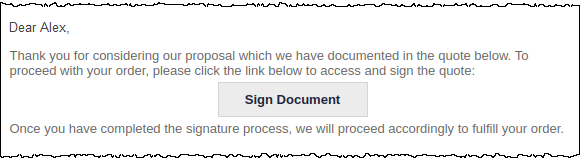
Naturally, the text of the provided template can be customised.
In cases where the user prefers an alternative method of providing the quote link (e.g. via an Outlook email), a quote link can be generated in CommTrak and copied and pasted as required.
To send a Quote with electronic signature, or to generate a link, press the Advanced button at the bottom of the Quote screen:

The Advanced quote options pop-out window is displayed:

Press New Email to edit and send the Quote email directly from CommTrak, or press the Generate button to obtain a direct link for copying and pasting.
When the link is clicked by a contact, a signable quote will be presented to them in a web browser, as shown in the following image:
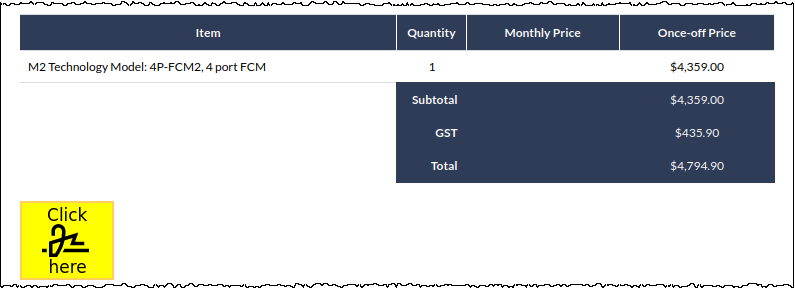
When the yellow signature icon is pressed, the contact is presented with options for signing by drawing or typing:

Once the signature has been applied, both the sales person and the contact receive an email advising them that the quotation has been signed.
The signed document is also automatically attached to the Lead:

To ensure continuity of existing functionality, a quote can still be modified after it has been electronically signed.
To prevent modification to electronically signed quotes, navigate to Settings > Leads Settings > Miscellaneous, and change Disable quote editing after it has been electronically signed to Yes.
Quote History
A history of the access to the quote document can be viewed in the Advanced Quote Options pop-up window, or by pressing the History icon in the Quote Options section. Expand the Quote Options section by pressing the arrow in the Quote Options section header (highlighted in the following image):

Then, press the History (clock) icon to view the details:

For more information about Quotes Electronic Signature features, please refer to the following Support Centre articles:
- Quote Electronic Signatures
- Signable Quote Email Templates (Settings)
- Leads Miscellaneous (Settings) (various settings pertaining to Leads and Quotes)
Quote Automated Reminder Emails
Complementing the electronic signature functionality, CommTrak now offers a quote reminder feature. Sales staff can set automated email reminders for their contacts, aimed at ensuring timely follow-ups for sent quotes. This feature has been developed to assist in maintaining momentum in the sales pipeline and reducing the chances of missed opportunities.
Electronic signature on a Quote is not a requirement for the Quote Reminder feature. Automated reminders can be sent for any Quote that has been sent to a contact.
The starting point for Quote Reminders is the validity period of the quote; the global default is 30 days (specified in Settings > Leads Settings > Miscellaneous).
The Valid From date can be modified in the Quote:

The expiry date of the quote is based on the Valid From date of the quote, and the global default duration. Quote Reminders are activated in the Advanced quote options window (accessed by pressing the Advanced button at the bottom of the Quote screen):
Pressing the Advanced button displays the Advanced Quote Options window:

Change the Send Expiry Reminders option to Yes.
The reminder templates specify the email template to use, and the intervals at which the reminders will be sent. These are configured in Settings > Leads Settings > Quote Automated Email Reminders.
Once selected, the reminder Intervals section is displayed (visible in the previous image).
The Reminder Intervals indicate the number of days after the previous email was sent. For example, in the previous image, the first reminder will be sent 1 day after the initial Quote email is sent, the second reminder will be sent 3 days later (i.e. 4 days after the initial email) and the final reminder will be sent 10 days after the second reminder (i.e. 14 days after the initial email).
When ticked, the Expiry Day Reminder option (visible in the previous image) will send a reminder on the day the Quote is due to expire, regardless of any other reminders that have been sent.
The Quote History section displays the relevant quote activity (if any):

For more information about the Quote Automated Reminder Emails feature, please refer to the following Support Centre articles:
Customers
Previous Names / Also Known As
This practical enhancement to the customer profile provides a field for the purpose of recording previous names of a customer, or names by which they are also known.
Located in the More Info section of the Customer Screen, multiple names, separated by commas can be entered, as shown in the following image:

When entering text into any customer search field in CommTrak, the names in the Previous Name(s) field will also be searched. The following example shows the search results for "Uplift":

The previous image shows that the results include the current Company Name (Spotty Lifts), and the Previous Name(s) are also shown in the search results.
For more information about this feature, please refer to the More Info section in the Customer Screen article.
Jobs /Tickets
Productivity Timers
Timers can be used for tracking the duration of activities in any Ticket or Job, and have been designed to aid staff in recording the duration of their daily activities.
The Timer field is located with the other productivity activity fields, under the New Note section header:

A timer is started by pressing the green start icon (visible in the previous image).
Once started, a timer can be paused and restarted as many times as needed during a day, by pressing the yellow pause icon:

When the activity has been completed, pressing the stop icon adds the details of the timer into the productivity section of the Ticket / Job:

The cumulative duration for the timer is rounded up to the next 5 minutes and displayed in the Time Spent field together with the date and the original start time of the timer (visible in the previous image).
When the Note is Saved, the activity information is included in the Note header:

Active Timers
Active timers continue to run in the background and are indicated by the timer icon in the Information bar:

Hovering the mouse cursor over the timer icon displays a pop-up tip showing a summary of active timers:

Pressing the timer icon displays the Current Productivity Timers pop-up window:

Timers can be paused, restarted or deleted from the pop-up window, and a shortcut to the relevant Ticket / Job is provided in the Related To column.
Staff members can only view and interact with their own timers.
For more information about the Productivity Timer features, please refer to the following articles:
Tickets
Active Tickets Screen - ticket subtype filtering
A Ticket Subtype filter has been added to the Ticket Type criterion in the Tickets Search section of the Active Tickets screen (Tickets on the CommTrak main menu).

To filter the Active Tickets list by Ticket SubType, tick the box adjacent to the Ticket Type and press the filter icon (visible in the rightmost column in the previous image).
The Subtype filter list is displayed:

Pressing the Find button will update the Active Tickets list accordingly.
Once applied, all Ticket filters are 'remembered' and will continue to be applied upon returning to the screen at a later time. Be sure to remove filters that are no longer required!
To clear Ticket Subtype filters, you must either:
- Untick unrequired subtypes
or
- Clear all subtypes for the current Ticket Type by pressing the white reset icon (visible in the previous image) at the top of the Filtered Ticket Subtypes filter.
Press the Find button to update the filters.
For detailed information pertaining to the Active Ticket Search filters, please refer to the Tickets Search section in the Active Tickets Screen Support Centre article.
Customer Tickets Screen - Search Enhancements
The Customer Tickets search has been enhanced as follows:
- The following fields are searched for a match to the search characters::
- Ticket ID
- Subject
- Description
- Notes
- Digits in the above fields are now included in the results (previously, digits-only searches were only matched against Ticket ID)
- Partial Ticket IDs (either with or without the TK prefix) are now included in the search results.
Please review the following example searches; the enhancements will be particularly useful to team members who frequently work in the Customer's Ticket tab:
Example Customer Ticket Searches
The following image shows results where the text cab has been entered into the Search field. Results are displayed in the dropdown list as-you-type (minimum 3 characters required). In this example the searched text has been found in the Subject of two tickets; note that the matching characters are highlighted in the results:

In the following image, the text 743 has been entered into the Search field. In this example, for which there is only one result, there is no highlighted text. This indicates that the matching characters have been found in either the Ticket Description or within the text of a Ticket Note:

In the next example image, the text 1044 has been entered into the Search field. There are two results; in the first result there is no highlighted text, indicating that the matching characters have been found in either the Ticket Description or within the text of a Ticket Note. In the second the result, the Ticket ID matches the search characters:

Partial Ticket ID matches are now included in the results (previously only a complete Ticket ID match would be included):

In all cases, when results are shown in the dropdown list, any item in the search results dropdown can be pressed to display the Ticket in the current tab.
Pressing the Find button filters the Customer's tickets lists to show only matching Tickets.
To reset the filter, clear the Search field and press Find.
For more information refer to the Customer Tickets Screen article in the Support Centre.
Reports
Customers Reports - contact columns added
Additional columns are now included in the Customers Report when the Customers with contacts in select departments criterion is selected:
- Contact Title
- Contact Phone
- Mobile Number
- Contact Email
Jobs
Job Schedule updates now save Job record
Recent updates to the Job screen provided enhancements for entering and modifying staff schedules. When a modification was made to a schedule, pressing the Update button in the Job Schedule Window (visible in the following image) updated the schedule fields, but did not save the Job, which was required as an additional action.

As a result of feedback from our users, we have modified the behaviour of the Update button so that it updates the schedule field and immediately saves any changes made to the Job.
For more information about the Schedule field in the Jobs screen, please refer to the following Support Centre article:
General
Template Placeholders - click to copy to clipboard
When creating or editing email templates within CommTrak, the available placeholders (shown in the Legend) can now be copied to the clipboard by clicking the required item:

When clicked, the item will be copied to the clipboard in plain text (i.e. without any formatting), ready for pasting directly into the template.
For more information about email templates, see the following Support Centre article:
Tip: Windows 10 & 11 users have access to the Clipboard History feature, which enables you to recall previous clipboard entries, pin commonly-used clipboard items, and even sync your clipboard history across devices.
You may have to enable clipboard history in Windows settings; see Clipboard in Windows (link to Microsoft support website) for further information.
Concurrent Viewer Alerts - alerts on active tabs only
Concurrent viewer alerts now only show users who are viewing the record in an active browser tab. If a record is open, but the tab is not active, an alert will not be shown to other users.
For more information about this feature, see the following article:
- Concurrent Viewer Alerts article.