
Quote Electronic Signatures
Introduction
The Electronic Signature feature in CommTrak's Quotes module enables users to send quotes that include an option for a contact to electronically sign the document online. Optionally, the electronic signature feature can be utilised in conjunction with the Quote Automated Email Reminders feature which, when enabled, automatically sends email reminders to the contact at specified intervals, to remind them of the quote expiry date.
The following image shows how an electronic signature is presented to a contact when they are viewing a quote:
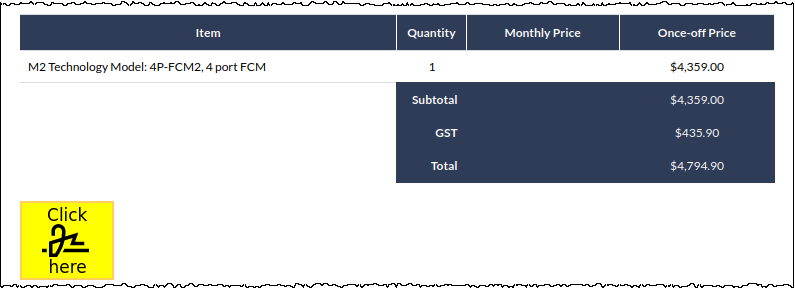
When the yellow signature icon is pressed, the contact is presented with options for signing by drawing or typing:

Once the signature has been applied, both the sales person and the contact receive an email advising them that the quotation has been signed.
When selecting a Quote Template for the quote, the selected template must include an electronic signature placeholder. This ensures that the signature field is correctly positioned and formatted within the quote, enabling contacts to sign the document.
For information pertaining to the configuration of Quote Templates, please refer to the following Support Centre articles:
Quote links are typically sent directly from CommTrak, and we have provided a standard email template containing a button that will take your contact to a web page with the signable quote:
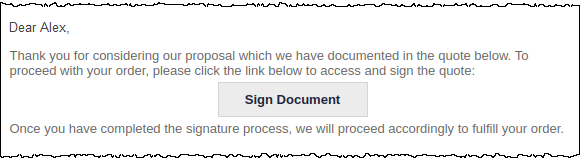
The content of the email body can be edited prior to sending, but it is vital that the Sign Document button is neither deleted nor modified in any way, as it is vital to the electronic signature process.
We recommend that the email template is modified in the Signable Quote Email Templates section of the CommTrak settings, such that it confirms to your organisation's branding requirements.
Using Electronic Signatures in Quotes
The steps to utilise electronic signatures in quotes are:
- Create and save a Quote ensuring that a quote template with electronic signature is selected
- Optionally enable Quote Automated Email Reminders
- Email the Quote to the contact:
Email the Quote to the Contact
To email a Quote to a contact:
In the Quote screen, press the Advanced button:

The Advanced quote options pop-out window is displayed:

We recommend using the New Email option to send signable quotes to contacts. However, it is possible to generate a link that can be copied and sent to a contact via other means (e.g. via Outlook email, or direct messaging application such as Microsoft Teams).
See the Generate Quote Link section for further information about this feature.
Press New Email to edit and send the Quote email directly from CommTrak, or press the Generate button to obtain a direct link for copying and pasting.
When the New Email button is pressed, the standard CommTrak email pop-up window is displayed:

Each email recipient of a quote link receives a unique link which is associated with their email address. See Quote Link History for additional information.
Note the highlighted sections in the previous image:
- The contact associated with the Lead is automatically added as the email recipient.
A contact must have been previously specified in the Lead, and the contact must have an email address in their contact record.
- A signable quote email template must be selected.
The email body can be edited, but the document link (displayed as a button in the previous image) must not be deleted, otherwise the recipient will not be able to access the electronically signable quote.
Pressing Send in the email pop-up window will immediately send the quote email to the specified contact and add a note to the Lead.
Quote History
All activity pertaining to the quote is stored in the Quote History field of the Advanced Quote Options pop-up window (accessed via the Advanced button in the Quote).

The example in the previous image shows the history immediately after the email was sent to the contact.
The quote history includes:
- Activity (e.g. Quote link sent)
- Name of the staff or email address of the contact to whom the quote link was sent
- Date / time of the activity
- IP address of the device that caused the activity
As activity progresses, it is recorded accordingly:

Quote history can also be viewed via the History icon for each quote in the Quotes tab within a Lead:

Quote Link History
When a quote link is emailed to a recipient, the link contains a unique identify that associates the recipient's email address with the link.
This is how the quote history is able to display the email address of the contact who completed a quote activity:
In the previous image, we can see that Peter Smith's email address is associated with the View Quote activity.
If a contact forwards or otherwise shares their Quote Link with another person, the link will still be associated with the email address of the contact to whom the link was originally sent. Using the previous image as an example, if Peter Smith forwarded his quote email to a colleague (Sam), and Sam opened the link, Sam's activity would be tracked against Peter's email address.
Where a quote email is sent to multiple recipients, as shown in the following example screenshot, each of the recipients would receive a unique link, so quote activity would be logged for each recipient:

The following image shows an example quote history where two recipients of the same quote email have viewed the quote:

Expired / Disabled Quote Links
If a contact clicks on a quote link that has expired or otherwise disabled, they will be presented with a notification in place of the quote document:

Generate Quote Link
As an alternative to directly emailing a quote link to a contact from within CommTrak, it is possible to generate a unique link that can be copied and sent to a contact via other means (e.g. via Outlook email, or direct messaging application such as Microsoft Teams).
Press the Generate button in the Advanced Quote Options window:

When the Generate button is pressed, two buttons are displayed:

- Copy - copies the link to the device's clipboard. The link can be pasted as text into any application as required (e.g. Outlook email, Microsoft Teams chat, etc.)
- Disable - Permanently and irrevocably disable all generated links for this quote (not just quote links generated by the current user)
If a quote link has been disabled, it cannot be re-enabled. However, a new quote link can be generated.
Generated Link Quote History
Quote activity that occurs via a generated link will always be associated with the CommTrak user who generated the link. For example, If Isabella Wilson generates a quote link and sends the link to Peter Smith via an Outlook email, when Peter views the quote, the history will show Isabella Wilson's name against the View Quote activity.