
Productivity Timers
If you cannot see the Productivity Timer features in your CommTrak, they can be enabled in Settings > General Settings > Miscellaneous > Enable productivity timers in jobs and tickets
Timers can be used for tracking the duration of activities in any Ticket or Job, and have been designed to aid staff in recording the duration of their daily activities.
A staff member can start as many timers as required, but only one timer can be active per staff member per Ticket / Job. For example, two separate staff members can start their own timer on the same Ticket. However, each staff member will only have access to their own timer on that Ticket.
All timers are permanently paused at 11:00 pm each day, and cannot be restarted.
The screenshots in this article are from the Tickets module, but the display and behaviour of Timer features is the same for both Tickets and Jobs.
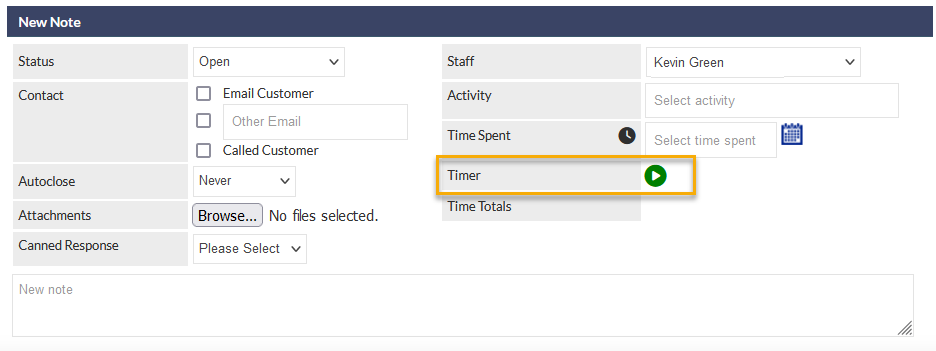
The Timer field is located with the other productivity activity fields, under the New Note section header:
Starting a Timer
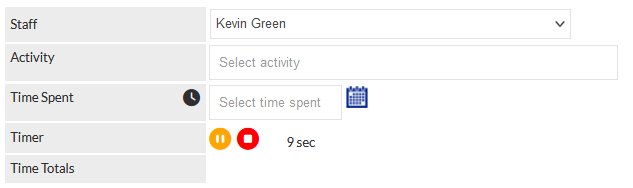
A timer is started by pressing the green start icon (visible in the previous image). When pressed, the Timer field updates to display:
- A Pause icon
- A Stop icon
- The current duration of the timer (updated in real-time)
A timer continues to run until one of the following events occurs:
- The Pause icon is pressed in the Ticket / Job. The timer is paused and can be restarted during the same day. See the Pausing a Timer section.
- The Stop icon is pressed in the Ticket / Job. The timer is stopped and cannot be restarted. See the Stopping a Timer section.
- The time is 11:00 pm or later. A timer cannot run past 11:00 pm; at this time, the timer is paused and cannot be restarted.
A timer will continue to run, even when leaving the screen in which the timer was started. See the Background Timers section for more information.
Pausing a Timer
When the yellow Pause icon (visible in the previous image) is pressed, the timer temporarily stops until one of the following events occurs:
- The Pause icon is pressed in the Ticket / Job. The timer is paused and can be restarted during the same day. See the Pausing a Timer section.
- The Stop icon is pressed in the Ticket / Job. The timer is stopped and cannot be restarted. See the Stopping a Timer section.
- The time is 11:00 pm or later. A timer cannot run past 11:00 pm; at this time, the timer is paused and cannot be restarted.
Stopping a Timer
When the red Stop icon (visible in the previous image) is pressed, the timer permanently stops and cannot be restarted.
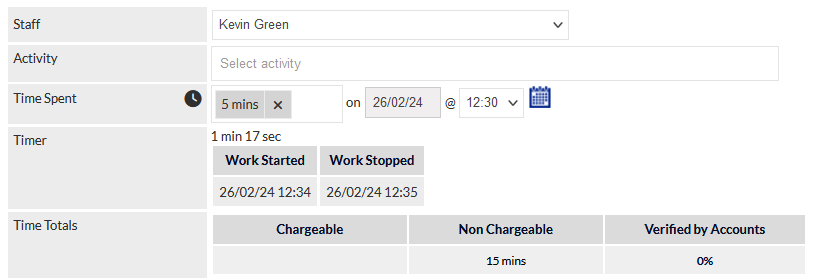
The productivity section in the Job /Ticket is updated with the recorded time:
If a timer has previously been paused and restarted, an entry is shown for each active duration:
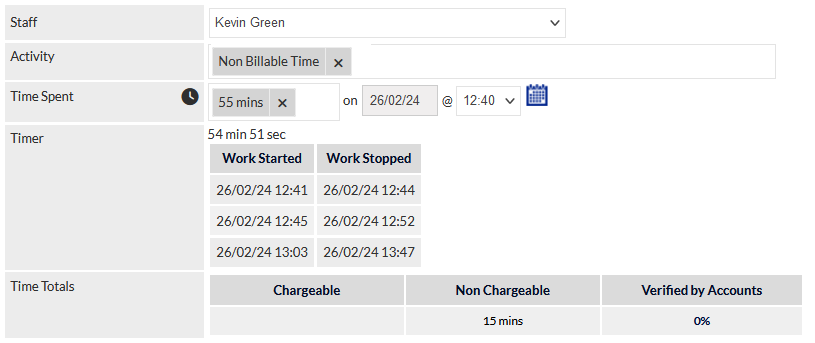
The cumulative duration for the timer is rounded up to the next 5 minutes and displayed in the Time Spent field together with the date and the original start time of the timer.
An Activity must be specified when adding productivity time. In the previous image, the Non Billable Time activity has been selected.
To clear the Timer field and Time Spent fields, press the X icon adjacent to the duration in the Time Spent field.
Clearing the Timer field occurs immediately when the Time Spent X icon is pressed. This action is irreversible and the Timer information cannot be recovered for the current note.
To accept the duration recorded by the timer, add some text into the New Note field, and press the Save button.
The text of the Note will be autocompleted with the Activity name under the following circumstances:
- No text has been entered into the New Note field.
- Enable autofill of job/ticket notes using productivity activity is set to Yes in the General Miscellaneous settings.
The following image shows an example of a Note for which the note text was auto-completed based on the selected activity.

Active Timers
An active timer will continue to run in the background, even when not viewing the screen on which the timer was started.
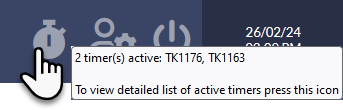
When a staff member has one or more active timers, the timer icon will be displayed in their CommTrak Information Bar as shown in the following image:

Hovering the mouse cursor over the timer icon displays a pop-up tip showing a summary of active timers:
Pressing the timer icon displays the Current Productivity Timers pop-up window:

The following actions are available:
Related To - press the component link to view the Ticket or Job. The component will be displayed in a new browser Tab
- Restart Timer - Pressing the start icon in the Actions column restarts a paused timer
- Pause Timer - Pressing the pause icon in the Actions column pauses an active timer
- Delete Timer - Pressing the delete icon in the Actions column deletes a timer (a confirmation prompt will be displayed prior to deletion.
Close the pop-up window by pressing the red close icon, or navigate away from the screen.