What's New December 2020
Important Notice
- Granting Microsoft 365 Permissions to CommTrak NOTICE
- Selecting Email Addresses in the Tickets & Jobs Module Update
- Customer Portal UPDATE
- Two Factor Authentication (2FA) UPDATE
- Simultaneous Device Sign-In NEW
- Custom Fields NEW
- Productivity Reports UPDATE
- Reports - Leads UPDATE
Granting Microsoft 365 Permissions to CommTrak
In this release we have enhanced the Microsoft 365 API permissions functionality.
A CommTrak Supervisor with Microsoft 365 Administrator access must enable these permissions, as required, to maintain the ability to access Ticket Email and Calendar Synchronisation features.
The Microsoft API feature updates have been driven by the Microsoft’s planned removal (in June 2021) of basic authentication for accessing Microsoft 365 features (such as email accounts).
We have now modified the functionality so we can keep track of which permissions have been granted within the platform. So, if calendar synchronisation is currently enabled, and we release an update to ticket emails, calendar synchronisation is not affected; it continues as normal, and we only prompt for additional permission if you use the new feature.
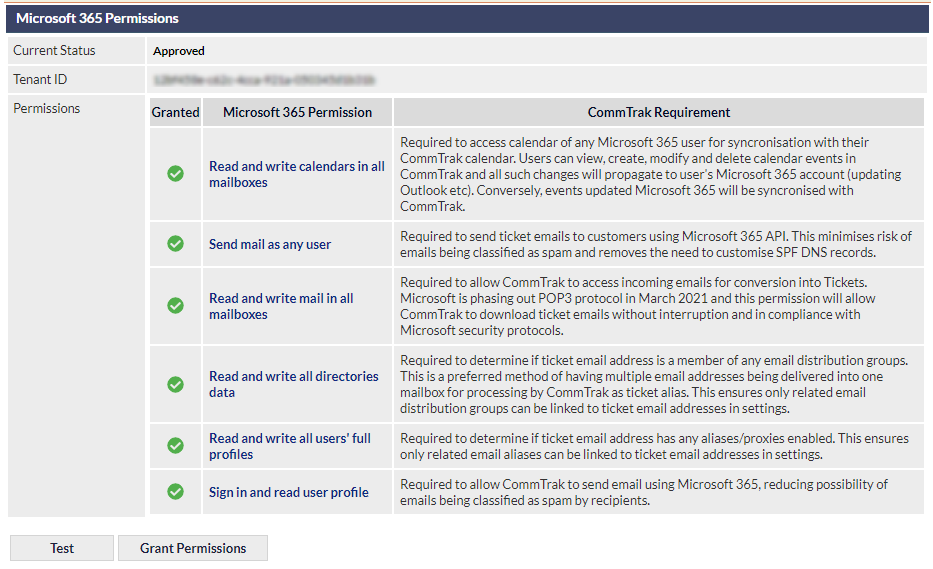
Microsoft 365 API permissions are modified in Settings > General Settings > Microsoft 365 Integration:
https://support.commtrak.com.au/article/318-microsoft-365-integration-settings
The screenshot below shows the updated permissions screens, which explains the requirement for each permission in detail:
Some of these permissions are not required for normal operations, and are only required for simplifying the configuration of some features, such as the permissions for determining which aliases and distribution groups are related to the main Ticket email account; if this permission is not enabled, a notification will be displayed in the relevant area of the Tickets From Emails settings:
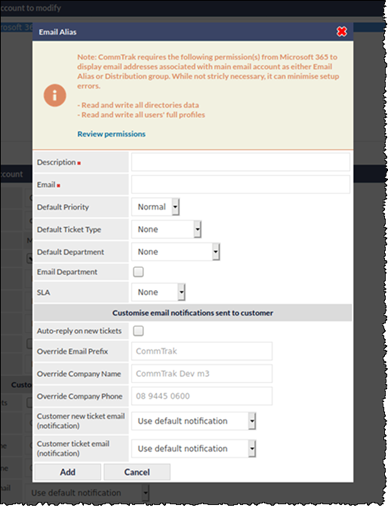
For configuration of Tickets From Emails and further information relating to aliases and distribution groups, see Support Centre article, Tickets From Emails (Settings).
Selecting Email Addresses in the Tickets & Jobs Module
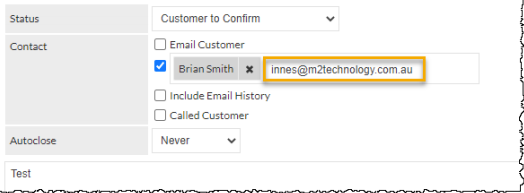
A few months ago, we added the ability to select an email address from your Customer contact list, your Staff list, or by manually typing in the address, in the Email sections throughout CommTrak.
This feature has now been added to Tickets and Jobs, when utilising the Other Email field for a new note. This will make it easier to include your staff in Ticket emails, and include any cc’d participants who may have received the original email.
Tickets Module
Jobs Module
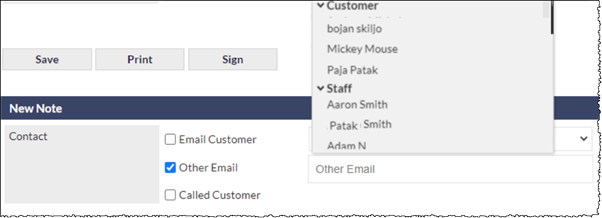
For detailed information about this feature, see Support Centre article, Entering Email Addresses & Adding Attachments.
Customer Portal
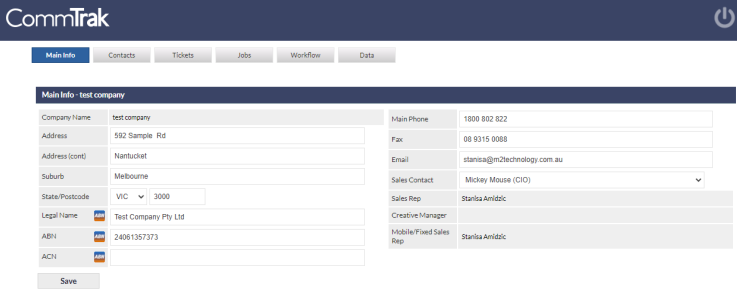
We have added Legal Name, ABN, and ACN management to the customer portal:
Two Factor Authentication (2FA)
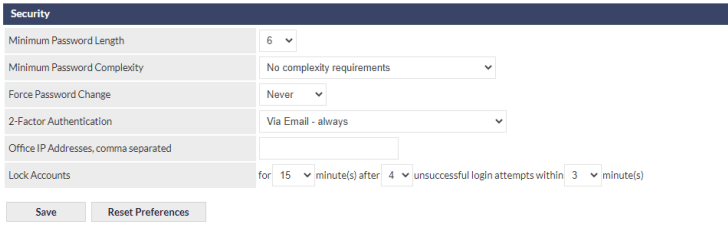
One of the more heavily used security options, 2FA (Two Factor Authentication), has been enhanced to increase the speed of delivery, and the new 365 API eliminated the occasional “fail to receive” issues that were occurring. This will improve the experience of customers using the Customer Portal.
Also, to assist remote and field workers that access CommTrak via multiple devices and use 2FA, there have been enhancements to assist here:
Simultaneous Device Sign-In
We have always been cautious about allowing a user to sign-in to multiple devices without re-entering user credentials. With the introduction of 2FA as an improvement to platform security, it did introduce complexity that we believe we now have resolved, and without compromise to that all-important platform security.
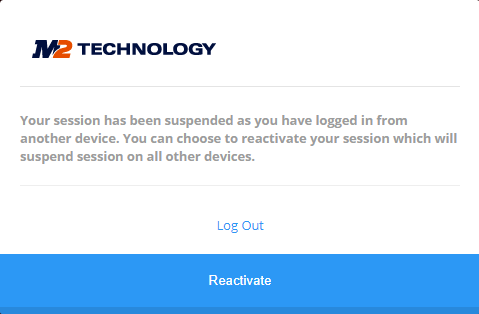
As you open different instances of CommTrak on different devices, you will be offered the above message when you try to re-access the initial instance. You can now continue to access different devices without re-entering your username and password, as long as you do not sign out. If you are using a mobile device, with 2FA, you will only need to do this once per session, then as long as you do not sign out, you will be able to switch between a laptop and a mobile device, for example, as required. Just press the Reactivate button.
Custom Fields
CommTrak now allows you to create Custom Fields in most of the main modules. You will require Admin Access to add these custom fields.
Custom Fields can be added to:
- Contacts
- Customer
- Job
- Lead
- Project
- Ticket
- Workflow
Available field types are:
- Checkbox
- Checkbox (Multi)
- Date
- Dropdown
- Text Area
- Text Field (default)
Custom Fields can be made mandatory.
Configuration of Custom Fields is detailed in the Support Centre article, Custom Field (Settings).
Searching Custom Fields
On the CommTrak Home Screen, Custom Fields can be searched for in the By Other search field:
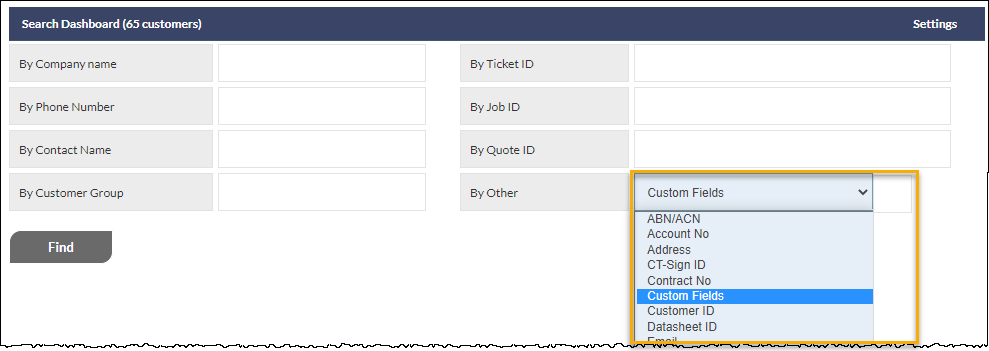
As with all items in the By Other dropdown list, the Custom Fields search box can be added to the main search fields by clicking the search Settings option (shown top-right in the above image) and customising as required. See Support Centre article Search Dashboard for more information about customising this area.
Custom Search Fields in Reports
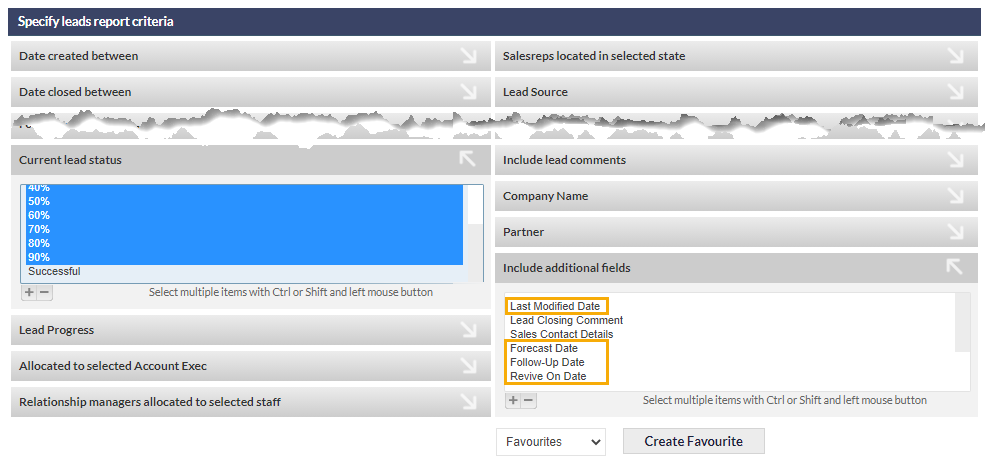
All Custom Fields you create will be available in the Include additional fields criterion in the Report for the associated module:
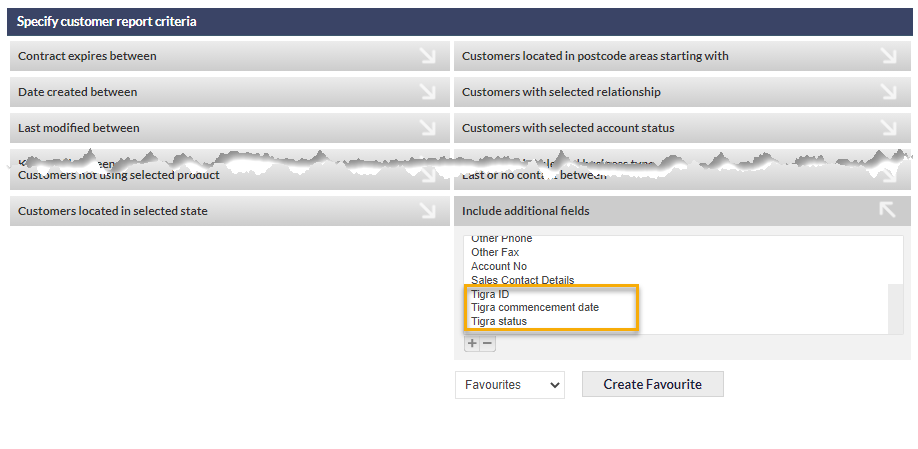
See Support Centre article Custom Fields for more detailed information.
Productivity Reports
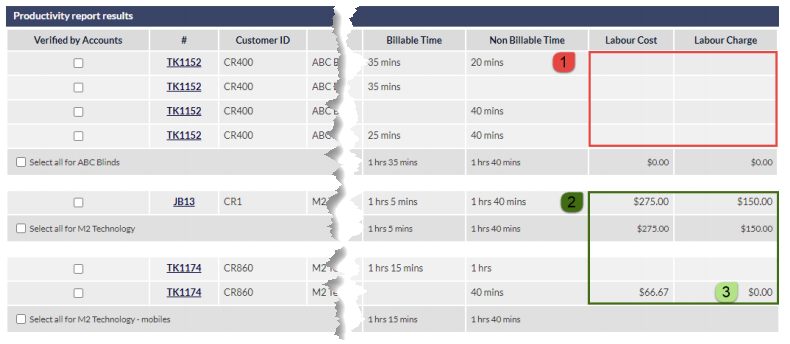
If you have configured the Labour Matrix, the Productivity Reports will now show the Labour Cost and Labour Charge rate.
- Shows the impact of the Matrix NOT being set up
- Shows the impact of the Matrix being available
- Shows the impact of only Non-Billable time (that is, a cost but no revenue)
Reports - Leads
It was requested we add some additional information to the Leads Report to identify the compliance with some fundamentals of the sales process:
- Are leads being followed up?
- Are forecast dates being set, modified and achieved?
- Are leads being actively followed up?
By adding the following additional fields to the search criteria, these outcomes can be identified.
- Last Modified Date
- Forecast Date
- Follow-Up Date
- Revive On Date (if applied to an unsuccessful lead)