
Tickets From Emails (Settings)
It is vital that Tickets From Emails addresses, distribution groups and aliases are not used for any purpose other than receiving emails which are to be converted to CommTrak Tickets. If a Tickets From Emails mailbox is accessed by other means (e.g. it has been configured as a mailbox in an Outlook client, or it is in use by another ticketing system), it is possible that issues will occur, such as 'infinite loops' (emails bouncing between systems indefinitely), or emails being 'overlooked' by CommTrak, because another email client or system has previously accessed that email or marked it as 'read', or deleted it. When CommTrak converts an email to a Ticket, the email is irrevocably deleted from the email account.
Please ensure that you are familiar with all Tickets From Emails settings, features and Known Alias Limitations, prior to implementing or modifying this feature.
Tickets can be created automatically from incoming emails which have been sent to designated email addresses. Tickets From Emails can automatically be allocated with:
- Ticket Priority
- Ticket Type
- Ticket Department
- Email Department
- SLA (Service Level Agreement)
- Auto-Reply email
Tickets From Emails configuration requires at least one email account configured with your email service provider (e.g. a unique Microsoft 365 mailbox account dedicated to CommTrak Tickets From Emails), to which customers will send their email. If required, additional Tickets From Emails addresses can be configured either as:
- Separate mailbox accounts (e.g. an additional Microsoft 365 mailbox account for each Tickets From Emails address)
or
- Aliases to the main email account (configured as aliases/distribution groups for an existing email account with your email service provider). Please refer to the section, Known Alias Limitations, below, prior to implementing aliases.
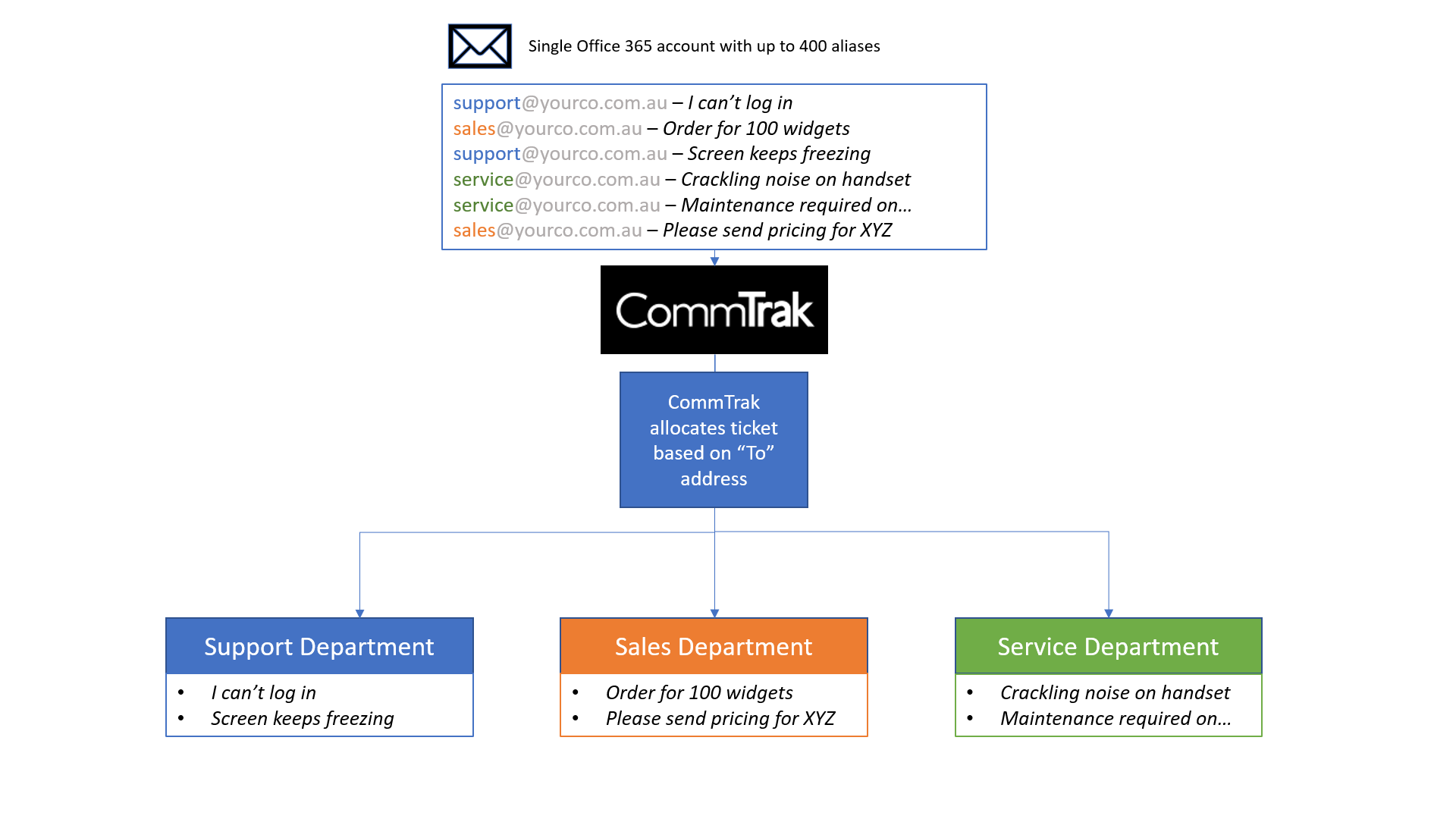
The benefit of configuring aliases is that only one mailbox account is required; CommTrak can be configured to read all the emails sent to the main mailbox account, and determine to which alias email address the message was sent. The email is then assigned to the appropriate Tickets From Emails configuration within CommTrak, i.e. emails will be converted to tickets which are assigned to the correct department, etc, as shown in the following image:
Accessing Tickets From Emails Settings
Settings > Ticket Settings > Tickets From Emails
Add a Tickets From Emails Entry
When a new Tickets From Emails mailbox is configured, all emails (if any) currently in that inbox will immediately be converted to CommTrak Tickets, which results in the contents of the mailbox being deleted. Prior to adding a mailbox, please ensure that either the mailbox is empty, or you do want all the emails to be converted to Tickets. Once deleted, emails cannot be restored to the mailbox, other than via your organisation's email backup/restore process.
At least one email mailbox must be configured.
Complete the following fields in the Add new ticket email account section:
The following fields are mandatory:
- Description - a label for the type of ticket from email
- Email - the receiving email address (the email address to which the customer will send the email)
- POP3 Mail Server - the mailbox for the incoming emails
- POP3 Port - the POP3 port for the email server
- Username - the username required to sign-in to the mailbox
- Password - the password used to sign-in to the mailbox
The following fields are optional:
- Default Priority - the specified ticket priority will be assigned to all emails sent to the designated email address
- Default Ticket Type - the specified ticket type will be assigned to all emails sent to the designated email address
- Default Department - the specified department will be assigned to all emails sent to the designated email address
- Email Department - ticking this box will cause CommTrak email notifications to be sent to relevant staff members, when emails are received in the mailbox
- SLA - the service level agreement to be assigned to emails sent to the designated email address
If an SLA is specified, it will only be applied to incoming tickets if the sending company has that SLA assigned on their main customer screen.
- Auto-reply on new tickets - if this option is ticked, an auto-reply email template can be specified.
- Auto-reply email template - specify an email template to be sent to the customer upon receipt of their email. This field is only visible if the previous field is ticked.
Auto-reply email templates are configured in the Ticket Email Templates Settings.
The following override fields, which affect the outgoing email subject and placeholders for the currently selected Tickets From Emails setting, can also be specified if required. These fields are useful when, for example, a single implementation of CommTrak is used within an organisation that provides email support using a different name to the main business (e.g. different divisions within the organisation use an alternative company name or contact telephone number):
- Override Email Prefix
- Override Company Name
- Override Company Phone
Select the type of notifications that will be sent to staff when a ticket is created or updated, by selecting an option from the following fields:
- Customer new ticket email (notification)
- Customer ticket update email (notification)
The available notification options for the above fields are:
- Use default notification - plain text notification email
- Standard HTML notification - HTML notification email
The content of the default notification can be customised in Settings > General Settings > Labels & Strings.
Testing and Saving the Email Configuration
When the required fields have been completed, it is recommended that the Ticket mailbox settings are tested by clicking the button.
CommTrak will attempt to access the designated mailbox, and will provide a notification if the connection was successful or unsuccessful. If an error is detected, please check the mailbox credentials, and then retest.
When the test has been completed successfully, click to save the settings.
Modify an Existing Tickets From Emails Configuration
- Select a Tickets From Emails configuration from the list displayed at the top of the settings screen
- Modify the fields as required
- Test the configuration by clicking
- Click
Deleting an Existing Tickets From Emails Configuration
- Select a Tickets From Emails configuration from the list displayed at the top of the settings screen
- Click
Deleting a Tickets From Emails setting cannot be reversed. Emails sent to the mailbox specified in the deleted email configuration will no longer be processed by CommTrak.
Add Alias
Prior to adding an alias email address, at least one Tickets From Emails address must have been configured within CommTrak. Also, please read the Known Alias Limitations section prior to implementing aliases.
Before a Tickets From Emails alias will work, it must have been correctly configured using the appropriate method for your email service (e.g. Microsoft 365). Please refer to the Known Alias Limitations section, below. Configuring aliases on your email service account is beyond the scope of this article; please contact your IT department or IT service provider for further information.
The following steps relate to adding a Tickets From Emails alias within CommTrak:
- Select a Tickets From Emails configuration from the list displayed at the top of the settings screen
- Click (located below the Tickets From Emails fields)
- The Email Alias pop-up window is displayed
- Provide a Description for the Tickets From Emails alias (mandatory)
- Provide the Email Address for the Tickets From Emails alias (mandatory)
- Complete the optional fields (these fields are the same as the optional fields listed in the Add a Ticket From Email section, above)
- Save the new alias setting by clicking , or cancel the entry by clicking
Modifying an Existing Tickets From Emails Alias
All Tickets From Emails aliases (if any) are displayed as clickable links, listed below the fields for the currently-selected Tickets From Emails account.
- Click a Tickets From Emails configuration from the list displayed at the top of the settings screen
- Click the link for the required email alias
- In the pop-up window for the alias, make the required changes to the email alias fields
- Click (or click the red cross at the top-right of the pop-up window, to cancel any changes)
Deleting an Existing Tickets From Emails Alias
All Tickets From Emails aliases (if any) are displayed as clickable links, listed below the fields for the currently-selected Tickets From Emails account.
- Click a Tickets From Emails configuration from the list displayed at the top of the settings screen
- Click the link the for required email alias
- In the pop-up window for the alias, click (or click the red cross at the top-right of the pop-up window, to cancel any changes)
Known Alias Limitations
Rather than using 'direct' aliases, we advise implementing distribution groups as detailed in the Support Centre article: FAQ - Configuring MS 365 Aliases / Distribution Groups.
This section refers to a known limitation pertaining to the way in which Microsoft 365 alias email addresses are managed within CommTrak, when an email is sent to a Ticket alias email address from within your organisation's MS365 email domains. Emails sent to alias email addresses from outside your organisation's MS365 email domains are not affected by this limitation.
Prior to implementing email aliases for Tickets, please ensure that you are aware of the limitations and mitigations described in this section.
Due to a known Microsoft configuration issue, although an email sent (or forwarded) from an internal email address to an alias email address will be converted to a Ticket, CommTrak will not recognise the Ticket as having been received by the alias email address; it will be processed as though it was sent to the main Ticket mailbox.
This means that any emails sent from within your organisation's MS365 email domains, to an aliased Ticket email address, will be allocated as per settings for the main Ticket mailbox. This only affects emails sent from a domain name configured within the same MS365 account as your main Ticket mailbox. Emails sent from other domain names will be correctly allocated according to the alias email address Tickets From Emails settings. Microsoft has acknowledged this issue, but has not provided a timeline for resolution.
Examples of scenarios in which this needs to be considered are:
- Your sales team send emails to a sales support Ticket email address for processing by another staff member
- You receive an email from a client, and forward it from your email inbox (e.g. from Outlook) to a Ticket email address
In the above scenarios, regardless of which alias address the email is sent to, the Ticket will be processed by CommTrak as though it was sent to the main Ticket mailbox.
Mitigations
In lieu of a solution from Microsoft, mitigations should be considered. Using the above example scenarios:
- Create a dedicated mailbox (i.e. not an alias) to which the Sales Team can send emails
- After forwarding an email (e.g. from Outlook) to an alias Ticket email address, staff should immediately, manually allocate the Ticket in CommTrak to the correct Ticket Department, Ticket Type, etc.
If CommTrak Overdue Alarms are enabled for unallocated Tickets, all CommTrak users will be alerted if any Ticket has been unallocated.
Best Practice Recommendation:
We recommend use of Overdue Alarms as best practice in all circumstances.
Migration to Alias Best Practice
Please read the Known Alias Limitations section prior to migrating Tickets From Emails mailboxes to alias email addresses.
If you are already using individual mailboxes for Tickets From Emails, and wish to migrate those mailboxes to aliases, we recommend the following process:
- Create a new (previously unused) Microsoft 365 mailbox account to use as the 'master' Tickets From Emails account. E.g. tickets@yourorganisation.com.au
- Create a test alias address for the above mailbox. E.g. tickettest@yourorganisation.com.au
- Add a new Tickets From Emails entry in CommTrak, and use the Test feature to ensure that CommTrak can connect to the mailbox.
- Add the alias (from step 2) as a test Tickets From Emails alias.
- Send an email to the new alias email address, and ensure that it is received and allocated correctly.
- Once the above test has been completed successfully, migrate each existing mailbox Tickets From Emails setting to an alias on the master mailbox. We recommend that migration should occur at a time that will least impact business operations.