
Microsoft 365 Integration (Settings)
To activate CommTrak's Microsoft 365 Integration features, permissions must be granted to CommTrak by a Microsoft 365 Global Admin.
If a user without Global Admin permissions activates this feature, this is likely to cause issues with the Microsoft 365 / CommTrak integration.
The permissions are required for CommTrak to integrate with Microsoft 365 to:
- Enable CommTrak calendar synchronisation
- Allow CommTrak to convert incoming emails to CommTrak Tickets
- Allow users to send emails from CommTrak, using the Microsoft 365 email address as the sender
- Determine users' email address. This ensures users are only able to access their own calendars unless explicitly permissions are provided.
Once the Microsoft 365 integration has been activated, each user must enable calendar synchronisation in their CommTrak account; please direct users to the following article, for detailed instructions: Outlook Calendar Synchronisation (Microsoft 365)
Accessing Microsoft 365 Integration Settings
Settings > General Settings > Microsoft 365 Integration
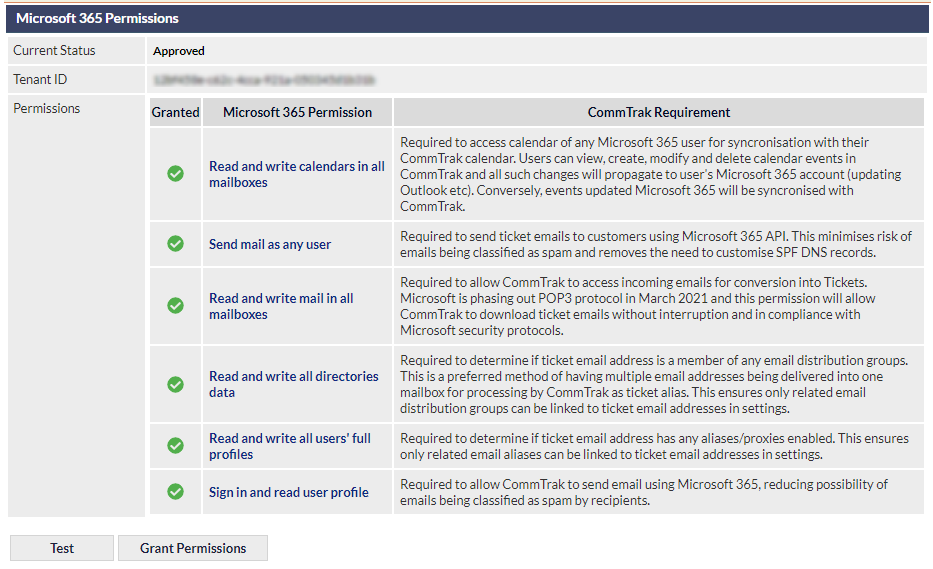
Granting Permission for Microsoft 365 Integration
Please read the Permissions information, then click to confirm.
You will be prompted to provide Microsoft 365 credentials.
The credentials provided must be for a Microsoft 365 Global Admin account.
Follow the prompts to authenticate the Microsoft 365 Global Admin account.
Once the authentication process has been completed, the Microsoft 365 integration features will be available within CommTrak.
Testing the Microsoft 365 Integration
To test that the Microsoft 365 integration authentication has been completed successfully, click .
If the test is completed successfully, a banner will be displayed at the top of the screen, with the message, Note: Test successfully completed.
If the test fails, please ensure that a Microsoft 365 Global Admin account was used to grant permission for the integration.
Deliver emails using Microsoft 365 (Yes / No)
If Microsoft 365 integration has been enabled for your CommTrak, using Microsoft 365 email for sending outgoing emails from CommTrak is preferred.

This setting should not be enabled unless you have configured the CommTrak / Microsoft 365 integration appropriately.
Click the Save button to confirm changes to this setting.