
Outlook Calendar Synchronisation (Microsoft 365)
This article explains how a user can configure their CommTrak calendar to automatically synchronise with their Microsoft 365 (Outlook) calendar(s).
Microsoft 365 Integration must be activated in CommTrak, before users can access Microsoft 365 calendar synchronisation settings. See Support Centre article, Microsoft 365 Integration (Settings) for information pertaining to the activation of the Microsoft 365 API.
If you have been using the CalDAV calendar synchronisation option, you must first delete the CalDAV settings as detailed in the article Outlook Calendar Synchronisation (CalDAV). Once deleted, you can enable the CommTrak / Microsoft 365 calendar synchronisation:
Enable CommTrak / Microsoft 365 calendar synchronisation
- Ensure that you are signed-in to CommTrak.
- Press the My Details icon in the CommTrak information bar (highlighted in the following image):

- Press the Calendar / To-Do Sharing tab on the Modify My details screen:
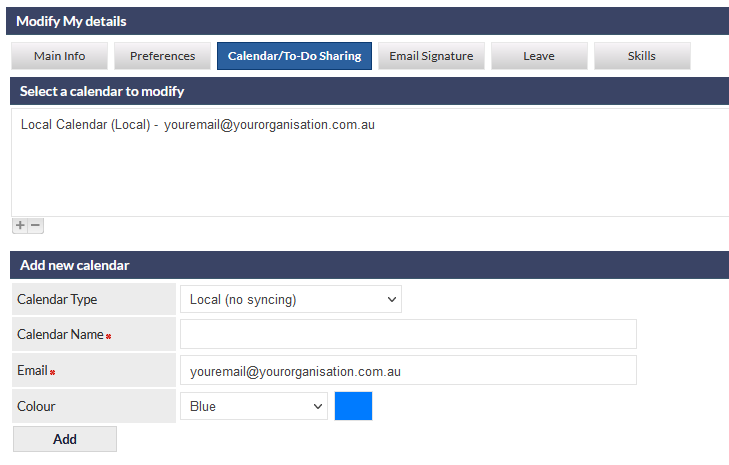
- In the Calendar Type field (visible in the previous image), select Microsoft 365. The available fields will update as shown in the following image:
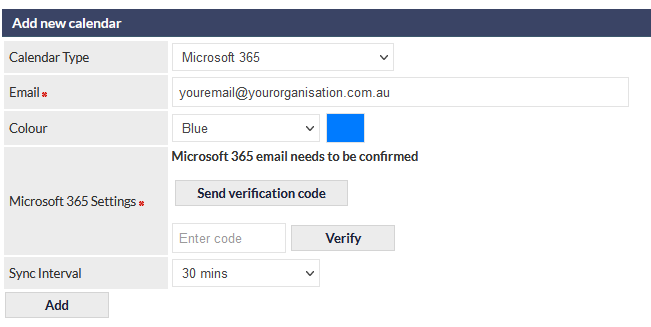
- Optionally, select a colour of your choice for the calendar; this colour will be used for displaying entries in your CommTrak calendar.
- Optionally, select a Sync Interval; this is the frequency with which your CommTrak and Microsoft 365 calendars will synchronise. The default is 30 minutes.
- Ensure that the Email field (visible in the previous image) contains your Microsoft 365 email address, and that you currently have access to your email inbox.
- Press Add.
Within a few seconds, you should receive a CommTrak Account Notification email in your Microsoft 365 email inbox
- Enter the verification code, from the notification email, into the Enter code field (visible in the previous image) and click
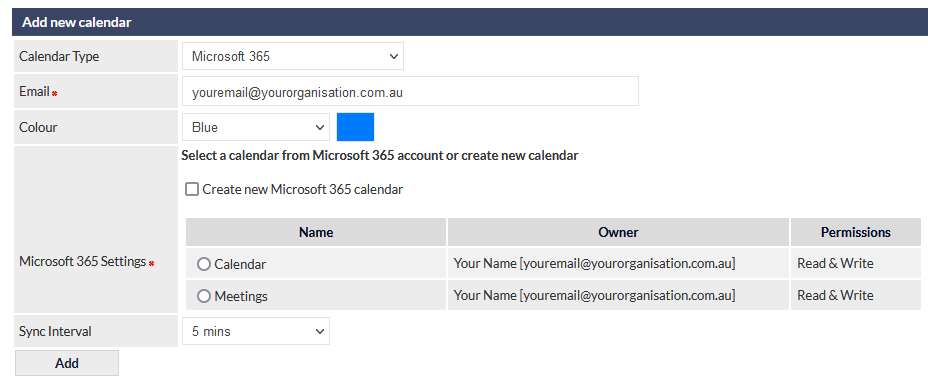
If validated correctly, you will be presented with the option to either select an existing Microsoft 365 Calendar (if one or more exists in your Microsoft 365 account), or to create a new Microsoft 365 calendar:
Selecting an Existing Calendar
- Press the round radio button adjacent to the name of the Outlook calendar that you wish to synchronise. In the following image, the Microsoft calendar 'Calendar' has been selected:

- Press
Synchronisation of the selected calendar will occur immediately, and the process is now complete.
Your CommTrak calendar and selected Microsoft calendar will synchronise automatically at the specified synchronisation interval.
Create a New Calendar
- Tick the Create new Microsoft 365 calendar option:
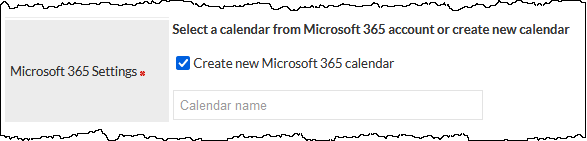
- Enter a name for the calendar.
- Press
Synchronisation of the newly-created calendar will occur immediately, and the process is now complete.
Your CommTrak calendar and newly-created Microsoft calendar will synchronise automatically at the designated synchronisation interval.
Synchronising Additional Calendars
You can add multiple new, or existing Microsoft 365 calendars by repeating the above steps.