
Outlook Calendar Synchronisation (CalDAV)
The ‘CalDAV’ utility, previously provided as an option for synchronising your CommTrak calendar with your Microsoft 365 Outlook calendar, is no-longer supported, and will be disabled at the end of September 2022.
If you have been using the CalDAV option, and now wish to synchronise your CommTrak calendar and Outlook calendar(s) using the Microsoft 365 calendar synchronisation feature, you must first delete the CalDAV option as detailed in this article...
Delete an Existing CalDAV Calendar Entry
If you are using the CalDAV option to synchronise your CommTrak calendar and Outlook calendar, you must first delete the CalDAV option prior to enabling the Microsoft 365 calendar synchronisation.
To check if you are currently using the CalDAV synchronisation option:
Ensure that you are signed-in to CommTrak.
- Press the My Details icon in the CommTrak information bar (highlighted in the following image):

- Press the Calendar / To-Do Sharing tab on the Modify My details screen:

- If you can see a CalDAV option (example highlighted in the following image):
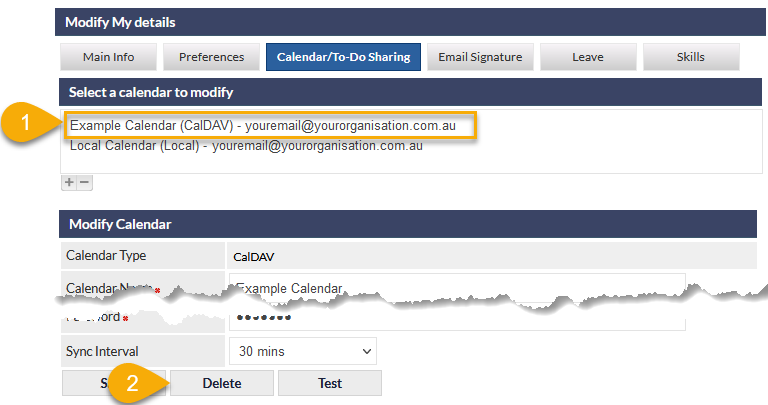
- Press the CalDAV item
- Press
- Press OK to confirm (not visible in the following image)
- When the CalDAV entry has been deleted, you can enable CommTrak / Microsoft 365 calendar synchronisation if required.
You should also remove the CalDAV Outlook add-in from your Outlook desktop application, as leaving it installed is likely to cause errors to be displayed in your Outlook desktop application. We recommend asking your IT support resource to assist you with the removal of the CalDAV add-in, as uninstallation of this third-party utility is beyond the scope of this article.