
Ticket - More Info
When creating or modifying a ticket, commonly-used fields are always visible. There are some less commonly used fields that are contained in the More Info section, which can be expanded when required.
The More Info fields section in a ticket can be accessed by clicking on the expandable bar below the ticket details section:

Click anywhere on the grey bar (visible in the previous image) to expand it.
The displayed fields will depend on whether the ticket is being created or modified:
More Info Fields when Creating a Ticket

More Info Fields when Modifying a Ticket

More Info Fields
Insitigator
The name of the user who created the ticket. This field is only populated if the ticket was created by a user (i.e. not created via a ticket-from-email or in the Customer Portal).
Close Immediately (only visible when creating a ticket)
If ticked, the ticket when close immediately when it is added. This is useful in cases where a customer calls and the ticket is resolved during the initial call.
Visible in Portal
If ticked, the ticket will visible in the Customer Portal
Email Customer (read-only)
This field indicates if the Email Customer option was ticked at the time the ticket was created.
Inventory
Reserve (or modify an existing reservation) or Dispatch Inventory items from this Job. This field displays a list of inventory items (if any) that have been reserved for this Job. Pressing the pop-out icon presents the Dispatch / reserve inventory items window.
Data Sheets
To assign a data sheet to the Ticket:
- Select a required data sheet from the dropdown list
- Press the + (plus) icon adjacent to the dropdown list
The data sheet is added to the field:

Multiple data sheets can be added to a Ticket, by repeating the above process.
To remove a data sheet from the Ticket, press the trashcan icon (visible in the previous image).
Hold Until
An active Ticket can be placed on hold by specifying a Hold Until date.
Active Tickets that have been placed on hold will automatically have on-hold removed when the on-hold date is reached, or when the on-hold date is manually cleared by pressing the Clear the date field icon located to the right of the Hold Until field (see Support Centre article Date Selection for calendar icon descriptions).
On-hold Tickets are not displayed on the Active Tickets list (as accessed from the Tickets option in the CommTrak Main Menu).
On-hold Tickets are always visible in the customer's Ticket tab.
When a Ticket is on hold, the Hold-Until field is no longer hidden:
My Notifications
This section can be used to change the email notification settings for this Ticket only and pertain to the user who is currently editing the ticket:
- All Notes - You will receive email notifications for all notes that are added to this Ticket
- Final Note - You will receive an email notification relating to the final note for this Ticket (i.e. when the Ticket has its status set to Closed)
- Default - You will receive email notifications as specified in the company-wide ticket defaults or your user preferences if they are different to the company-wide settings.
Materials Used
There are two aspects to this field:
- Recording Materials Used (entered into the displayed fields)
- Related Expenses (accessed by pressing the expenses icon)
Recording materials used

The name of materials used and the cost of those materials can be recorded in the respective fields. To add another item, press the + (plus) button. To remove an item, press the - (minus) button.
Related Expenses
This option is related to the Expenses and Reimbursements feature. Press the icon to display the New Expense pop-up window:
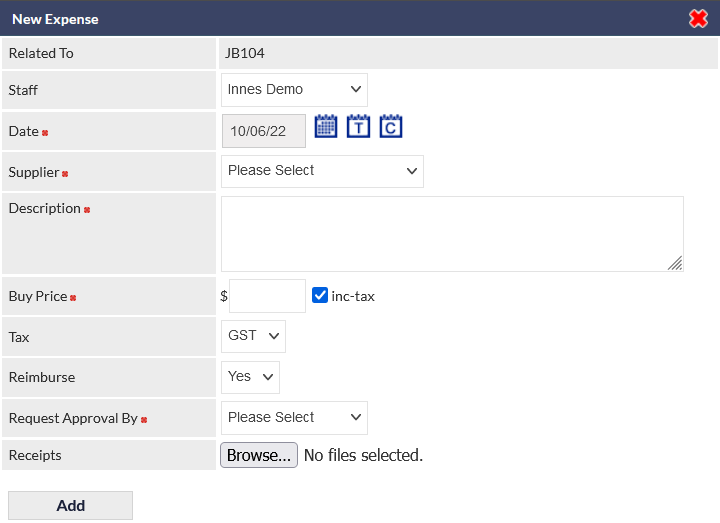
Enter details of the expense as required, and press Add to confirm.
A user will only see their own expense entry.