
Date Selection
Date selection features are used in numerous areas of CommTrak, including:
- Setting a CallBack date
- Specifying a date range in a report
- Applying for leave in the CallTrak screen
- Setting a Forecast date in a lead
When a date field is presented, there are typically (but not always) three icons displayed next it:

Calendar icon

Clicking the calendar icon presents a pop-up calendar:
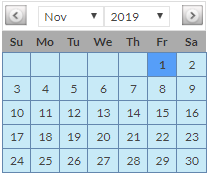
If a date has previously been selected, the calendar will display the year and month in which that date occurs, with the specified date highlighted (e.g. 1st November, 2019 in the above image).
If no date has previously been selected, the default date will vary depending upon the context of the field. For example, many date fields will show today's date by default, whereas, when booking a Job, the booking date will default to the next working-day after today.
Changing the Year
Click the drop-down year field at the top of the calendar, and select the required year from the list.
A day-of-month must be clicked, to confirm the entry.
Changing the Month
Click the drop-down month field at the top of the calendar, and select the required month from the list.
A day-of-month must be clicked, to confirm the entry.
Selecting the Day of Month
Click on the box containing the required number for the day of month.
The selected date will be displayed in the date field.
Today (T) icon

Clicking the T icon sets the date field to today's date.
Clear Date (C) icon

Clicking the C icon clears the date field.
Manually Entering a Date
A date can be entered manually, by clicking the date field, and entering the required data in the format dd/mm/yy.
If an invalid date is entered, a warning message will be displayed when the current record is saved, and a valid date must be entered prior to continuing.