
What's New November 2023
General
- Concurrent viewer alerts - new feature
- Concurrent modification alerts - IMPORTANT new feature!
Customers
Jobs
- Job Scheduling enhancements
- Compact view in customer Jobs tab - new feature
Leads
Tickets
Projects
General
Concurrent Viewer Alerts
The purpose of the concurrent viewer alerts is to warn you that someone else may be modifying a CommTrak record at the same time as you, which can aid in avoiding duplication of work. For example, when multiple users attempt to complete the same tasks on the same record, the alert enables them to communicate before proceeding.

The alerts have been implemented across all major CommTrak modules:
- Customers
- Jobs
- Leads
- Projects
- Tickets
- Workflow
The behaviour of the alerts is as follows:
- Notifications are displayed instantly to a user who opens a record that is currently being viewed by someone else
- Notifications are displayed within a few seconds, to a user who is currently viewing a record, when another user subsequently opens that record
- If more than one other user is concurrently viewing the record, the name of each other user will be listed in the alert message
- A user can dismiss the notification by pressing the close (X) icon in the alert. The alert will not be displayed again for the currently-open record unless the other user leaves and reopens the record, or another user subsequently opens the record
Concurrent Modification Alerts
Concurrent Modification Alerts are designed to advise you against unknowingly overwriting updates that were made by another user whilst you were editing the same record:
It is vital to be aware that if a Concurrent Modification Alert is displayed, your changes have not been saved!
You must press the Save button again to confirm that you wish to overwrite the other user's saved work. If you do not press the Save button again, your changes to the record will not be saved.
The following image is an example of a Concurrent Modification Alert that is displayed when you press the Save button on a CommTrak record such as the Customer screen:

The alert shown in the previous image was displayed when the following events occurred:
- Initial Record Access: I opened the Customer record screen to view the customer's information.
- Subsequent Access by Another User: After I opened the screen, Isabella Wilson accessed the same record. She received a Concurrent Viewer Alert, indicating that another user (me) was currently viewing the record. However, Isabella proceeded to edit fields such as Company Name and Address, and then saved her changes.
- Receiving and Ignoring the Viewer Alert: Simultaneously, I also received a Concurrent Viewer Alert when Isabella accessed the record, but I ignored it and made my own changes to the record.
- Attempt to Save Changes: After Isabella had saved her changes, I attempted to save mine. This is when CommTrak's Concurrent Modification Alert was triggered, warning me that my changes would overwrite Isabella's.
- Available Options: Faced with this alert, I have two choices:
- Navigate away from the record, losing my changes, or...
- Press Save, potentially overwriting Isabella's changes.
Best Practice Recommendation: Ideally, I should have heeded the Concurrent Viewer Alert initially. The recommended course of action would be to contact Isabella to understand her changes and discuss the impact of potentially overwriting them. Alternatively, waiting for Isabella to finish (indicated by the clearance of the viewer alert) and then refreshing my screen to see her updates before making my own, would have been a prudent approach.
Customers
Customer Group Member Count
This feature update displays a convenience count of the number of customers in a Customer Group:
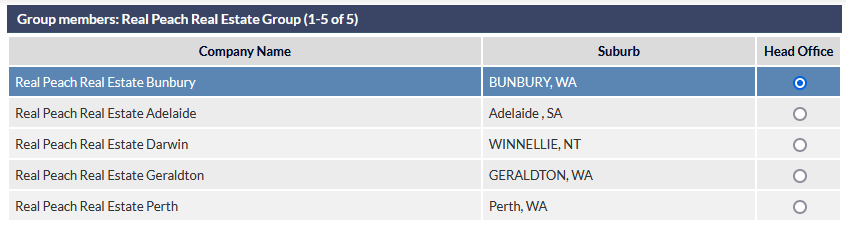
As shown in the previous image, the record count is showing 1-5 of 5 customer in the group. The record count is typically useful when a group contains tens or even hundreds of customers.
For more information about the Customer Group feature, please refer to the following Support Centre articles:
Jobs
Job Scheduling enhancements
Guided by insightful feedback from CommTrak users, we've enhanced the process of scheduling technicians to a Job:
- Technicians can now be scheduled at the time a Job is created. Previously, a Job had to be created prior to scheduling Technicians. To assign Technicians at the time the Job is created, press the pop-up icon in the Schedule field, visible in the following image:

- The following new features are now available in the Job Schedule window:
- Add new technician on this day
- Clone this day to a new day
- Remove this day
- Clone this technician to a new technician on the same day
- Remove this Technician
- Add another day
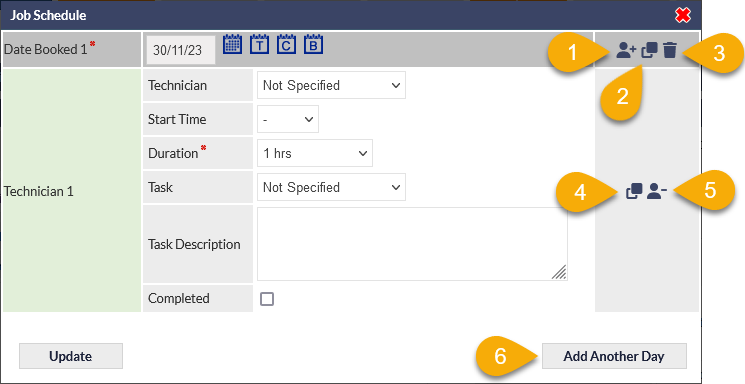
When adding another day, or cloning an existing day, CommTrak will always suggest the next weekday following the latest date found in any of the date fields.
IMPORTANT: When changes have been made to the schedule, pressing Update (visible in the previous image) will show the changes in the Schedule field:

To confirm any changes to the schedule you must press Save.
Please refer to the following Support Centre article for detailed information pertaining to the Schedule features:
Compact View in Customer Jobs tab
The concept of the Compact View has been reintroduced to the Jobs list in the customer's Jobs tab:

The previous image shows the Compact View, which is selected by pressing the Compact View option, rightmost in the Active Jobs section header. When selected, the green tick is displayed.
The standard (default) view displays a row for each day for each Job:

The previous image shows the standard view, displaying a row for each day assigned to the Job. Note that the green tick is not displayed in the section header.
For both the standard and compact views, we recommend ensuring that the Technician column (visible in the previous image) is Always Visible, as this provides valuable context to the other Job information...
In both Job views, the columns displayed to you will depend on your personal column selections. Please refer to Support Centre article, Column Sorting & Customisation for more information pertaining to this feature.
Leads
Leads Compulsory Fields Refinements
The Lead screen has now been updated with the following mandatory field features to align with other screens in CommTrak:
- Incomplete mandatory fields are highlighted with a red border.
- A standard message (shown in the following image) is displayed when mandatory fields are not populated correctly.
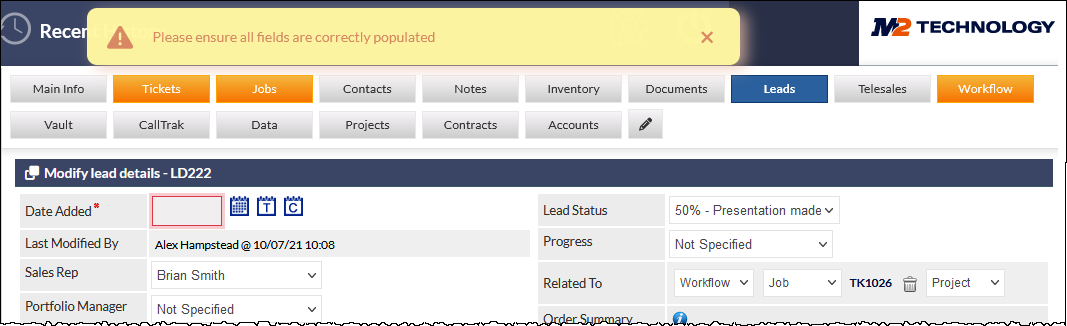
The previous image shows an example of a Lead when the Save button has been pressed and a mandatory field has not been populated. The yellow warning banner is displayed at the top of the screen, and the relevant fields are highlighted with a red border.
The user should populate the fields correctly and press Save again.
Tickets
Pop-up Ticket Window Deprecation
As previously advised in the What's New, September 2023 article, the pop-up Ticket window option has now been removed. This means that pop-up Tickets can no-longer be specified in global Ticket settings and user preferences. When a Ticket is selected, it will always be displayed in either the current browser tab or a new browser tab, depending on the context.
The pop-up Ticket option has been removed for several reasons, including:
- Feature consistency
- Browser compatibility
- Security
- Performance
- Usability
- Feature enhancements, such as Concurrent Viewer Alerts
For more detailed information, including helpful tips about using Tickets in a browser tab, please refer to the Pop-up Ticket Window Deprecation article.
Projects
Due Date Change Permissions
There is now a specific permission for modifying an existing Due Date of a Project.
Whilst all users currently have the ability to modify a Project Due Date by default, the new permission allows you to restrict this functionality for specific users if necessary, such that if a Project's Due Date has previously been set, a user without the appropriate permission cannot modify it.
To apply the permission, assign users to an existing role with this permission disabled, or create a new custom role as required.
When the permission is enabled for a user (the default for all predefined staff roles), or when a Due Date has not previously been specified, the Due Date field in a Project will be displayed with date-selection icons, as shown in the following image:

When the permission is disabled for a user, and a Due Date has previously been set, the Due Date field in a Project will be displayed as read-only, as illustrated in the following image.

The permission is located in Settings >User Settings > Staff Roles > Projects, and the permission is named Allow users to modify due date for projects.
For a step-by-step example of creating a custom staff role, and applying permissions, please refer to the following the article: FAQ - Change User Permissions.