
Pop-up Ticket Window Deprecation (November 2023)
As announced in September 2023, the option to have pop-up Ticket windows has been deprecated.
The pop-up ticket window feature was removed from CommTrak in the November 2023 update.
All Tickets will open in either a new browser tab or the current browser tab, depending on the context of the current screen.
Prior to the deprecation, when viewing a Ticket, it was possible to display it in either a new browser tab or a separate pop-up browser window.
All Tickets will be displayed in a browser tab when selected for viewing.
Reasoning for the Deprecation of Pop-up Ticket Windows:
- Feature consistency - Due to the way separate browser windows function, there is a mismatch in the features available in a ticket displayed in a browser tab and a ticket displayed in a pop-up window.
- Compatibility - some browsers manage pop-up windows differently to others.
- Ad-blockers - browser extensions such as ad-blockers can block pop-up windows.
- Security - pop-up windows are discouraged by major browser developers due to their potential use for illicit behaviour such as 'phishing' attacks and and other security issues.
- Performance - Multiple pop-up windows typically consume additional system resources, and can affect browser performance.
- Usability - Navigation can become confusing with the use of multiple pop-up windows, and managing them can be cumbersome.
- Unpredictability - it is not possible to guarantee positioning of pop-up browser windows, especially when users have multiple monitors. This often leads to multiple tickets being left open and false notifications being provided to other users who are attempting to access those Tickets.
- Mobile device compatibility - typically, mobile devices do no allow for separate browser windows, and web pages intended as pop-ups may even be opened in a different browser application, depending on the mobile device's settings.
- Feature Enhancements - maintaining a consistent view of tickets has facilitated the implementation of new features and enhancements:
Ticket Feature Enhancements
Deprecating tickets in pop-up windows has enabled the CommTrak development team to eliminate the above issues and has also provided the opportunity to implement more sophisticated management of tickets that have been opened by multiple users - for example, near real-time notification will now be provided to a user when a Ticket they are working on is simultaneously opened by another user.
An additional benefit is that the Close Window button is no-longer required on the Ticket screen; this was previously needed to ensure that a ticket was 'unlocked' when a user had finished viewing it. To close the tab, simply click on the close icon for the relevant browser tab:
Tab Context (Current or New Tab)
Tickets will open in either a new browser tab or the current browser tab, depending on the context of the current screen:
Active Tickets Screen
When viewing the Active Tickets screen (accessed via the main menu Tickets option), selecting a ticket will open it in a new tab.
This facilitates a convenient process for working with multiple tickets concurrently.
When you have finished working with a ticket, you can simply save any changes and close that ticket's browser tab.
Customer Ticket Tab
When selecting a ticket from within a customer record; for example, from the customer's Tickets tab, or the Related To field of a Lead, Workflow, etc, the ticket will open in the current browser tab.
The previous screen can easily be returned to by pressing the the relevant reciprocal link in the ticket's Related To field, as shown in the following image:

Projects
As with the Active Tickets screen, selecting a ticket within a Project will open the ticket in a new browser tab.
This design facilitates typical activity within Projects, enabling users to access and review tickets (and other components) efficiently.
Opening each ticket in a separate tab allows for streamlined navigation and task management, particularly in Projects that contain numerous components.
Standard browser keyboard shortcuts
Close the current tab:
- Windows: Ctrl+F4
- Mac: Cmd+W
Reopen the last closed tab (this can be repeated to open multiple tabs):
- Windows: Ctrl+Shift+T
- Mac: Cmd+Shift+T
Duplicate a Tab
- Windows: Alt-D then Alt-Enter
- Windows: Ctrl-click the Refresh icon
- Windows: Mouse middle button to click the Refresh button
For additional tab options:
- Right-click on any browser tab. The Close Multiple Tabs option is particularly useful!
Browser Tab Title
To enable easy identification of tickets when multiple tabs are open, the ticket ID and Company name are displayed in the tab title, as highlighted in the following image:
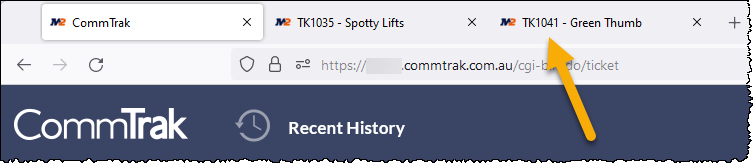
Note that this behaviour also applies to other components; for example, a workflow or lead ID will be displayed, along with the customer name.
When there are many tabs open, the browser's standard behaviour is to truncate the tab title but, typically, the component ID will still be visible. In addition, hovering the mouse cursor over the tab will display a tooltip containing the full tab title.
The exact behaviour will vary depending on which browsers is being used, browser-window size and the number of open tabs.