What's New September 2023
Tickets
Leads
CommTrak Login
Data Sheets
Customer Portal
- Portal Read-Only Custom Fields
- Portal Modules Customisable Per Customer
- Portal Tickets Dashboard
- Portal Ticket Visibility Control
- Ticket Type Assignment Enhancement
- Portal Mandatory Ticket Description
Tickets
Pop-Up Ticket Deprecation
The option to have pop-up Ticket windows will be removed before the end of 2023.
Currently, when viewing a Ticket, it is possible to display it in either a new browser tab or a separate pop-up browser window - either option can be specified as a CommTrak global setting which can be overridden by users in their preference settings.
Once the pop-up feature is removed, all Tickets will be displayed in a new browser tab when selected for viewing.
Reasons for removal of pop-up Ticket windows include:
- Mismatch between features available in separate browser windows versus tabs.
- Compatibility between browsers - some browsers manage pop-up windows differently to others.
- Browser extensions such as ad-blockers can block pop-up windows.
- Unpredictability - it is not possible to guarantee positioning of pop-up browser windows, especially when users have multiple monitors. This often leads to multiple tickets being left open and false notifications being provided to other users who are attempting to access those Tickets.
Removing the ability to open Tickets in a separate pop-up window will enable us to eliminate the above issues and will also open the doors for more sophisticated management of Tickets that have been opened by multiple users - for example, we are looking forward to providing immediate notification to users when a Ticket that they are working on is subsequently opened by another user.
The removal of the pop-up Ticket window feature is planned to occur in the November 2023 CommTrak release. In the meantime, if you have any concerns or questions, please do contact CommTrak Support and we'll be happy to assist you with any queries that you may have.
Leads
Lead Forecast Payment Date
A Forecast Payment field has been added to the Lead screen:
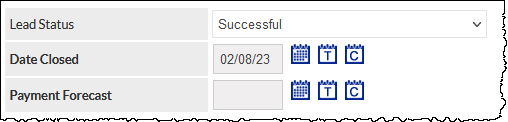
Forecast Payment is only displayed when a Lead status is Successful.
The Forecast Payment date is the date upon which payment is expected from the customer.
Reporting
A Forecast Payment Date criterion has been added to the Leads Report:
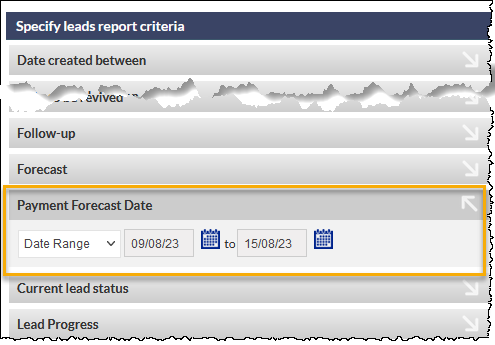
The Payment Forecast Date, if any, is shown in an addition column in the report results.
Sales Dashboard
The Forecast tab in the Sales Dashboard now includes a chart for Forecast Payment
Please refer to the Sales Dashboard article for additional information.
The Sales Dashboard Standalone now includes an option to display a Forecast Graph - Payment Data screen.
CommTrak Login
Additional Security Information Provided
When username / password are incorrect when logging into CommTrak, additional information is provided in the banner at the top of the screen. If 'lock-outs' are enabled on your organisation's CommTrak, users will be notified how many remaining attempts they have before their account is locked.
REMINDER: Once locked out, a user cannot log in until either:
- the lockout duration expires or
- a CommTrak administrator assigns a temporary password to them
When a user resets their password, this does not cancel the lock-out, and further login attempts will extend the lock-out duration.
Please note that CommTrak Support cannot override a locked-out account.
Data Sheets
Signed Data Sheet Geo-Location
Data sheets with signatures now record the geographical location of the user at the time data sheet activity occurred (e.g. viewed / updated).
Geographical location is only recorded when the user enables access to browser location when prompted.
When CommTrak attempts to determine the user's location, the user is presented with a browser alert, requesting them to either block or allow geographical information to be accessed by the data sheet:
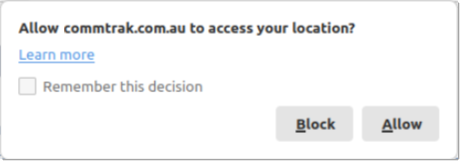
It is the user's choice as to whether they allow this information to be saved. If you require geographical location for signed data sheets, we recommend advising the signee in advance, that they must allow their location to be saved.
The recorded location coordinates are visible in the data sheet history pop-up window:

As highlighted in the previous image, the location coordinates are displayed along with a clickable map icon. Clicking the icon opens a new browser tab for Google Maps, with a pin showing the location.
Customer Portal
The new and enhanced features in this section are only available if the Customer Portal module is enabled. For general information about the Customer Portal features and settings, please refer to the following Support Centre articles:
Portal Read-Only Custom Fields
Custom fields that are assigned as being visible in the Customer Portal can now be designated as either editable or read-only. When creating or editing a custom field, select the required option in the Visible in Portal field:
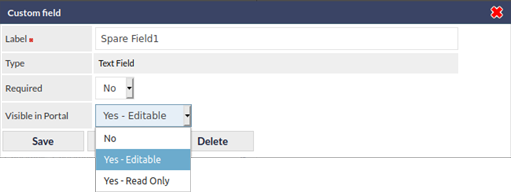
Fields previously assigned as being visible in the Customer Portal, prior to this feature update, will continue to be editable; please review your custom fields and update them as required.
Portal Modules Customisable Per Customer
Visibility of Customer Portal modules (Jobs, Tickets, Workflow, etc.) is now customisable per customer. For example, the portal can now be configured such that only specified customers have access to the Tickets module.
Previously, visibility of each module was assigned for all customers or for none.
Customer access to portal modules is configured in the Customer Portal Settings (Settings > Portal Settings).

To maintain backwards-compatibility with existing configurations, the default setting is for all customers to have access to all portal modules, with the exception of the newly-added portal Tickets Dashboard (see the next section in this article for additional information).
If you have previously configured visibility of Portal modules, your existing configuration has been retained.
To update portal module visibility, select a module and choose one of the options from the the Assigned To dropdown list (visible in the previous image).
Once saved, the settings are applied immediately.
For more detailed information about configuring portal module visibility, please refer to the Support Centre article, Customer Portal Settings (Settings > Portal Settings).
Portal Tickets Dashboard
The Tickets Dashboard is a new section that has been added to the Tickets portal module. By default, the Tickets Dashboard section is not visible to customers and must explicitly be enabled in the portal settings.
Once enabled for a customer, the Tickets Dashboard is displayed when a contact selects the Tickets module in the portal:
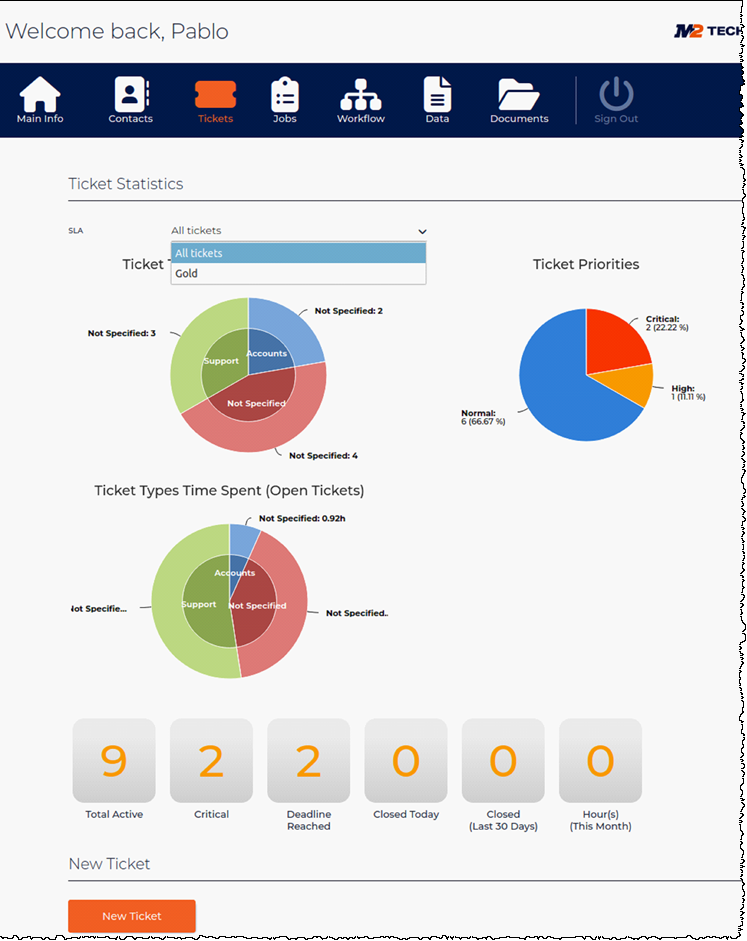
Contacts can filter the data shown in the Ticket Dashboard by selecting an SLA type from the dropdown list (visible in the previous image).
Portal Ticket Visibility Control
Visibility of Tickets within the Customer Portal can now be specified explicitly when creating or updating a Ticket in CommTrak.
By default, to maintain previous behaviour, all Tickets are visible in the portal. When a CommTrak user creates a new Ticket, or when they are updating a Ticket, the portal visibility can be modified by expanding the ticket's More Info section:
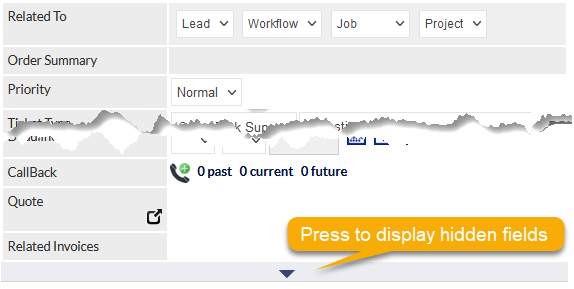
When expanded, the hidden fields are displayed, one of which is the Visible in Portal field (highlighted in the following image):
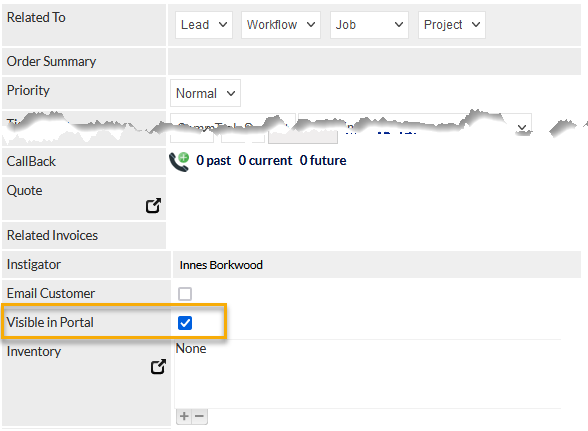
The Visible in Portal option can be ticked or unticked at any time, and when the Ticket is subsequently saved, the Ticket will become visible or hidden in the portal accordingly.
When a customer creates a Ticket in the portal, or by emailing a Tickets-From-Email address, the Ticket will be visible in the portal by default, and visibility can later be modified by a CommTrak user as required.
Cancelled Tickets are never visible in the Customer Portal.
Before providing portal access to a customer, ensure that current active Tickets for the customer are visible or invisible as required for your use-case. Visibility for active Tickets can be assigned via bulk-reallocation as described in the following section...
Ticket Type Assignment Changes Enhancement
In addition to the existing Ticket bulk-reassignment features, it is now possible to bulk-reassign Tickets as being visible / invisible to contacts who are viewing the Customer Portal:
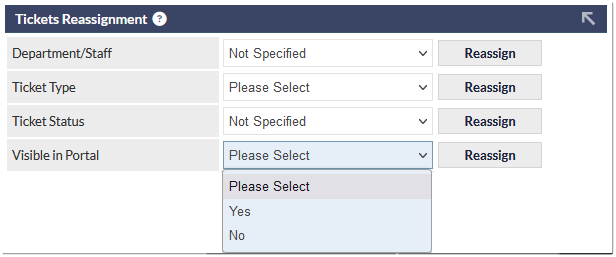
To bulk reassign Tickets to being visible or invisible, specify the required search criteria in the Active Tickets screen (e.g. filter by a specific Customer name), and select the required option in the Visible in Portal field (visible in the previous image).
Reminder: Bulk reallocations cannot be reversed automatically; please select options carefully prior to pressing the Reassign button!
For more detailed information about the bulk-reallocation features, please refer to the following Support Centre article:
Portal Mandatory Ticket Description
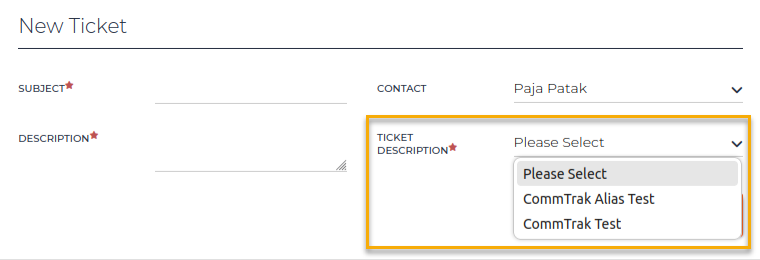
To ensure that Tickets created by contacts are not misallocated, the Ticket Description field in the Tickets section of the portal is now mandatory: