
Leads Sales Dashboard Standalone (Settings)
Overview
In addition to the interactive Sales Dashboard, the standalone Sales Dashboard can be configured in this section of the Leads settings.
The Standalone Dashboard can be configured to display a series of informational screens and charts which are displayed in sequence, and updated automatically.
Accessing Sales Dashboard Standalone Settings
Settings > Leads Settings > Sales Dashboard Standalone.
Sales Dashboard Standalone Settings
Each of the Sales Dashboard settings are described below:
Screen Selection
Several Dashboard displays are available, and those which are selected in the settings are displayed in sequence for a specified duration.
Select the screens to be displayed in the Standalone Dashboard; multiple screens can be selected by clicking the screen names in conjunction with the Shift and / or Ctrl keyboard keys.
At least one screen must be selected.
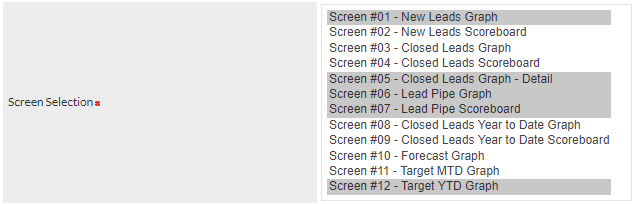
In the above screenshot, dashboard screens 1, 5, 6, 7 and 12 have been selected.
Screen/Data Refresh rate
The duration for which each selected screen will be displayed, prior to display of the next screen.
It is recommended that the duration is set to as long a period as is practical; each time a screen is displayed, the relevant data must be obtained from your CommTrak server, and is used to generate the relevant charts and data.
Applies to Settings of All Screens
The settings below this on-screen heading apply only to screens 1 to 9:
Staff
Filters the charts and data to show only selected staff / sales team.
Applies to Settings of Screens #01 and #02 only
The settings below this on-screen heading apply only to screens 1 and 2:
Category
Select one of:
- Per Division
- Per Staff
Month
Select one of:
- Two Months Ago
- Previous Month
- Current Month
Applies to Settings of Screens #03, #04 and #05 only
The settings below this on-screen heading apply only to screens 3, 4 and 5 only.
Category
Select one of:
- Per Division
- Per Status
- Per Source
- Per Staff
- By Age
Month
Select one of:
- Two Months Ago
- Previous Month
- Current Month
Data Source
Select one of:
- Leads
- POS
Applies to Settings of Screens #06 and #07 only
The settings below this on-screen heading apply only to screens 6 and 7 only.
Category
Select one of:
- Per Division
- Per Staff
- Per Source
Applies to Settings of Screens #08 and #09 only
The settings below this on-screen heading apply only to screens 8 and 9 only.
Category
Select one of:
- Per Division
- Per Staff
Period
Select one of:
- 12 Months
- 24 Months
View
Select one of:
- Monthly
- Quarterly
Data Source
Select one of:
- Leads
- POS
Applies to Settings of Screens #11 only
The settings below this on-screen heading apply only to screen 11 only.
Data Source
Select one of:
- Leads
- POS
Applies to Settings of Screens #12 only
The settings below this on-screen heading apply only to screen 12 only.
Data Source
Select one of:
- Leads
- POS
Direct Link
This field contains a unique URL (web address) which is generated based on the specified Standalone Dashboard settings.

The link can be copied and pasted into the address bar of any web browser, and will display the screens as configured in the above settings.
The URL is unique, and must be copied and pasted as-is. Changing any of the Standalone Dashboard settings will automatically update the URL in this field.
Security Considerations
Although the Direct Link URL can be pasted into any web browser, CommTrak will only display dashboard data when the IP of the web browser matches one of the IP addresses specified in Settings > General Settings > Miscellaneous > Comma separated list of IPs permitted to view CommTrak dashboards. Unauthorised web browsers will display an appropriate security message.