
What's New October 2023
Security / Sign-In
- Two-Factor Authentication (2FA) via Authenticator App - new feature!
Leads / Quotes
Tickets
Documents
- Document Generator - new feature!
Customer Portal
Reports
- Appointments Column Available in Leads Report
- Revenue Column Available in Quotes Report
- Increased Number of Custom Fields in Standard Reports to 20
Security /Sign-In
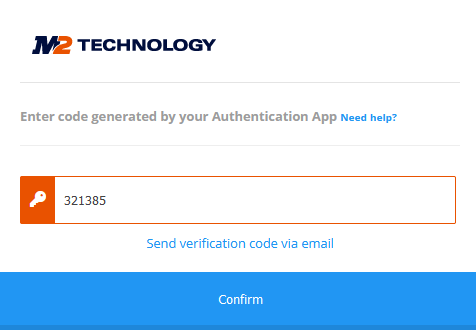
Two-Factor Authentication (2FA) via Authenticator App
2FA is now available via authenticator app (e.g. Google Authenticator, Microsoft Authenticator, etc)
When this feature is enabled, in addition to signing-in with their username and password, users will be prompted to enter the single-use authentication code provided by an app on their mobile device,
Enabling App Authentication
App authentication can be enabled in the CommTrak Security settings:
Settings > User Settings > Security
The 2-Factor Authentication field now contains the following, additional options:
- Via Authentication App - always
- Via Authentication App - out of office
- Via Authentication App preferred, email as fallback - always
- Via Authentication App preferred, email as fallback - out of office
Once enabled, 2FA via authentication app will be applied to all user accounts. Please ensure that all users are advised how to set up and use this feature prior to enabling it.
User Setup for 2FA App Authentication
The first time each user signs-in to CommTrak after 2FA via authentication app has been enabled, they will be prompted to add their CommTrak login into their chosen authenticator app. This is a one-off exercise, which does not need to be repeated by a user unless they uninstall the app or lose access to their mobile device.
Step-by-step instructions are provided in the Two-Factor Authentication (2FA) Set up article.
Leads / Quotes
6 Months Customer Contract Available
In addition to existing contract periods, a 6 months option has been added.
To select a 6 months period for a customer contract:
Settings > Leads Settings > Services & Software (SaS)
Modify or create an SaS entry with a 6 months period as required:

For further information about this feature, please refer to the following Support Centre articles:
- Leads Services & Software (SaS) (Settings)
- Leads Services & Software (SaS) Categories (Settings)
- Services & Software (SaS) Example
Search and Bulk Update for Lead Affiliation
In addition to being able to assign an Affiliation to a new Lead, it is now possible to search Active Leads based on Affiliation, and also to bulk reassign Leads based on Affiliation.
The Active Leads screen now includes an Affiliation dropdown list in the Leads Search section:

The Leads Reassignment section (only visible to users with appropriate permissions), now includes an Affiliation dropdown list:

For further information about searching Leads and bulk-reassignment of records, please refer to the following Support Centre articles:
Tickets
Active Ticket Search Now Allows Selection of Multiple Departments and Staff
The Search section in the Active Ticket screen has been enhanced to enable selection of multiple Ticket Departments and multiple Staff (previously, only one department / staff member could be selected).
To facilitate this update, the Department / Staff field has been separated into two fields: Allocation and Department / Staff.

The Allocation field has the following options available:
My Scope, Show All, Created by me, Allocated to me
In addition to the above Allocation criterion, multiple Ticket Departments and Staff can be selected to further refine the search.
For further details, please refer to the following Support Centre article:
Documents
Document Generator
The Document Generator feature has been designed to accelerate the creation of documents by auto-populating MS Word documents.
Using a predefined template, a new Word document can be generated automatically from most modules in CommTrak, by simply selecting the required template and pressing the Download button.
Documents can be generated either from a customer's Documents tab or from any screen that has a Related and Upload Documents field (for example, Leads, Tickets, Jobs, Projects):

Click the Select template field to display a list of available templates:

In the previous image, there is only one template available (Credit Application). When there are many templates, typing some characters will filter the list to show only matching templates:

In the previous image, the characters app have matched the Credit Application template.
Clicking anywhere in the template details will select the template:

Once selected, pressing the Download button will immediately generate a new Word document which will automatically be downloaded in your browser:

The previous image shows the downloaded file as presented in Firefox browser; other browsers may present the downloaded document differently.
Once downloaded, the document can be opened in Word (or other compatible application) for review or may, for example, be sent to a customer for completion or review.
Creating Document Generator Templates
The first step is to create (or locate an existing) MS Word document that is typically populated manually. In the previous screenshots, the document is named Credit Application.docx.
Update the document in MS Word, as required, and include any placeholders that are to populated by CommTrak. Examples of placeholders are:
- [%customer_name%]
- [%customer_sales_contact%]
- [%current_date%]
A complete list of available placeholders is available in the Document Generator Template settings.
The following image shows an extract from a Word document that will be used as a template:

Placeholders in the Word document can be formatted as required.
The next step is to create the Document Generator Template in CommTrak:
Settings > General Settings > Document Generator Templates
Press the New Generator Template button:

Complete the fields as required:

The Association field determines in which module the template will be available.
Pressing the question mark icon in the Placeholders field will display a pop-up window containing the available placeholders for the associated module:

As noted in the pop-up window, clicking a placeholder will copy it to the clipboard, so it can easily be pasted into the Word document that will be used for the template. Only relevant placeholders will be displayed in the pop-up window. For example, if the template has been associated with the Jobs module, in addition to the generally-available placeholders, Jobs-related placeholders will also be listed.
Press the Browse button to select and upload the Word document that will be used for the template (or drag and drop the document from your computer's file manager).
Pressing the Add button will create the template, which will immediately become available in the specified module.
For more information about using and configuring Document Generator Templates, please refer to the following Support Centre Articles:
- Document Generator (user documentation)
- Document Generator Templates (Settings)
Customer Portal
Document Folders in Customer Portal
To aid in the organisation of documents in the Customer Portal, documents (which are only visible when the Documents tab is enabled in the portal settings) are now displayed in folders:

When initially displayed, all folders are shown 'collapsed' and can be expanded by pressing on the folder name. Note the Show All button in the previous image (indicated with an orange arrow); when pressed, all folders will be expanded automatically.
Reports
Appointments Column Available in Leads Report
Appointments can now be added to the Leads Report results:

When the Appointment field is selected, as shown in the previous image, an Appointment column will be added to the report results:

The previous image shows three results, the Appointment column contents are, in order:
- The date and time of the upcoming appointment
- No date presented, because an appointment has not been created for this Lead
- A date and time shown with a strike-through, to indicate that it is a historical appointment
Note that when exporting the Leads report to a CSV the historical appointments are not formatted, as CSV files contain only non-formatted text. You may wish to sort / filter the resulting CSV as required for your needs.
Revenue Column Available in Quotes Report
Revenue can now be added to the Quotes Report results:

For further information about Standard Reports, including the ability to include additional fields, please refer to the following Support Centre article:
You may also wish to review the Standard Reports Video, which presents a comprehensive review of Standard Reports features.
Increased Number of Custom Fields in Standard Reports to 20
The number of custom fields that can be added to a Standard Report has been increased from 5 to 20:

For further information about Standard Reports, including the ability to add Custom Fields, please refer to the following Support Centre articles:
- Standard Reports (including the Custom Fields feature)
- Custom Field Settings (configuration of Custom Fields)