
Two-Factor Authentication (2FA) Set up or Reset
This article explains the one-off steps required to active two-factor authentication (2FA) via an authenticator app on your mobile device. For general information about signing-in to CommTrak, see Support Centre article Signing In to CommTrak.
In this article:
Installing an Authenticator App
Configuring CommTrak for use with an Authenticator App
Add your CommTrak Account to an authenticator app
Sign-in for the First Time with Authenticator App
Introduction
Your organisation may have enabled two-factor authentication (2FA) on your CommTrak. This means that, in addition to entering your username and password, you will also be required to enter an authentication code that will be provided to you when you attempt to sign-in to CommTrak.
There are three methods of 2FA available in CommTrak; SMS, email and authentication app. This article explains how to configure an authentication app to provide a code that you can use when signing in to CommTrak.
2FA via SMS or Email do not require any prior configuration.
Installing an Authenticator App
The links provided in this section of the article link are to third-party websites and app stores. Please check all links before proceeding, and take advice from your organisation's IT Support team as appropriate. M2 Technology is not responsible for third-party content and applications.
There are several authenticator apps available for Apple iOS and Android devices. Your organisation may advise you which app to use, but two commonly-used apps are:
Google Authenticator
Android - the following link will open the Google Play Store page for the app:
https://play.google.com/store/apps/details?id=com.google.android.apps.authenticator2
Apple iOS - the following link will open the App Store page for the app:
https://apps.apple.com/au/app/google-authenticator/id388497605
Microsoft Authenticator
The following link is for the official Microsoft Authenticator download page, where links for both Google Play and Apple App Store are provided.
https://www.microsoft.com/en-au/security/mobile-authenticator-app
Configuring CommTrak for use with an Authenticator App
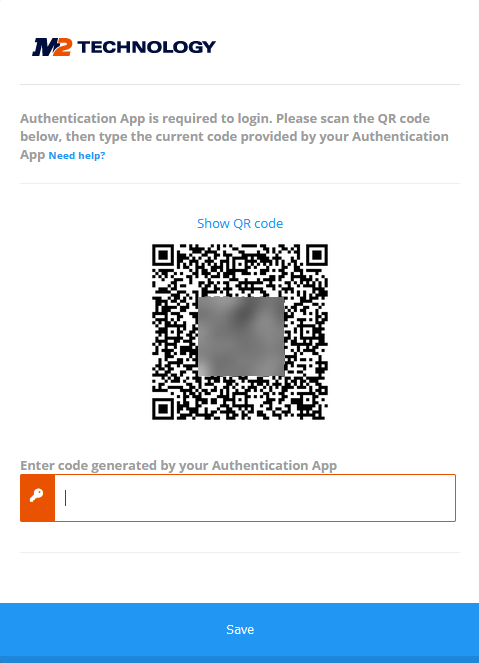
The first time you sign in to CommTrak when App Authentication has been enabled, you will presented with the following screen:

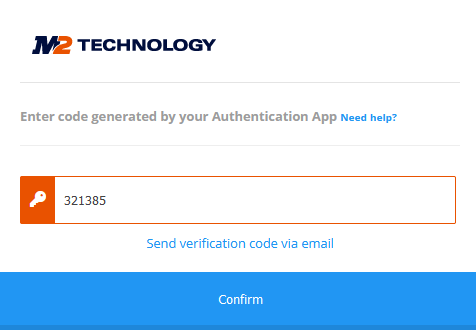
You will only see the Send verification code via email option (visible in the previous screenshot) if your CommTrak administrator has enabled email 2FA.
When you are presented with the screen shown in the previous screenshot, you will need to add your CommTrak account to an Authenticator app...
Add your CommTrak Account to an Authenticator App
- Press the blue Show QR code option in CommTrak (visible in the following screenshot). A unique QR code will be displayed on the CommTrak screen:
- Open your authenticator app.
- Choose the option to add a new account. If using Microsoft Authenticator, you will need to select the Other account option.
- If prompted in the authenticator app, select the option scan a QR code.
- Point your mobile device's camera at the QR code on the CommTrak screen.
- A CommTrak account with your username will be created in the authenticator app..
- If it is not currently displayed, select the newly-created CommTrak account in your authenticator app. A six-digit code will be displayed on your mobile device's screen.
- In CommTrak, enter the six-digit code generated by your authenticator app and press the Save button.
The above steps only need to be completed once (unless you lose your mobile device)!
As this is the first time that you have activated 2FA via authenticator app, you will be prompted to sign-in to CommTrak again:
Sign-in for the First Time with Authenticator App
- In CommTrak, enter your username and password at the prompt and press the Login button.
- In your authenticator app, select the CommTrak account that you just added.
- Your authenticator app will display a 6-digit authentication code.
- Enter the 6-digit authentication code into CommTrak:
- Press the Confirm button in CommTrak.
If you entered a valid authentication code, you will be logged in to CommTrak.
The Send verification code via email option shown in the previous screenshot is only available when enabled on your CommTrak by an administrator; it is not available in all CommTrak installations.
Lost Access to Your Authenticator App? / 2FA Reset Required?
If you are unable to access your authenticator app (e.g. you have lost or replaced your mobile device, or you have uninstalled the app), or you need your 2FA access reset for any other reason, you must contact a CommTrak Supervisor and ask them to use the Force New Password option in your user settings:
Settings > User Settings > Users > [username]:

Force New Password requires Supervisor permissions.
The Force New Password option clears your authenticator app settings and requires you to change your password the next time you sign-in to CommTrak. After you have provided a new password, you will be prompted to create a new CommTrak account in your authenticator app.