
What's New November 2022
Productivity Activities New
- Introduction
- Basic Productivity Activity Example (Ticket / Job Notes)
- Productivity Activities in Workflows
- Productivity Activities in Project Tasks
- Productivity Time within Projects
- Productivity Report
- Costs and Rates
- Configuring Productivity Activities
General
Settings
Productivity Activities
This major enhancement to CommTrak provides many benefits relating to accountability, auditing and reporting of staff time within individual components (e.g. Jobs, Tickets, Workflows), and also when those components are related to Projects.
Introduction
Productivity Activities allow for the recording and reporting of chargeable and non-chargeable activities against various components throughout CommTrak.
Productivity Activities can be reported on by utilising the Productivity Report (Reports > Productivity Report) and, when combined with Projects, components with Productivity Activities provide full accountability for Project labour costs, whether those costs be chargeable or non-chargeable.
An activity consists of a description and a duration, and can be added to the following components within CommTrak:
- Ticket notes
- Job notes
- Project Task notes
- Workflows Task notes (as non-chargeable activities)
- Quote line items (as chargeable labour)
- Timesheet entries (as non-chargeable activities)
To maintain backwards compatibility with the previously available Billable / Non-Billable Time feature (available within Ticket and Job notes), the generic activities Billable Time and Non Billable Time have been added to the Chargeable and Non Chargeable categories, respectively. It is not mandatory that these items are retained, and they may be edited or archived as appropriate for your organisation, in the Productivity Activity settings.
Basic Productivity Activity Example (Ticket / Job Notes)
The following image is an example of a Productivity Activity being added to a Ticket note (the feature is identical in Job notes):
 The previous image shows that the Activity field (which has been clicked to present the dropdown list) has replaced the previously available Billable Time and Non-Billable Time fields. Rather than assigning some billable or non-billable time in separate fields, the user now selects an activity, such as Equipment Installation (which in this example has been configured as a chargeable activity), and then specifies the duration as appropriate:
 This results in the fields being populated as follows:
 When the note is added, the Time Totals field is updated accordingly. The Chargeable time, which was blank in the previous image, is updated to the specified duration, as shown in the following image:
 Chargeable and non-chargeable time can be verified by your accounts department by using the Productivity Report, in the same manner that it was previously achieved for billable and non-billable time.
Productivity Activities in Workflows
When adding a Workflow Task note (by clicking the note icon in the Task row), an activity and duration can be specified:
 The activity and duration are recorded along with the Task note:

Productivity Activities in Project Tasks
Project Task notes now include the Productivity Activity fields, thus enabling a Project Manager to allocate ad hoc project management activities to a Task:
 Once a Project Task note has been added, it is visible in the Notes section of the Project:

Productivity Time within Projects
Productivity Activities Associated with a Component (Job, Ticket, etc.)
All chargeable and non-chargeable time that has been added to a component is automatically included within a Project to which the component is related.
For example, if a Workflow Task note has chargeable time added to it, and the Workflow Case is related to a Project Task, the chargeable time becomes associated with the Project.
The following image shows the Time Based Progress field within a Project:
 The time budgeted by the Project Manager is displayed along with the current Time Spent by Staff, which is an accumulation of all chargeable and non-chargeable time for components (such as Jobs, Tickets and Workflows) related to this Project. The Project Manager can clearly see how much of the budgeted time has been used.
Productivity Report
All notes with productivity activity can be tracked and verified in the Productivity Report:

Please refer to the Support Centre article, Productivity Report, for further information about this feature.
Costs and Rates
Costs and rates for Productivity Activities are configured in the Labour Rates Matrix (User Settings > Labour Rates Matrix), which has been enhanced to include provision for Productivity Activities (in addition to the previously available Job Type and Ticket Type costs and rates).
Default rates can be assigned within the matrix, or specific costs and rates can be assigned by Productivity Activity Type.
For detailed information pertaining to cost and rate configuration, please refer to the Labour Rates Matrix (Settings) article.
Configuring Productivity Activities
Productivity Activities can be assigned as either Chargeable or Non Chargeable, and can be configured to only be available in specific CommTrak components.
When viewing the Productivity Activities settings, a summary of all activities is displayed:
 Clicking the Project Consulting activity (visible in the previous image) displays the configuration for that activity:
 The settings in the previous image indicate that the Project Consulting activity is Chargeable, is available only in the Projects module (it will not be visible in Tickets, Jobs, etc), and is only available to Olivia and Peter (other users will not be able to see this item in the activities list).
Productivity Activities can be archived so the item is no longer selectable by users, but is still reportable. Archived activities can be reactivated if required.
General
Email Attachment Field Has Moved
The Attach Files field in the Send Email window has been moved. Previously, this field was displayed below the main body of the email. The new location, as highlighted in the following image, provides for better visibility of this feature:
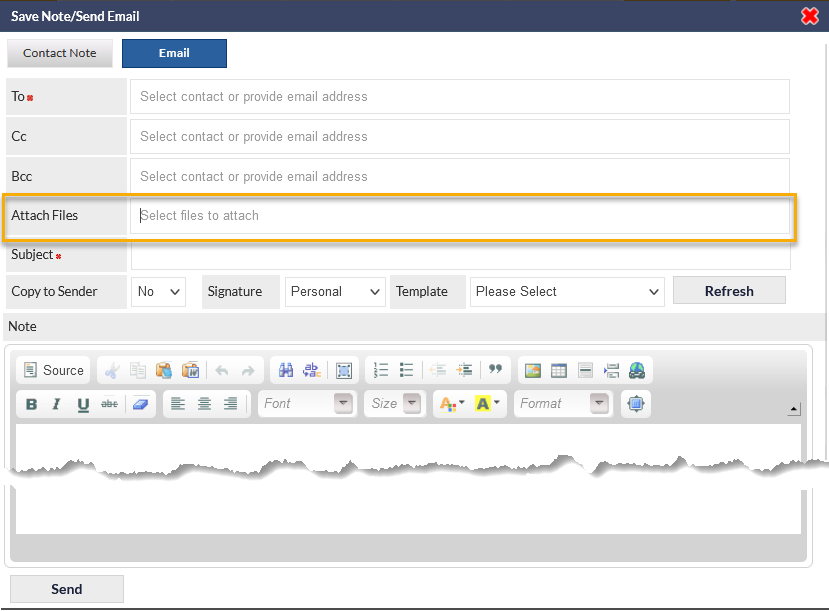
Please refer to the following Support Centre article, Entering / Selecting Email Addresses & Adding Attachments, for further information and tips pertaining to the attachment of files to emails.
Settings
Multiple Images in Email Signatures
It is now possible to insert multiple images into Email Signatures, both for company-wide and personal email signatures. Previously, it was only possible to insert a single image into a signature.
To insert an image into an email signature, when editing a signature, position the image in the required location, and click the Image icon (highlighted in the following image), which will display the image-selector pop-up window.
 For further information pertaining to the configuration of email signatures, please refer to the following Support Centre articles: