
Productivity Activities (Settings)
For an introduction to Productivity Activities and related terminology, please see the Support Centre article, Productivity Activities.
These settings are used to configure Productivity Activities that can be utilised in the following CommTrak components:
- Ticket notes
- Job notes
- Project Task notes
- Workflows Task notes (as non-chargeable activities)
- Quote line items (as chargeable labour)
- Timesheet entries (as non-chargeable activities)
Accessing Productivity Activities Settings
Settings > General Settings > Productivity Activities
Productivity Activities are listed as shown in the following image:
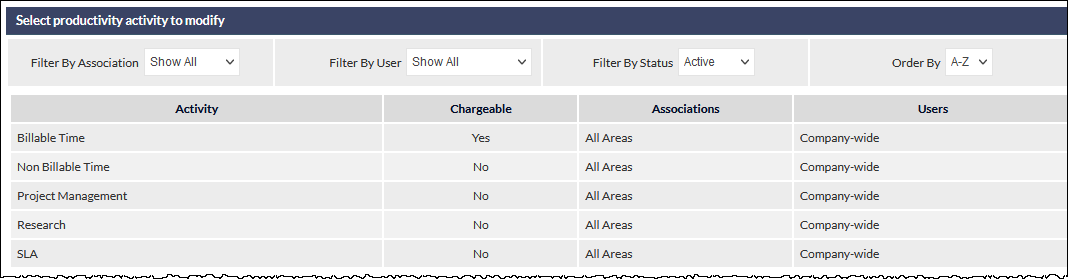
The previous image includes some example Productivity Activities that are not included in a default CommTrak implementation.
By default, all active Productivity Activities are listed.
The list can be filtered and sorted using the dropdown options displayed above the list (visible in the previous image). When selected, a filter is applied immediately (no confirmation is required and the list refreshes automatically):
Filter By Association (default: Show All)
Available options are:
- Show All
- All Areas
- Jobs
- Projects
- Tickets
- Timesheets
- Workflow
The All Areas option filters the list to display Productivity Activities that have been allocated to all modules (i.e. it does not list all Productivity Activities).
Filter By User (default: Show All)
Available options are:
- Show All
- Company-wide
- [list of users]
Filter By Status (default: Active)
Available options are:
- Active
- Inactive
- Show All
Add a Productivity Activity
- Press (displayed topmost on the settings screen)
- Enter a name into the Activity field
- Press (or Cancel as required)
The following fields are displayed:
Activity (mandatory)
The name of the activity is displayed in this field, and can be edited if required.
Chargeable (default: unticked)
Ticking the checkbox indicates that this activity is chargeable.
Associate With (default: All Areas)
This field determines in which CommTrak modules the activity will be available. By default, all activities are available in all modules in which they are valid.
The available options are:
- All Areas (the activity is available within all valid modules)
- Selected Areas (the activity is available only within selected modules, where valid)
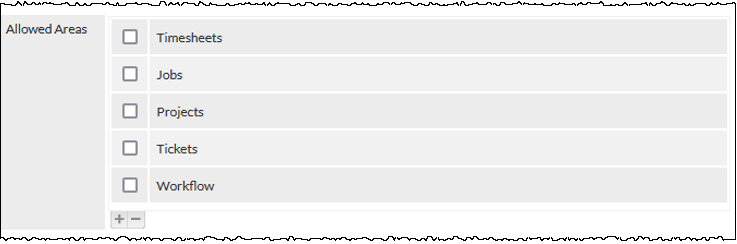
To select one or more specific modules within which the activity will be available, choose Selected Areas from the dropdown list. The Allowed Areas field will be displayed:
Allowed Areas (default: none)
This field is only displayed when the Associate With field is set to Selected Areas.
Available To (default: Company-wide)
This field determines to which users an activity is displayed.
The available options are:
- Company-wide (the activity is available to all users)
- Selected Staff (the activity is available only to specified users)
To select specific users to whom the activity will be available, choose Selected Staff from the dropdown list. The Allowed Users field will be displayed.
Allowed Users (default: none)
This field is only displayed when the Available To field is set to Selected Staff.
Tick one or more of the listed user names to determine which users will be able to select the activity.
Action Buttons
- Save - Save any changes
- Cancel - Do not save changes
- Archive - Prevents the Productivity Activity from being selected by a user, but remains available for reporting purposes
Modify a Productivity Activity
When modifying or archiving Productivity Activities, at least one Chargeable and one Non Chargeable activity must be available to all users. A warning will be displayed if an attempt is made to save changes or archive an activity that would result in there being no Chargeable or no Non Chargeable activities remaining.
- Select a Productivity Activity from the list displayed at the top of the settings screen
- Edit the Productivity Activity fields as required (see the above section Add a Productivity Activity for a description of available fields)
- Click
Archive a Productivity Activity
When modifying or archiving Productivity Activities, at least one Chargeable and one Non Chargeable activity must be available to all users. A warning will be displayed if an attempt is made to save changes or archive an activity that would result in there being no Chargeable or no Non Chargeable activities remaining.
- Select a Productivity Activity from the list displayed at the top of the settings screen
- Click
Archiving a Productivity Activity does not delete it. The item is retained in the settings in an archived form, which means that it can no longer be selected by any user, but is still available for management and reporting purposes.
Archived activities can be reactivated:
Reactivating a Productivity Activity
In the filters above the list of Productivity Activities, displayed at the top of the settings screen, change Filter By Status to Inactive (highlighted in the following image):

- Inactive Productivity Activities are listed based on the current filter selections
- In the resulting list, click on the row of the Productivity Activity to be reactivated
- The Productivity Activity fields are displayed, as described in the Modify a Productivity Activity section, with an additional Active field, which is unticked
- Tick the Active field and click to confirm
- The previously archived item is now active