
Productivity Activities
An introductory video, providing an overview of features and settings, is available: Productivity Activities (video):
In this article:
Introduction
Productivity Activities allow for the recording and reporting of chargeable and non-chargeable activities against various components throughout CommTrak.
Productivity Activities can be reported on by utilising the Productivity Report (Reports > Productivity Report) and, when combined with Projects, components with Productivity Activities provide full accountability for the Project costs.
Activities can be added to the following components within CommTrak:
- Ticket notes
- Job notes
- Project Task notes
- Workflows Task notes (as non-chargeable activities)
- Quote line items (as chargeable labour)
- Timesheet entries (as non-chargeable activities)
To maintain backwards compatibility with Job module productivity billing, the default configuration is that Jobs are billed by Job Type (as configured in the Labour Rates Matrix). To enable Job billing by Productivity Activity, the following setting must be changed: Settings > Job Settings > Miscellaneous > Preferred method of determining labour charge rate (refer to Labour Rates Matrix). This setting should be changed to Activity if required.
Within the above components, the type of chargeable or non-chargeable time that is being allocated to a component (e.g. a Job, Ticket, Workflow Case, etc), is specified by selecting an activity that has previously been configured in Productivity Activities settings.
For example, when adding a note to a Ticket or a Job, the following activities may be available (depending upon your organisation’s CommTrak settings):
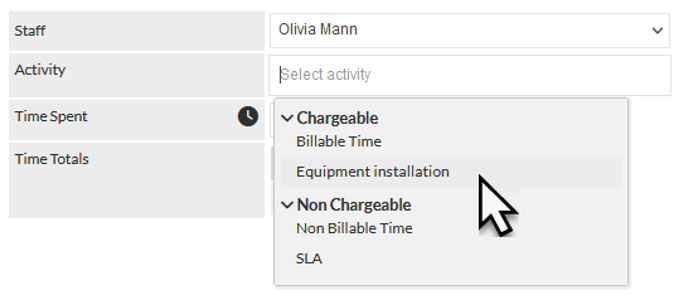
To maintain backwards compatibility with the previously available Billable / Non-Billable Time feature (available within Ticket and Job notes), the generic activities Billable Time and Non Billable Time have been added to the Chargeable and Non Chargeable categories, respectively (visible in the previous image). It is not mandatory that these items are retained, and they may be edited or archived as appropriate for your organisation.
Your organisation’s CommTrak administrator can add, modify, and archive activities as required, but at least one Chargeable and one Non Chargeable activity must be available to all users.
Each Productivity Activity can be configured to be available within single, multiple, or all CommTrak modules, and can further be restricted to be accessible only by specified team members.
In the previous image (showing Productivity Activities being selected in a Ticket or a Job), the chargeable Equipment Installation activity is configured only to be available when adding an activity to a Ticket or a Job.
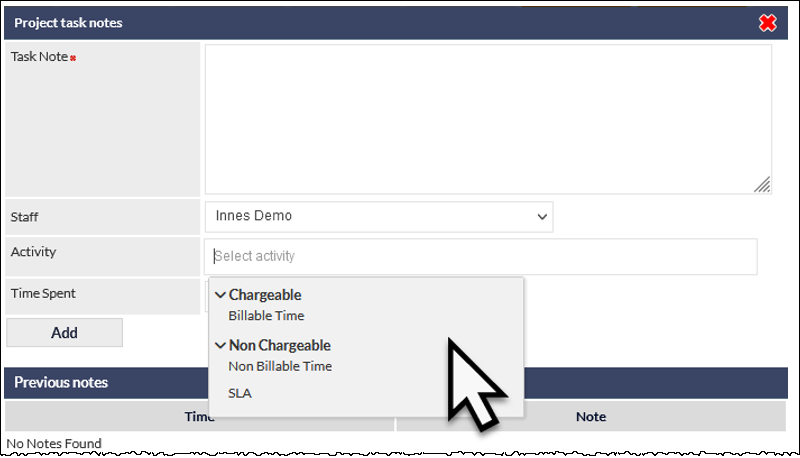
Continuing this example, when the Activity list is displayed in the Projects module, the Equipment Installation activity is not visible, because it has not been configured to be available in a Project:
When an Activity is selected the duration dropdown list is displayed automatically, and the duration must be specified:
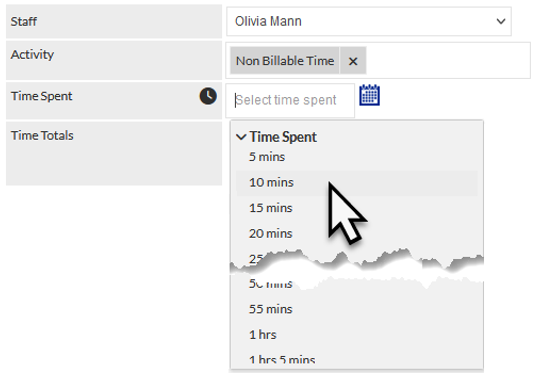
If required, the time and date of the activity can be specified by clicking the calendar icon adjacent to the Time Spent field (visible in the previous image).
Tracking the time allocated to a component (e.g., a Job, Ticket, Workflow Case, etc), can be achieved by viewing the component, or by running a report for broader analysis.
The following image shows a partial screenshot from a Ticket, to which some Chargeable and Non Chargeable activities have been added:
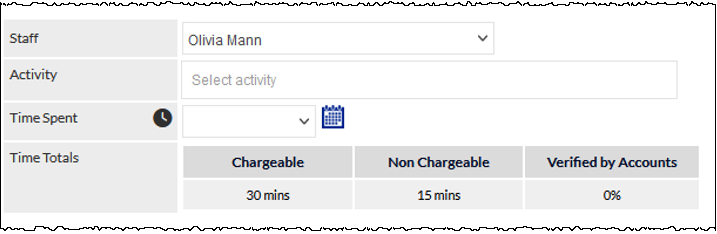
The Time Totals field (visible in the previous image) shows the cumulative productivity time for this Ticket. Each note to which an activity has been assigned shows the duration and name of the selected activity:
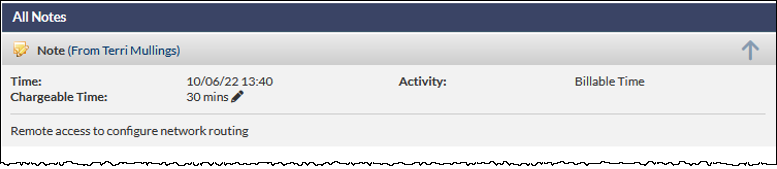
The previous image shows a Ticket note, to which 30 minutes of chargeable time has been added, and the Activity selected was Billable Time.
The duration of the activity can be edited by clicking the edit (pencil) icon adjacent to the Chargeable or Non Chargeable time in the note. All edits to durations are automatically appended to the note, and cannot be changed as they are required for auditing purposes.
When Chargeable or Non Chargeable activities are assigned to a Project Task, the cumulative time is displayed in the Project Management Time field:

The percentage in the Verified by Accounts field is updated when the activity is confirmed in the Productivity Report (typically, this is updated by your Accounts team).
If a component (e.g., a Ticket, Workflow, Job, etc.) has productivity time assigned to it, and the component is related to a Project, the productivity time will be added to the Time Based Progress field:

In the previous image, the Time Spent by Staff field includes the cumulative total for all activities within related components.
Using Productivity Activities
Adding a Productivity Activity to a Note
Productivity Activities can be added to a note in the following areas:
- Job
- Ticket
- Workflow Task
- Project Task
When adding a note to any of the above, the following fields are available:
Staff
The user who conducted the Activity.
This field defaults to the name of the current user, but an alternative user can be selected if required.
Activity
The name of the Activity.
The options in this list will vary depending upon your CommTrak configuration. A default CommTrak configuration will always include the following activities, but please note that the names of these activities may have been modified by your organisation’s CommTrak administrator:
- Chargeable – Billable Time
- Non Chargeable – Non Billable Time
If an Activity is specified, the Time Spent field becomes mandatory.
Time Spent
The duration of the Activity.
If the Time Spent field is populated, the Activity field becomes mandatory.
Calendar Icon (adjacent to the Time Spent field)
By default, the time of the Activity will be recorded as the time at which the note was added.
If the activity occurred in the past, clicking the calendar icon enables an earlier date and time to be specified.
Adding a Productivity Activity to a Timesheet
Select the Timesheet to which an Activity is to be added
The Timesheet pop-out window is displayed:
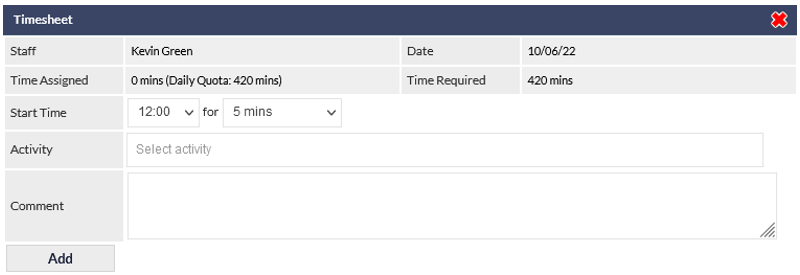
Specify the Start Time, duration, Activity and Comment (visible in the previous image) and click the Add button.
Only Non Chargeable activities can be added to a Timesheet.
Adding a Productivity Activity to a Quote
Productivity Activities can be added as a line item in a Quote:
- Click the Method dropdown list, and select Labour
- Select the required Productivity Activity from the dropdown list
- The Buy Price and Sale Price of the Activity are populated automatically, and are determined by the Labour Rates Matrix settings

Only Chargeable activities can be added to Quotes.