
What's New May 2026
Security / Sign-In
Software and Services (SaS)
Leads / Quotes
Projects
Documents
Reports
Security / Sign-In
New Authentication Settings
CommTrak has introduced several new authentication and session-management capabilities, providing administrators with enhanced control over user session security. These settings are configured through: Settings > User Settings > Security:

All features default to existing CommTrak behaviour, ensuring no disruption to current user experience until administrators choose to adjust the settings.
Session Inactivity Timeout
Administrators can now configure automatic logout for users who remain idle for a specified period. The timeout can be set anywhere from 15 minutes to 7 days, or disabled entirely if preferred. When a user reaches the inactivity threshold, their session ends and they are returned to the login screen with an explanatory message. This applies to both staff and Customer Portal users.
Maximum Session Lifetime
An absolute time limit can now be set on how long any user session remains active, independent of user activity. Options include 1, 2, 3, or 4 weeks, or the default Browser Session setting (where sessions end when the browser closes). When a maximum lifetime is configured, a "Keep me logged in" checkbox appears on the login form, allowing staff users to maintain sessions across browser restarts up to the configured limit. This feature applies to staff users only and does not affect Customer Portal users.
Access Tokens as Cookie Values
CommTrak now implements current industry best-practice standards for cookie handling and access token storage. Existing staff sessions are automatically migrated to the new format on rollout with no disruption to users. Customer Portal users will be logged out during this update and will need to log in again with the new token format.
For more details about these and other CommTrak security settings, see the article Security (Settings).
SAML Single Sign-On
CommTrak now supports SAML single sign-on (SSO), allowing users to authenticate through their organisation's identity provider instead of using local CommTrak credentials.
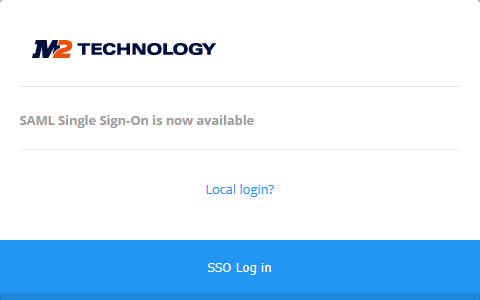
Supported providers include Entra ID, Okta, Google Workspace, and others. Configuration is managed through Settings > User Settings > Single Sign-on (SAML).
Login Method Control
Administrators can configure individual user login methods as Local password only, Local password or SSO, or SSO only.
Administrators retain the flexibility to adjust per-user login methods as needed.
User Login Experience
When SAML is enabled, users see a toggle on the login screen allowing them to choose between local password authentication and SSO login. The selection persists per user based on their configured login method setting.
If you wish to implement SSO, please contact CommTrak Support to discuss your requirements - we'll be pleased to advise you on the required configuration.
Software and Services (SaS)
Upfront / Revenue Option
Upfront revenue can now be configured for Software and Services (SaS) items that have a Customer Subscription. This one-off revenue amount is applied at the contract commencement.
To apply upfront / one-off revenue to a SaS item:
Settings > Leads Settings > Services & Software (SaS)
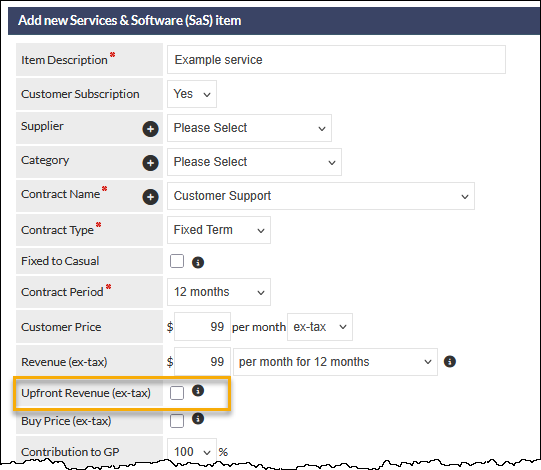
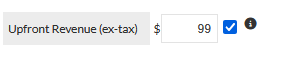
When this field is ticked, an upfront revenue value can be entered:
The Upfront Revenue is displayed in the quote line item:
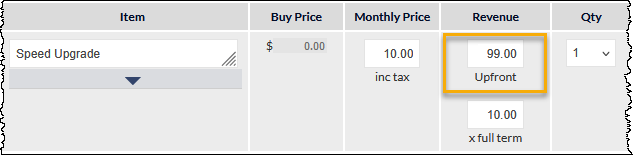
The upfront revenue will be included in the GP / TRR Value column of the Leads report and the Sales Dashboard Trailing Revenue chart.
For more information about Services and Software items, please refer to the Leads Services & Software (SaS) (Settings) article.
Leads / Quotes
Quote Item Groups
Quote Item Groups enable you to organise quote line items into logical sections, each with a custom label. When the quote is printed, converted to a URL, or displayed as an online quote, the line items appear grouped under their respective section headings.
The following image shows an example quote pricing section with three groups: Components, Accessories and Delivery:
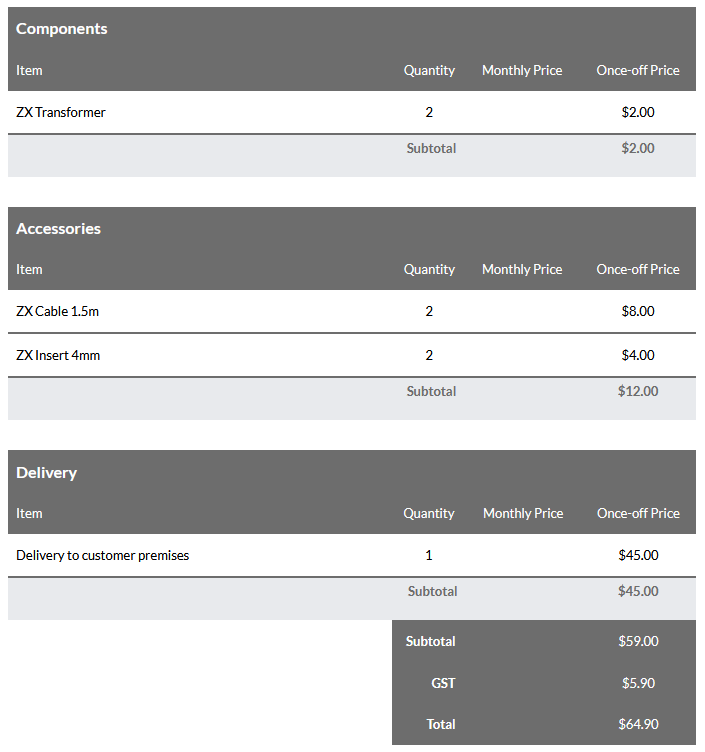
This feature streamlines quote presentation by allowing you to group related items such as hardware, software, and services, making quotes easier for customers to understand and navigate. Within quotes, you can rename groups, reorder them, move line items between groups, and delete groups as needed.
The feature requires a quote template configured to support Quote Item Groups. If your quote template does not support groups, please contact CommTrak Support to have it updated.
For full details, see the article Quote Item Groups.
Projects
Task Board
The Task Board displays project Milestones and Tasks as a task board (also known as a Kanban Board, or Buckets):
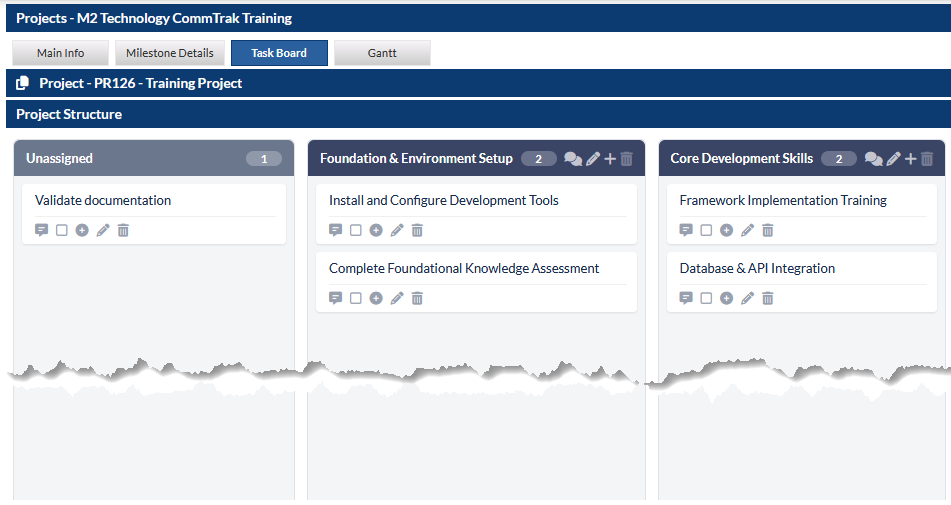
Tasks can be updated in this view, using the task icons (visible in the previous image), and tasks can also be dragged and dropped between Milestone cards.
Enhanced Gantt Chart
The Gantt chart view has been enhanced to improve legibility and to enable editing of tasks from within the Gantt view:
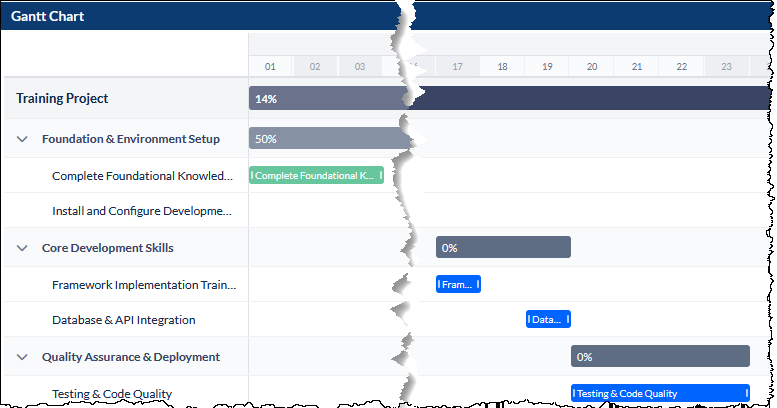
Hovering over a task expands the task name, and displays a pop-up window displaying the task details:
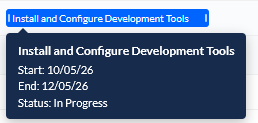
A task's start and end date can be modified by dragging and dropping the white handle at the beginning / end of the task name (visible in the blue task in the previous image).
Clicking on a task displays a pop-up window enabling the task details to be edited:
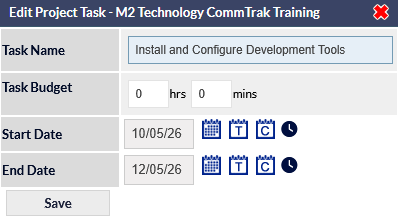
For more details about the new and enhance Projects views, please see the article Project Screen.
Documents
Document Library Sharing
Document sharing has been enhanced to enable sharing from the CommTrak Document Library (Documents in the CommTrak main menu), in addition to being able to share from a customer's Documents tab.

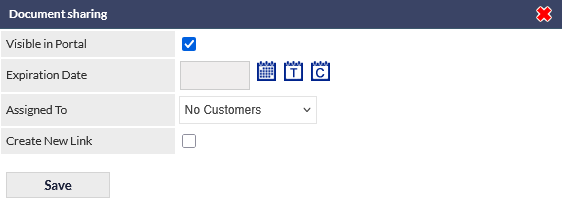
CommTrak Documents can be shared via:
- Link - a URL that can be shared with any contact. A password can be applied to the link
- Customer Portal - a document can be made available to:
- No Customers
- All Customers
- A Customer Group
- Multiple Customers
For more information about the enhanced document sharing features, please refer to the Document Sharing article.
Please see the Customer Portal section in the CommTrak Support centre for more details about this feature.
Reports
Additional Date Range Options
When selecting a date range in a report, there are now four additional options:
- This quarter
- Last quarter
- This FY (Financial Year)
- Last FY (Financial Year)
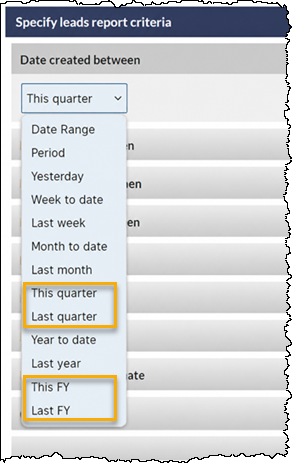
For more information about selecting dates and other report criteria, please see the Standard Reports article.
Revenue and GP Report Enhancements
The Revenue and GP Report has been updated to make contract revenue easier to read and to reflect the broader range of Software and Services (SaS) contract types now supported in CommTrak.
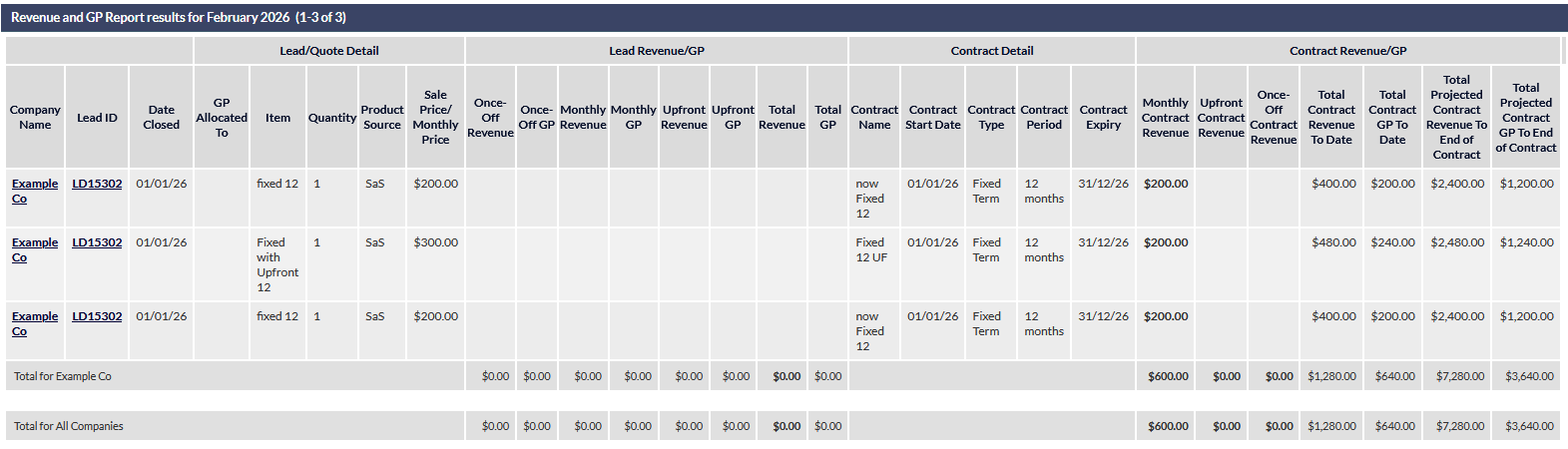
Quote and contract figures are now grouped under clearly labelled section headings. The original quote values are shown separately from the revenue and GP generated once a contract is confirmed. The header row remains pinned as you scroll, so column titles stay visible alongside the totals line.
For each confirmed contract, the report displays three key figures: the revenue received in the current month, the revenue received from the contract start date to date, and the projected revenue through to the end of the contract term. Upfront and Once-off revenue are now reported in their own columns, so contracts with both a one-off payment and an ongoing monthly fee are shown accurately.
Month Stepper
The report criteria selection screen now includes a month stepper on the Sale and GP value in the month of field, allowing the reporting month to be moved backward or forward without opening the drop-down list:
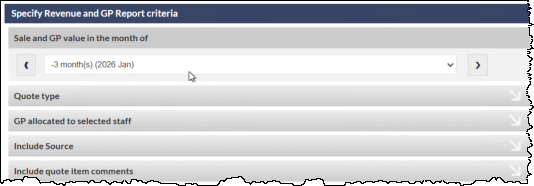
The left and right arrows step the selected month one period at a time, making it straightforward to produce the report for an adjacent month - for example, to view upcoming revenue three months ahead, or to compare the current month against the previous one. The drop-down list remains available for jumping to a non-adjacent month.
SaS items that have not yet been confirmed remain on the Quote side of the report and are shown in bold italic, consistent with how unconfirmed contracts are displayed elsewhere in CommTrak.
For more details, see the article Revenue and GP Report.