
Quote Item Groups
Quote Item Groups enables you to organise quote line items into logical sections, each with a custom label. When the quote is printed, converted to a URL, or displayed as an online quote, the line items appear under their respective group headings, making quotes easier to read and present.
This feature requires a quote template that supports Quote Item Groups.
If your current template does not support groups, you will see a warning message: "Selected quote template does not support quote item groups. Groups will not appear in the printed quote."
Please contact CommTrak Support and we will update your templates to enable this feature.
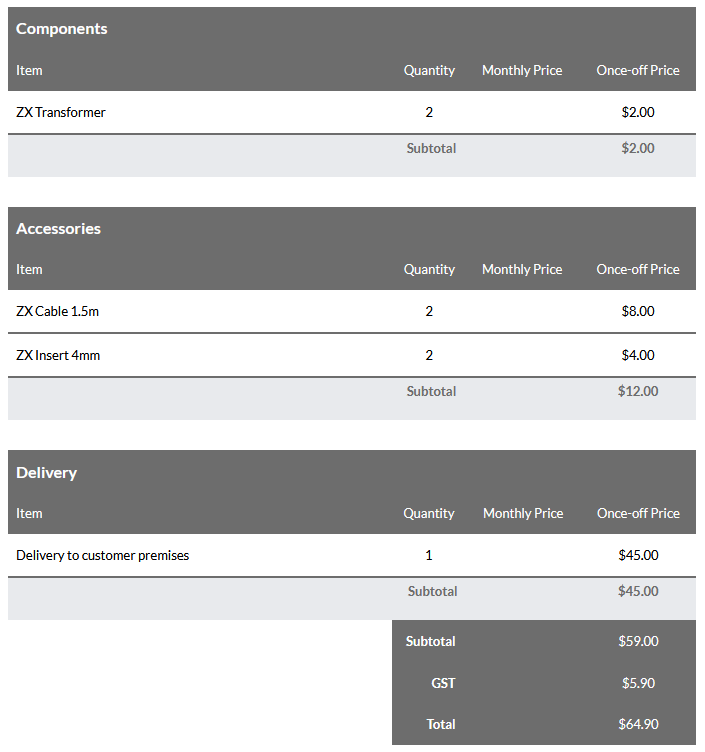
The following image shows an example quote pricing section with three groups: Components, Accessories and Delivery:
Quote line item hiding (price consolidation) is not compatible with Quote Item Groups.
Adding a Quote Group
To add a quote group, open a quote and click the Add new quote item group icon (folder with a plus sign), located next to the Add new quote item button.

When you add the first group to a quote, a new group heading appears above the first line item in the quote:

Subsequent groups are added after the final quote line item. Each new group is automatically assigned a label - Group 1, Group 2, and so on.
Group numbers are assigned sequentially based on creation order and do not indicate the group's position in the quote.
Managing Quote Groups
Rename a Group
To rename a group heading, either double-click the group title or click the edit (pencil) icon in the group header. The title becomes editable. Make your changes and press Enter to confirm.
A group heading does not need to be unique within a quote.
Move a Group
To change the position of a group within the quote, click and drag the group handle (the rightmost icon visible in the following image) to your desired location and release.

When dragging a group, all items within that group are hidden, and items in other groups temporarily collapse into single rows. This makes it easier to reposition groups when your quote contains many line items.
Delete a Group
Delete a GroupClick the delete (trash) icon in the group header. When you confirm the deletion, the group heading is removed. The line items previously in that group are not deleted - they are merged into the group above them (if one exists).
Move a Line Item Between Groups
You can move individual quote line items to a different group by clicking and dragging the item handle (rightmost icon on the line item row, visible in the following image) and dropping it into the target group.

When dragging a line item, all items in the quote temporarily collapse into single rows, making it easier to target the correct group.
When using Quote Item Groups, all line items must belong to a group - you cannot have ungrouped items.