
Document Sharing
The Document Sharing feature is available for global CommTrak Documents (Documents option in the CommTrak main menu) and also for customer documents (Documents tab in a customer profile).
Documents can be shared from CommTrak in two ways:
- Via the Customer Portal
- Via a shareable link
Only users with appropriate permissions will be able to access the Share options. If you can't see the Share icon, you do not have the required permission.
The required permission is:
Documents > Allow users to share documents with customers via links and customer portal
Both of the sharing options are accessed by updating a document's sharing settings in the customer's Documents tab:
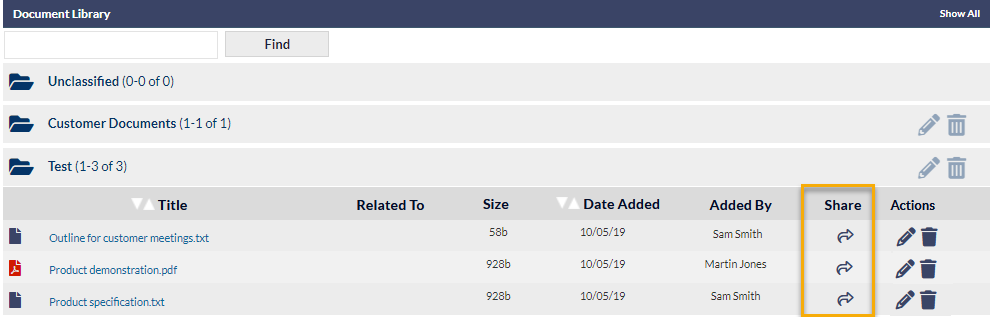
Press a document's Share icon (highlighted in the previous image) to display the Document Sharing pop-up window:
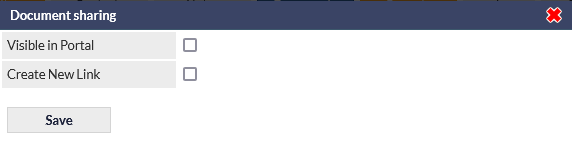
The pop-up presents two sharing features:
Visible in Portal
Documents are only visible in the Customer Portal if the Documents module has been enabled in the Customer Portal settings (either for the current customer, or for all customers).
Tick the box to enable visibility of the document in the Customer Portal - additional options are presented:
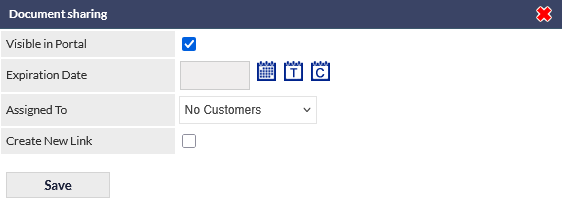
Expiration Date
The date after which the document will become unavailable. This feature is useful if a document must only be shared for a limited period.
Assigned To
This option determines which uses of the Customer Portal will have access to the document.
This option is only displayed when sharing from the CommTrak Document Library (i.e. not from the customer's Documents tab), as it is not relevant for customer documents.
The choices are:
No Customers (default) - the document will not be available in the Customer Portal
All Customers - the document will be available to all customers who have access to the Customer Portal.
Customer Group - select a Customer Group from the dropdown list. All customers within the group will have access to the document.
Selected Customers - multiple customers can be specified. Search for a customer name in the Customer Search field, and click the customer name to add it to the list of selected customers.
In the following image, a single customer, Perth Paving, has been added to the Assigned To list.
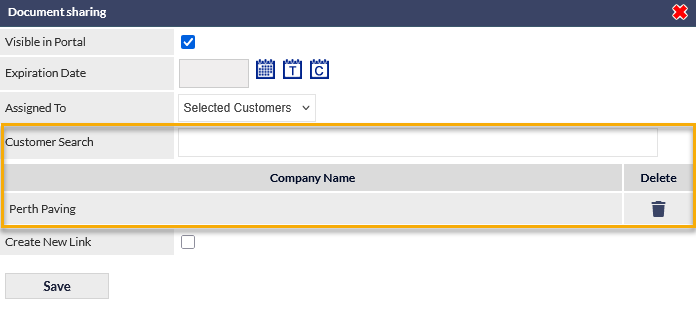
A customer can be removed from the list by clicking the trash can icon adjacent to the customer name (visible in the previous image).
Press Save to confirm any changes made to the Document Sharing options.
Create New Link
Tick the Create New Link box to create a shareable URL. When ticked, two additional fields are displayed:
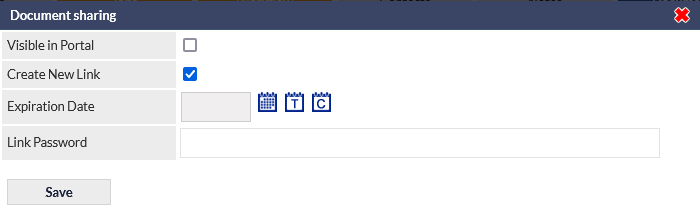
Expiration Date (optional)
If required, enter a date after which the link will expire. If no date is provided, the link will never expire.
Link Password (optional)
If required, enter a password that is required for accessing the shared document.
If a password is entered into this field, anyone who opens the document URL will be prompted to enter the password before the document can be displayed.
The password is not hidden from other CommTrak users, and can be viewed in the Document Sharing pop-up window. The password is intended to prevent external contacts from accessing the document and is not a security feature for CommTrak users.
Sharing the Link
Pressing Save will generate the shareable URL, and will also update the Previous Shares section of the Document Sharing pop-up window.
If the document has not been shared previously, the Previous Shares section will not be displayed.
The Previous shares section presents information pertaining to each time the document has been shared, with the most recent share appearing at the top of the list:
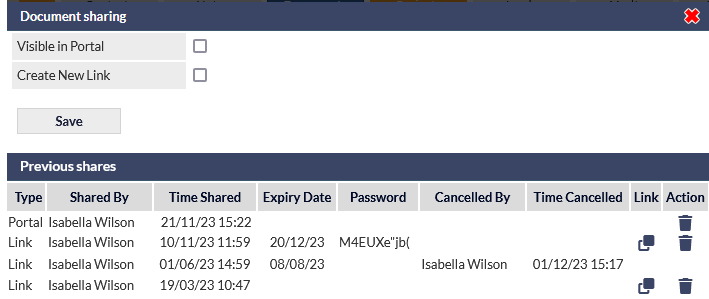
The fields displayed in the Previous shares section are as follows:
Type
- Portal - the document was enabled for sharing in the Customer Portal.
- Link - a shareable URL was created.
Shared By
The name of the CommTrak user who created the share.
Time Shared
The time and date on which the share was created.
Expiry Date
The time and date on which the share will expire.
Password
The password required for viewing the document when access by a shared link.
Cancelled By
The name of the CommTrak user who cancelled the share.
Time Cancelled
The time and date on which the share was cancelled.
Link
Clicking the Link icon (visible in the previous image), copies the shareable URL to the device's clipboard. The link can subsequently be sent to the intended recipient, for example, by email or messaging application.
Action
Cancel / Delete - Press the trashcan icon (visible in the previous image) to cancel a share.
Once a share has been cancelled, it cannot be 'uncancelled'.
Access History
To view document access history, click the history (clock) icon in the Share column:

A pop-up window displays the history for the share:
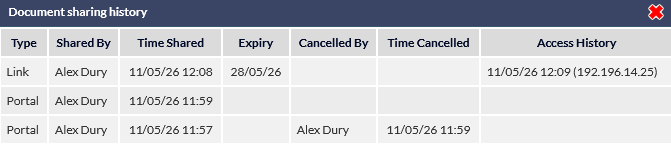
In addition to the document sharing history, documented earlier in this article, the following information is available:
Access History - the date/time and IP address from which a document was accessed using the shared link. Note that contacts can block their IP address from being shared, therefore the IP address may not be displayed.