
What's New October 2025
General
CommTrak API
Jobs
Utilities
Tickets (Notifications)
Accounting Integration
General
Workflow Admin Warnings Refinements
We’ve refined how Workflow Admin Warnings are generated to make them more meaningful and actionable.
Previously, warnings were shown for all active tasks not assigned to any staff member, even if those tasks weren’t currently part of an active workflow. This often resulted in a long list of warnings, making it easy to overlook more urgent issues.
Unassigned tasks may occur, for example, if the assigned staff member's CommTrak account is deactivated.
Now, admin warnings only include tasks that are next due for completion - the ones actually holding up progress:
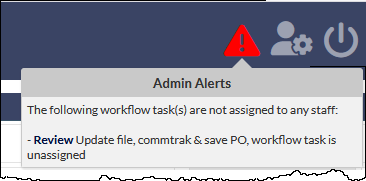
The result is a much clearer picture of what needs attention right now. The previous image shows an example of an Admin Alert for a due Workflow Task that is not assigned to any user.
Workflow Progress in Related To Sections
The progress of Workflows in the Related To field is now displayed, as highlighted in the following image:
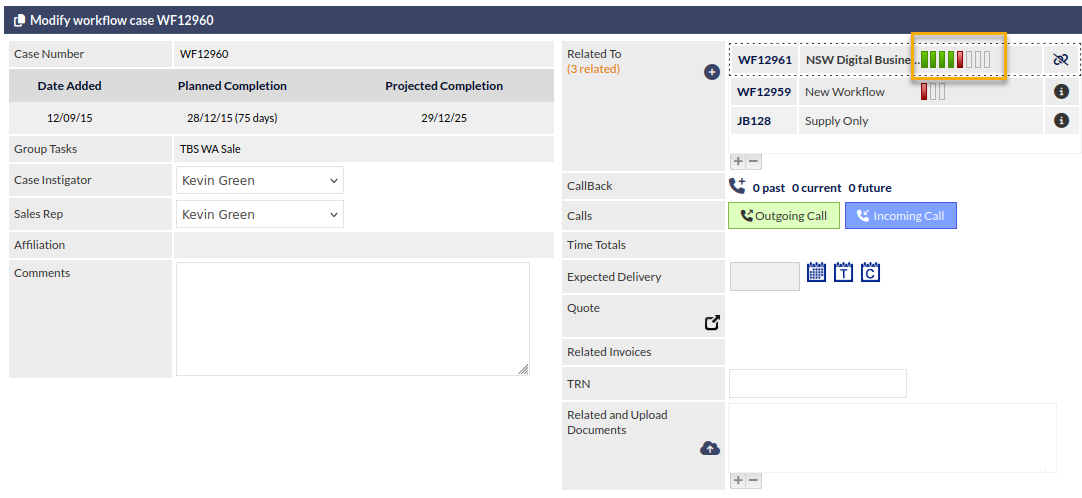
This provides an overview of a Workflow's progress without needing to open the Workflow case.
The Workflow task colour reference can be found in the following article:
For more information about the Related To field, please refer to the following Support Centre article:
CommTrak API
CommTrak API Enhancements
The CommTrak API has received a major upgrade — expanding by around 60% to cover most of CommTrak's key modules.
This update introduces several new endpoints and feature improvements, while maintaining backward compatibility.
Property Management (Updated)
New endpoints make it easier to retrieve standardised reference data used across the Property module:
- GET
/prop/contract_name— List available contract names - GET
/prop/document_folder— List available document folders - GET
/prop/lead_status— List available lead status types - GET
/prop/prefix— List available prefixes used for record numbering
Lead Management (Enhanced)
The Lead module has been expanded to provide full access to search, detail retrieval, and note history:
- GET
/lead/search— Search for leads with multiple filter options - GET
/lead/all— Retrieve all leads with comprehensive field data - GET
/lead/notes/{lead_id}— Retrieve all notes for a specific lead - GET
/lead/existing/{lead_id}— Retrieve detailed information for a specific lead
The New Lead endpoints have also been simplified to clearly differentiate between new and existing customer records:
- POST
/lead/new— Create a new lead with no prior relationship - POST
/lead/new/{customer_id}— Create a new lead for an existing customer or lead
Document Management (New)
A whole new section has been added for managing customer-related documents:
- GET
/document/list/all/{customer_id}— Retrieve all documents for a customer - GET
/document/list/{record_type}/{record_id}— Retrieve documents linked to a specific record - POST
/document/new/{record_type}/{record_id}— Upload files or documents to any record - GET
/document/existing/{document_id}— View or download a document
Additional Improvements
- Many endpoints now accept optional field parameters to include more detailed data (e.g.
/prop/staff)
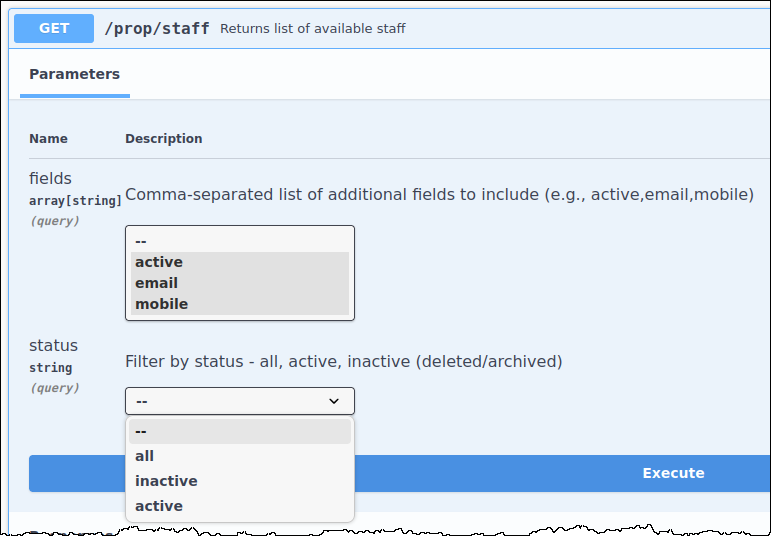
- Where data types can be archived, archived records can now be retrieved as well.
For comprehensive API documentation, including examples of authentication and API use, please refer to the CommTrak Support Centre article, CommTrak API.
Jobs
Scheduler Trimmed to Earliest Job Start Time
We’ve made a small but very practical change to improve visibility in the Job Scheduler.
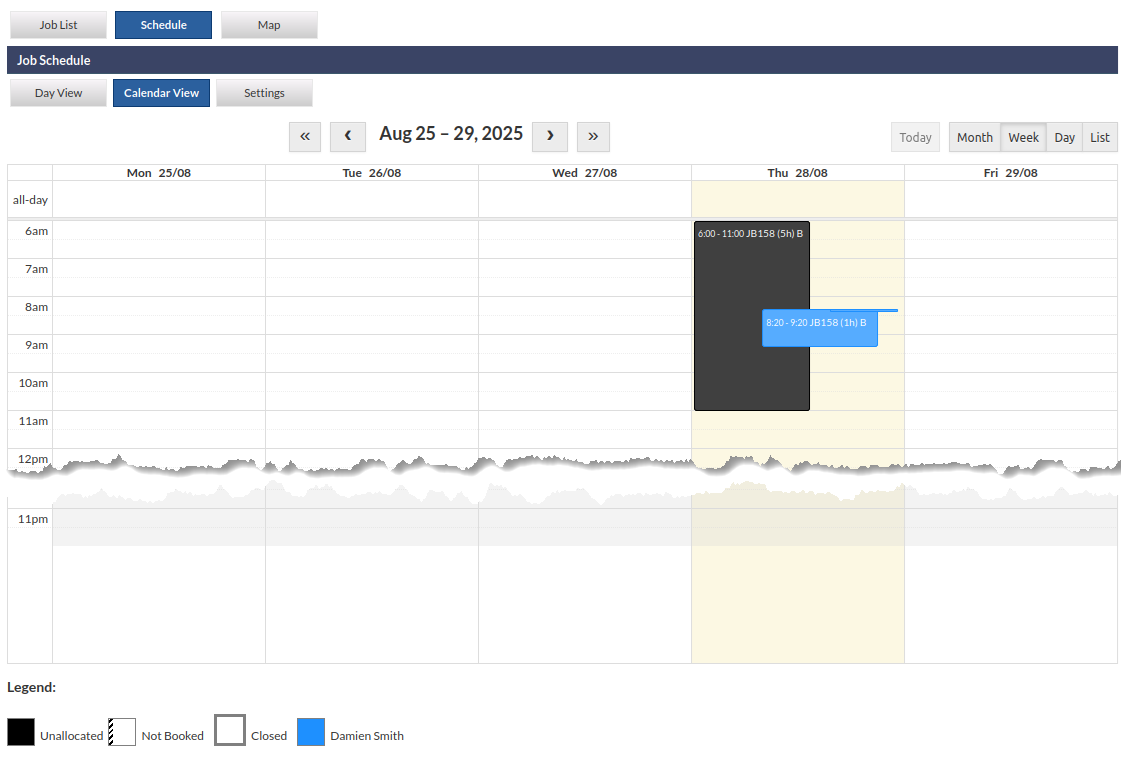
The Scheduler calendar now automatically starts at your organisation’s configured Earliest Job Start Time rather than displaying from midnight. This eliminates the need to scroll from midnight to the start of the technicians' working day.
The Earliest job start time settings already exists, and is used to present appropriate start times for Jobs - the same setting now affects the Scheduler calendar view:
Settings > Job Settings > Miscellaneous Settings.
- Choose your preferred start time (for example, 06:00).
- Click Save.

The setting in the previous image results in the layout shown in the following image, with the Scheduler Calendar View starting at 6am:
For more details on the Schedule features, please refer to the following Support Centre articles:
Utilities
Additional Contacts in Customer Import Utility
The Customer import utility now provides for the import of 10 contacts per customer.
Utilities > Customer Import
Activation of the Customer Import module must be requested via CommTrak Support. There is no upfront or ongoing cost for this module.
We recommend using the example data template provided - this will ensure that all fields are in the correct order for import, rather than having to manually match fields if an alternative template is used.
For more information about the importing customer records, please refer to the following CommTrak Support Centre article:
Tickets (Notifications)
Customer Ticket Notification Email - Subject Editing
You can now modify part of the ticket subject line in the Customer Ticket Email Notification.
Settings > General Settings > Email Notifications > Customer ticket email
This allows you to insert alternative text, and use available placeholders to tailor the subject line to your needs:

Please note that certain parts of the subject cannot be edited to ensure customer replies are correctly matched and stored as notes against the original ticket.
For more information about notifications email settings, please refer to the following Support Centre article:
Accounting Integration
Xero repeating invoice template creation
The CommTrak Xero integration has been enhanced to allow for the creation of repeating invoice templates.
This feature provides the ability to specify the criteria for a repeating invoice, which can include one or more recurring invoice items. The following image shows the New Repeating Invoice tab selected in the Accounts module:
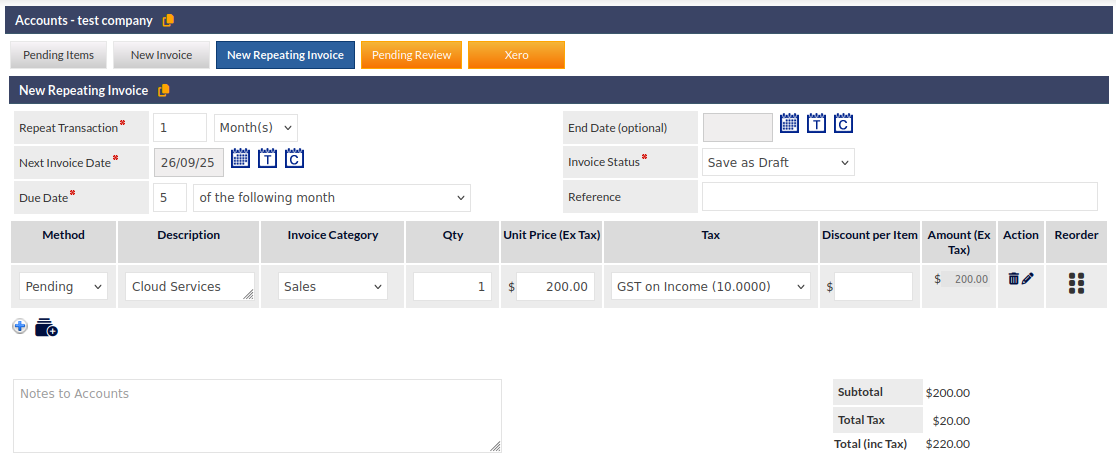
Key fields to note (visible in the previous image) are:
- Repeat Transaction - the frequency with which this invoice transaction should be repeated.
- Next Invoice Date - the date on which the repeat invoicing should start
- Due Date - the date on which the invoice is due to be paid. The following options are available:
- of the following month
- day(s) after the invoice date
- day(s) after the end of the invoice month
- of the current month
- End Date (optional) - the date on which the repeat invoicing will end
For more information about this feature, please refer to the following Support Centre article: