
Customer Portal Features
The Customer Portal provides access, to approved customer contacts, to view and modify certain information relating to their CommTrak Customer Record.
This article details the features available in the Customer Portal.
The URL for your organisation's Customer Portal is typically in the format: yoursite.commtrak.com.au/portal/
To enable a customer Contact to access the Customer Portal, please see the article, Customer Portal Access.
Customers can access the portal by appending /portal to your CommTrak URL - for example:
https://yoursite.commtrak.com.au/portal
Click on any image in this article to expand it.
Information available to Customer Contacts, in the Customer Portal, includes:
Main Info (Company details)
Data (Data sheets)
Main Info
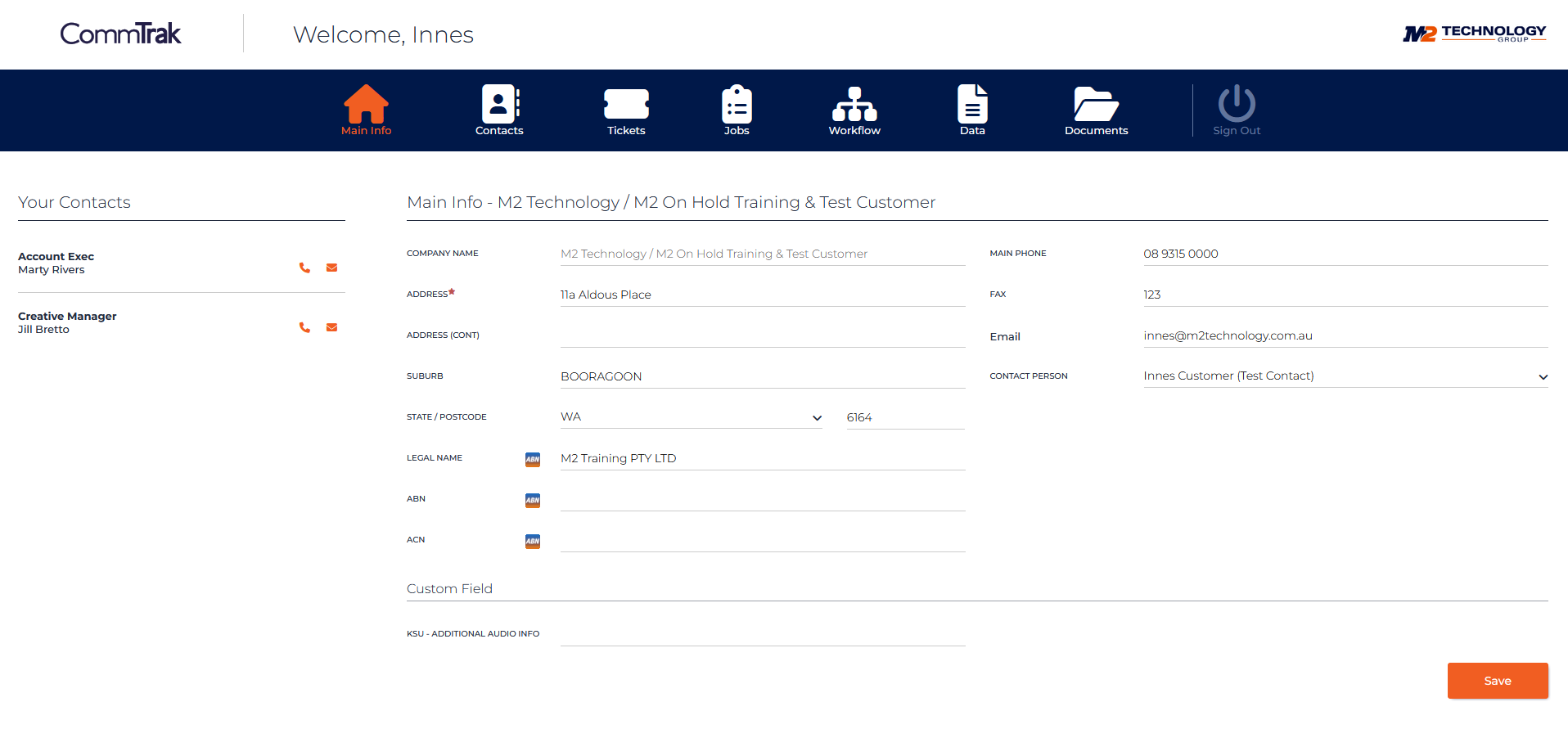
This section displays:
- Customer's company name (read only)
- Address details
- Main telephone numbers and email address
- Main contact person
- Sales Rep and Relationship Manager's names (read only)
Contacts
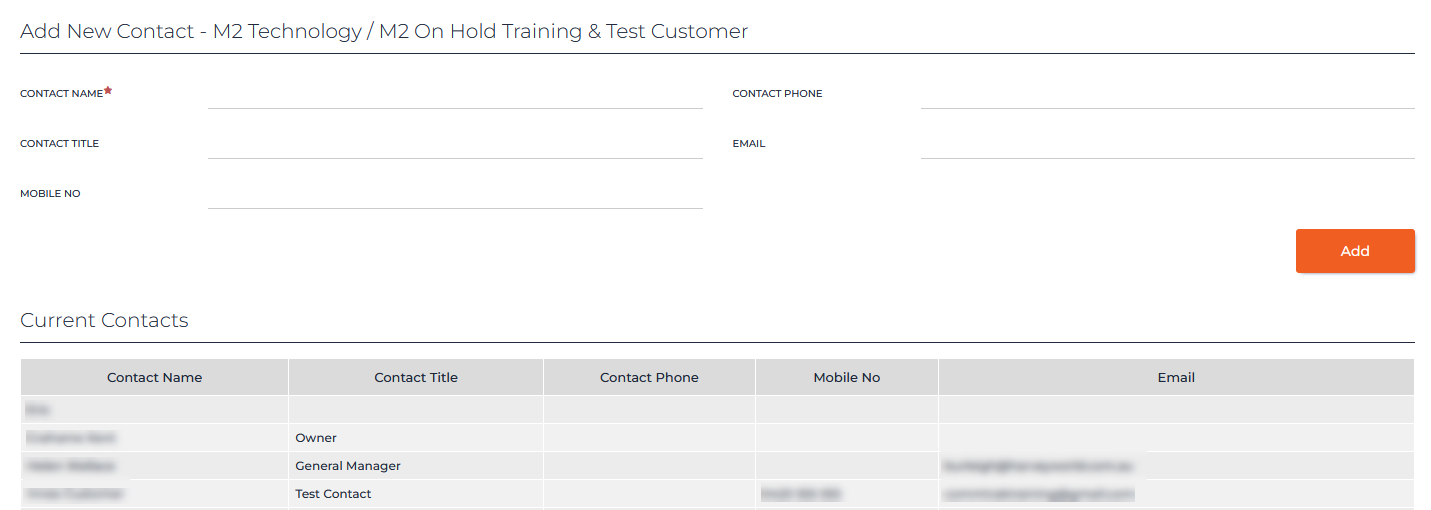
This section enables the contact to:
- Add new contacts
- View existing contacts
The contact fields displayed are:
- Contact Name
- Contact Title
- Contact Phone
- Mobile Number
Existing contact records cannot be modified.
Tickets
Only information pertaining to tickets with the Visible in Portal option enabled in the ticket details, are displayed in the portal.
The Visible in Portal option is located in each ticket's More Info section.
This section enables the contact to:
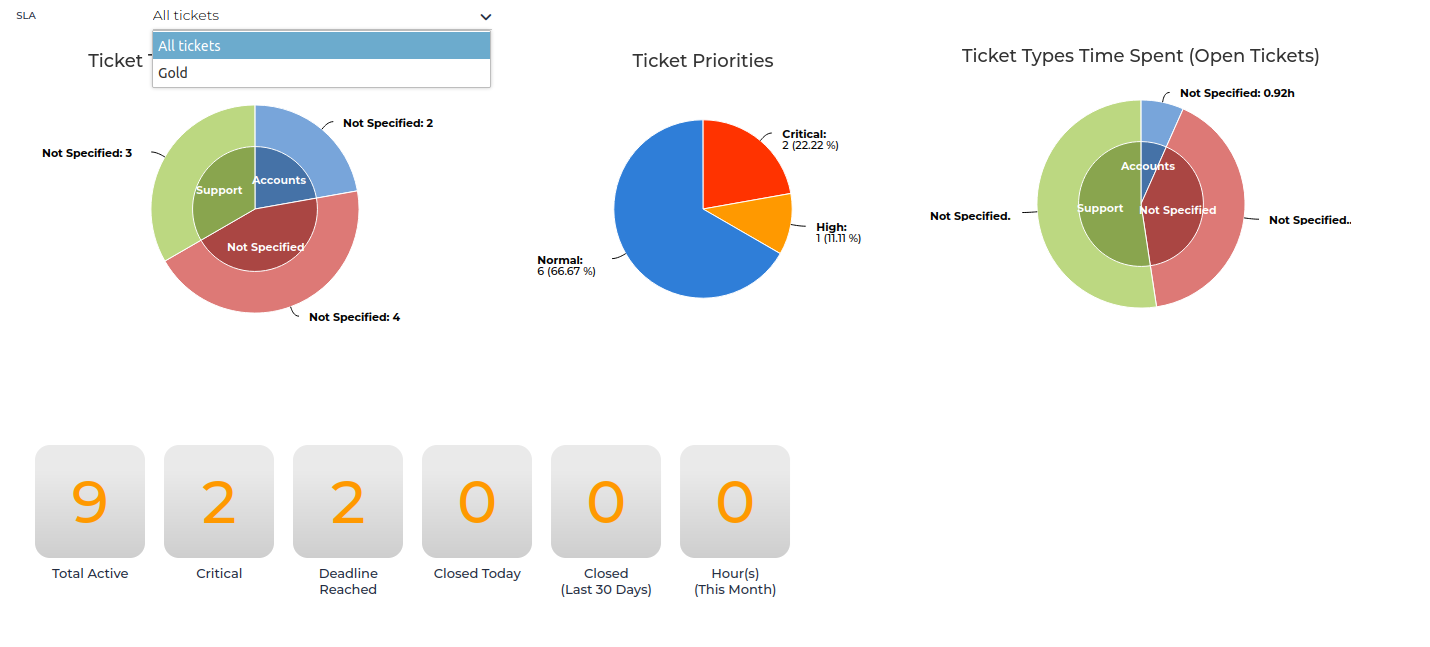
- View a graphical Ticket Dashboard (globally disabled by default; must be enabled in the Portal Module settings)
- Create a new ticket
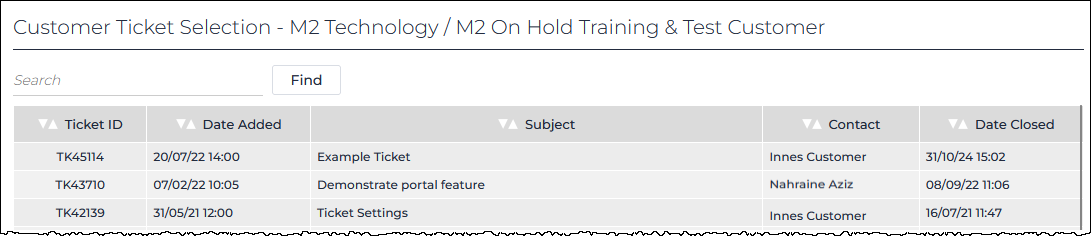
- View a summary of tickets
The fields displayed in the summary are:
- Ticket ID
- Date Added
- Subject
- Contact
- Date Closed
Ticket Details (read only)
Clicking on a ticket row in the summary, displays the following ticket details:
- Subject
- Description
- Contact
- Status
- Ticket Type
Below the ticket details, a history of ticket emails that have been sent to the customer (if any), are displayed.
Jobs (read only)

A summary of current and previous Jobs. The fields displayed are:
Date(s) Booked
Job ID
Closed (date)
Job Description
Job Details
Clicking on a job row in the summary list, displays the following job details:
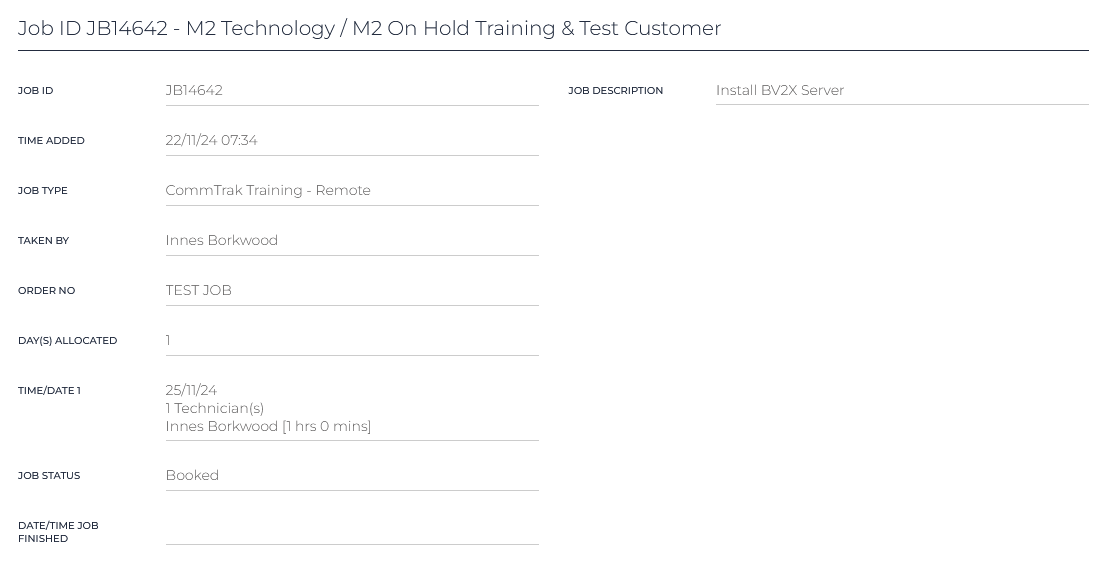
- Job ID
- Time Added
- Job Type
- Taken By
- Order No
- Day(s) allocated
- Time/Date
- Date
- Technician name(s)
- Duration(s)
- Job Status
- Date/Time Job finished
- Job Description
Workflow (read only)

A summary of Workflows for the customer. The fields displayed are:
- Group Tasks (workflow type)
- Date Added
- Case Instigator
- Status (coloured status indicators for each task in the workflow)
Workflow details
Clicking on a workflow row in the summary list, displays the following workflow details:
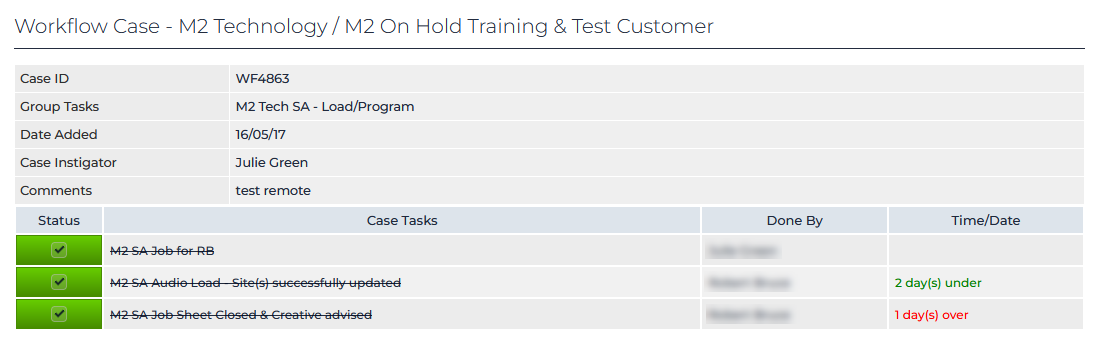
- Groups Tasks (workflow type)
- Date Added
- Case Instigator
- Status (for each task)
- Status (coloured status indicator)
- Case Tasks (task name)
- Done by
- Time/Date
Data
Customer Data Sheets:
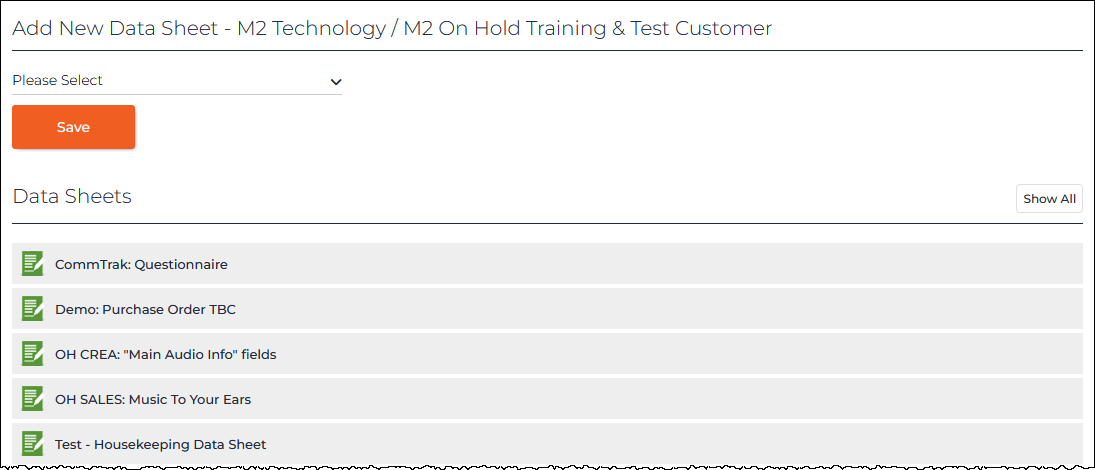
Data Sheet details
Clicking on a data sheet row in the summary list, displays the data sheet details:
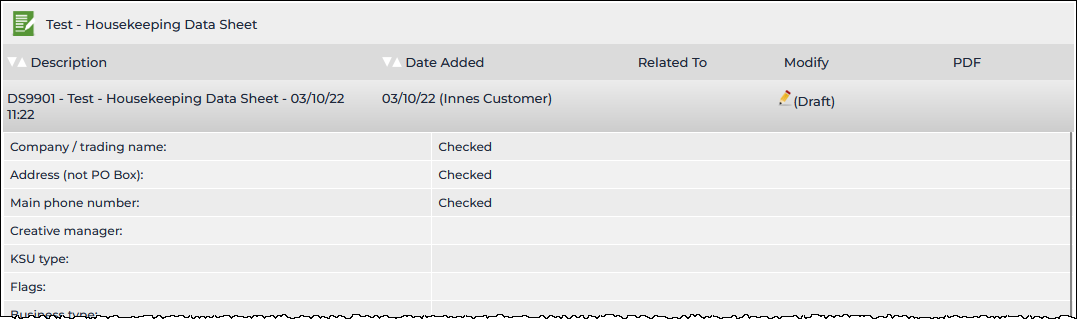
If the Data Sheet has not been locked, clicking the pencil icon (visible in the previous image) displays the data sheet form for editing:
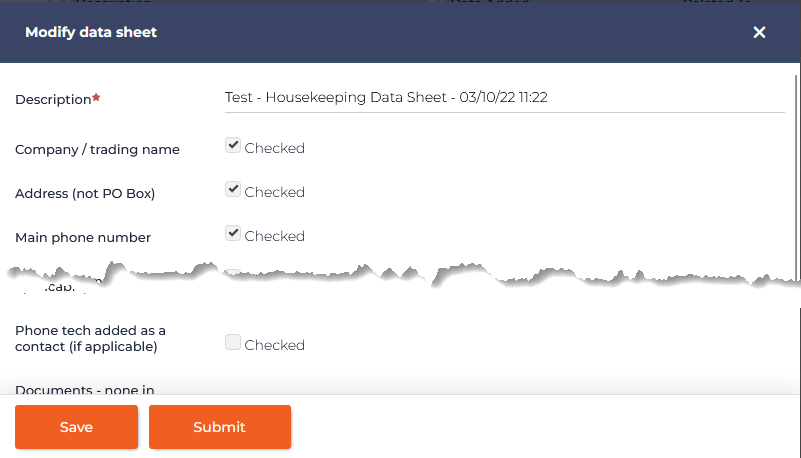
If the data sheet has an associated HTML template, the data sheet will be displayed in a separate pop-out browser window, and can be edited, saved or submitted.
Documents
By default, customer documents are not displayed in the portal. To provide portal access to a customer document, locate the document in the customer's Documents tab, click on the share icon for the document and select Visible in Portal. See the Document Sharing article for more detailed instructions.
Customer Documents:
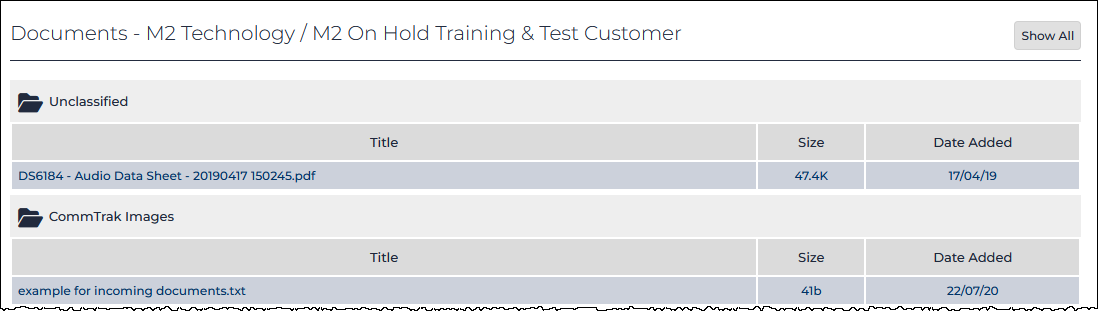
Pressing the Show All button (visible in the previous image) expands all the folders as shown in the previous image.
Clicking a document name will display the document in the browser if the document type is displayable (e.g. text, pdf). If the document cannot be displayed in the browser, the document will be downloaded using the device's standard download feature.
News
When there is an active news article that has been targeted to portal users, the news banner will be displayed over the top of the portal header section:
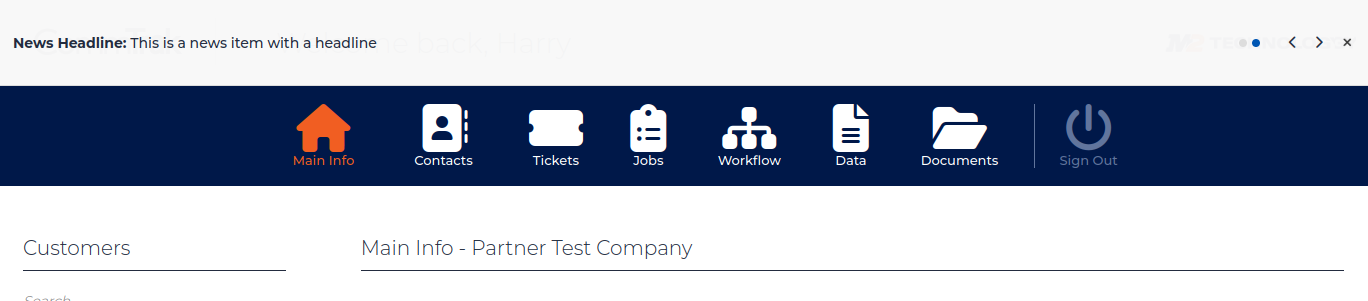
Multiple News Headlines
When there are multiple news items to display on the same day, the headlines are rotated at 5 second intervals.
Each news item is represented by a dot, rightmost in the news banner:
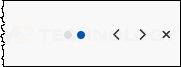
- Clicking a dot will display the associated news item
- Pressing the left / right chevron rotates through the news items
- Pressing the x icon, dismisses the news banner
If the news banner has been dismissed, the announcement icon is displayed the Portal header, next to the company logo. Clicking the icon will display the news article(s):
