
Customer Portal Access
The Customer Portal provides access for approved customer contacts, to view and modify certain information relating to their CommTrak Customer Record.
This article explains how to provide your Customer Contacts with access to the Customer Portal.
For details about features provided in the Customer Portal, see Support Centre article, Customer Portal Features.
Customers can access the portal by appending /portal to your CommTrak URL - for example:
https://yoursite.commtrak.com.au/portal
Enabling Access to the Customer Portal
To enable a contact to access the customer portal, you must first generate their portal credentials in the customer's Contact record.
To view a contact's record in CommTrak, follow these steps:
- View the Customer record
- Click the Contacts tab at the top of the screen
- Then, either:
- click the name of an existing contact, or
- click if the contact record does not exist
For further information about Customer Contact records, see Support Centre article, Customer Contacts.
When the contact record is displayed, ensure the contact's details are up-to-date, then enable portal access.
The Portal Access features are only displayed when a contact's email address has been provided. After adding a contact's email address for the first time, the contact record must be saved and reopened, to display the Portal Access field.
Portal Access
Portal Access can only be enabled by a user who has a staff role that includes the permission: Customer Portal > Allow users to manage customer access to portal.
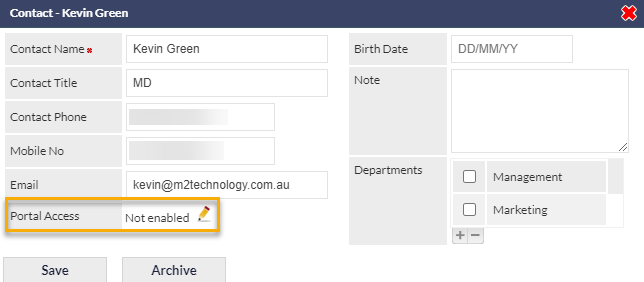
If access to the Customer Portal has not been enabled, click the pencil icon in the Portal Access field:
When enabled, the Portal Access field is expanded:
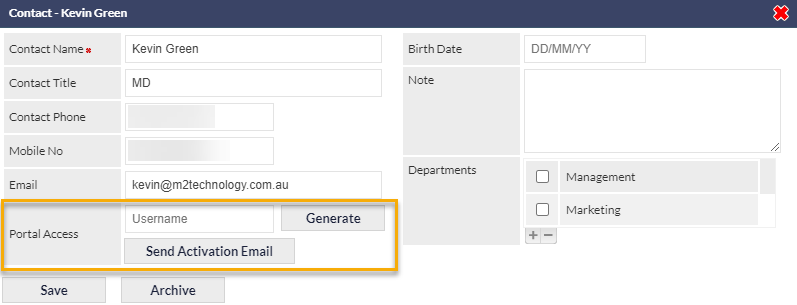
Username
This is the username for this contact to access the customer portal.
Clicking will create a unique username for the contact to access the customer portal. The username can be modified if desired, but using the generate feature guarantees it to be unique.
You can use the contact's email address as their username for the Customer Portal if desired; this also ensures that the username is unique and provides the Contact with a memorable username.
The username must be unique to your whole CommTrak customer database, i.e. contacts for different customers cannot be allocated the same username.
Send Activation Email
Clicking will send an email to the contact, requesting that they activate their portal account, and the Portal Access field will be updated to show that portal access is enabled but inactive for this contact (thus indicating that the activation email has been sent, but the contact has not yet activated the account):

When the contact has activated their portal account, the Portal Access status will be updated to show that portal access is enabled and active:

The portal history icon (displayed adjacent to the Portal Access field label, as shown above), indicates that there has been some activity relating to this contact's Portal account. To see the activity, hover over the icon.
Portal Password Reset
The contact's password can be reset by the contact, or the reset process can be initiated by a staff member:
Password Reset by Contact
The contact can visit the portal and click the Forgot your password? link. They will be prompted through the password reset process.
Password Reset Initiation by Staff Member
To start the password reset process on behalf of the contact, click the pencil icon adjacent to the contact's Portal Access field in their contact record, then click
An activation email will be sent to the contact, and they can follow the instructions in the email, to reset their password.
A staff member cannot change the contact's password on their behalf.
Revoking Portal Access
To revoke portal access:
- Click the pencil icon adjacent to the contact's Portal Access field in their contact record
- Delete the contact's portal username from the Portal Access field
- Save the contact's record
When the contact record is saved without a Portal username, the contact will no longer have access to the Customer Portal.
Archiving a contact also revokes access to the Customer Portal. For more information about archiving customer contacts, see the Archived Contacts section of the Customer Contacts article.