
What's New December 2025
Tickets
Inventory / Price Check
Tickets
Ticket Note Formatting Tools
Ticket notes can now include basic text formatting and images:
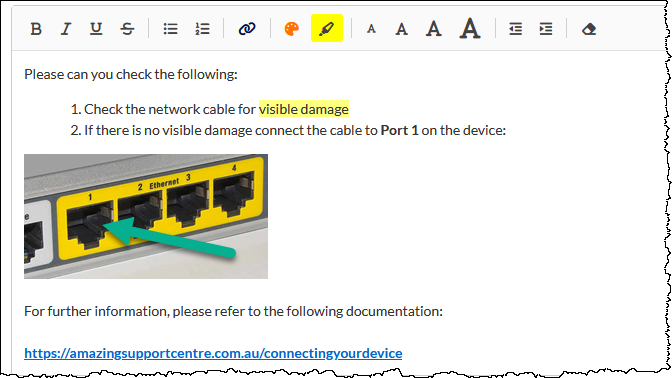
Images can be pasted into the ticket note. We strongly recommend ensuring that images are compressed, to reduce storage requirements, and to reduce the size of the email sent to the recipient.
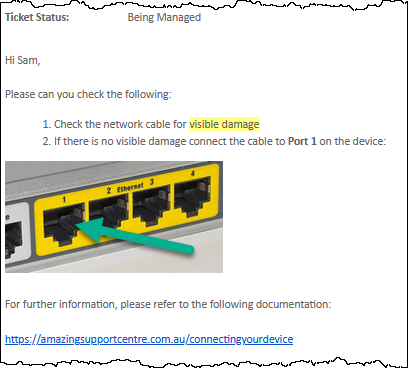
The recipient of the email will see the image as composed in the ticket note:
The saved note does not display images inline within the CommTrak notes; the image is stored as an attachment to the note:
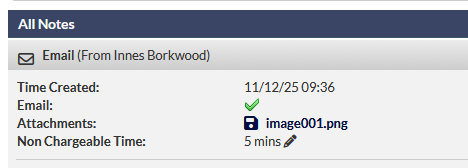
The attachment link (visible in the previous image) can be clicked to view it in a separate browser tab.
View Original Ticket Note Email
To view the original formatted message, click the forward icon at the bottom of the ticket note. This will forward the original message to your inbox:
Inventory / Price Check
Supplier Catalogue Item to Inventory Item Type
Supplier catalogue items can now be added as Inventory Item Types via two methods:
In each case, Inventory Item Types will be created automatically, based on the selected Supplier Catalogue Item(s).
Quoted Supplier Catalogue items
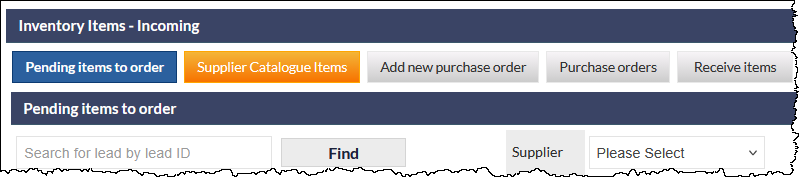
When a successful Quote has line items based on supplier catalogue items, the Supplier Catalogue Items button in the Incoming Inventory Items screen is highlighted orange, as shown in the following image:
CommTrak will attempt to match the quoted supplier catalogue items to existing Inventory Items:
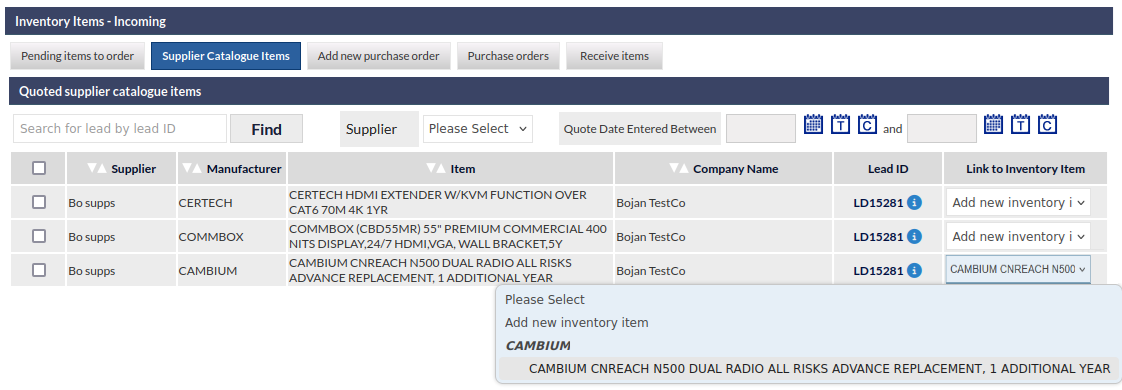
Match Found (Link to Existing Inventory Item Type)
Where a close match is found for an existing Inventory Item Type, the item is automatically selected in the Link to Inventory Item column (as shown for the third item in the previous image).
If the matched item is incorrect, the selection can be changed to Add new inventory item if required.
When the selection is confirmed, the Inventory Item Type is created, and the quote is updated to link to the existing Inventory Item Type rather than the supplier catalogue item.
No Match Found (Add New Inventory Item Type)
If no match is found, when the item, the Add New Inventory Item Type option is selected automatically, and when confirmed, a new Inventory Item Type will be added to the Inventory settings, based on the selected supplier catalogue item.
If the Manufacturer does not exist in CommTrak Inventory Settings, the manufacturer will be created automatically.
Confirming the Selection
To confirm the matching of an existing item, or the creation of a new item, tick the box in the lefmost column and press Save:
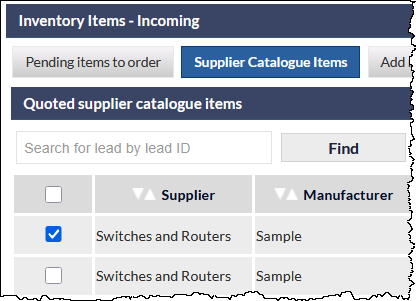
When Save is pressed, all selected items will be created or updated accordingly.
All items can be selected by ticking the box in the table header (visible in the previous image).
For more information about Supplier Catalogues and Inventory Items, please refer to the following articles:
CommTrak Price Check
Locate the supplier catalogue item using the Price Check feature (CommTrak main menu):
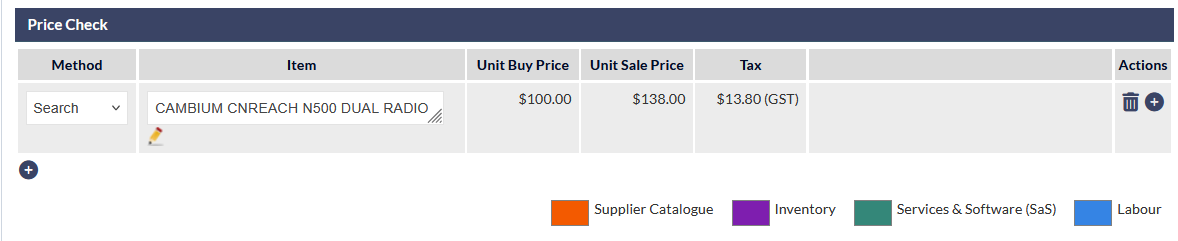
Pressing the plus icon in the Actions column (visible in the previous image) will automatically add a new Inventory Item Type based on the supplier catalogue item details.
For more information about the CommTrak Price Check feature, please refer to Support Centre article: