
To-Do Screen
The To-Do screen displays current and completed To-Do items and is accessed via the To-Do option in the CommTrak Main Menu.
Each To-Do has a unique ID, typically with the TD prefix, for example, TD20.
A To-Do item can be added as a component of a Project Task.
The To-Do screen consists of the following sections:
Viewing another Staff Members To-Do Items
By default, the Add new To-Do section displays your To-Do items. At the top-right of the section header, there is a clickable link: My To-Do List (visible in the following image).
Clicking the My To-Do List link presents a dropdown list of other staff who have assigned you with access to their Calendar and To-Do list.
Other staff can view a staff member's Calendar and To-Do items only if that staff member grants them permission through their Calendar/To-Do Sharing settings.
Add New To-Do
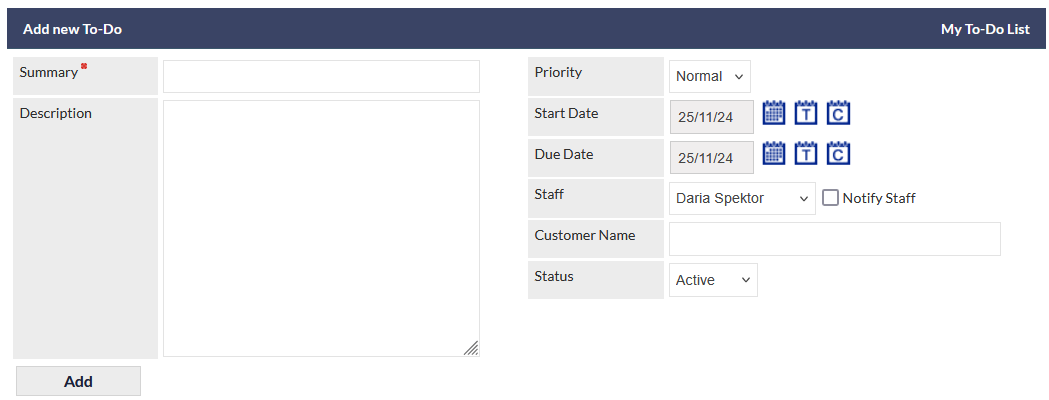
The following fields are displayed in the Add new To-Do section:
Summary (mandatory)
A short description of the To-Do
Description
A detailed explanation of the To-Do
Priority (default - Normal)
The priority of the To-Do. The options are:
- Low
- Normal (default)
- High
Start Date (default - today)
The start date for the To-Do. Enter a date using the standard Date Selection features.
Due Date (default - today)
The end date for the To-Do. Enter a date using the standard Date Selection features.
Staff (default - current user)
Specify the staff member to whom this To-Do is to be assigned.
If a staff name other than the current user is selected, the Notify Staff checkbox is displayed. Tick the checkbox to send the staff member an email notification when the To-Do is added.
Customer Name
This is a standard CommTrak customer search field; enter a minimum of three characters to display a list of matching customers in a dropdown list. Click the customer name to select it.
Status (default - Active)
The status of the To-Do. The options are:
- Active (default)
- Pending
Both statuses mean that that To-Do is current (i.e. not completed). The Pending status is typically used to indicate that a To-Do is in progress, but not completed.
Add To-Do
Press the Add button to create the To-Do item
Current To-Do List
The Current To-Do list shows all current (incomplete) To-Do items. The following image shows a list with a single To-Do item:

The To-Do item in the previous image includes a link to a Project in the Related To column (PR3 in this example) . This indicates that the To-Do item was created from with a Project.
Clicking a PR link will open the Project in a separate browser tab.
Complete a To-Do
A To-Do can be completed in two ways:
- In the To-Do list, tick the Complete checkbox for a To-Do item (visible in the previous image). You will be prompted to confirm that the item has been completed. Press OK to confirm completion, or Cancel, to leave the To-Do in the Current To-Do list.
- Click anywhere on the row for a To-Do item to display the Modify To-Do item pop-up window. Tick the Complete checkbox and press Save.
Both methods result in the To-Do being marked as completed and moved to the Completed To-Do Items list.
Modify a To-Do
To modify a current To-Do, click anywhere on the row for the To-Do item to display the Modify To-Do item pop-up window.
Update the fields as required.
The Customer Name field cannot be modified if the To-Do is related to a Project.
Press the Save button to confirm changes, or press the pop-up window's red X icon to cancel any changes.
Completed To-Do Items
The Completed To-Do items list shows all completed To-Do items. The following image shows a list with a single completed To-Do item:

Completed To-Do items are shown with the Due Date and the Date Completed.
Reactivating a Completed To-Do Item
To Reactivate a completed To-Do Item, click anywhere on the row for the item to reactivate. A prompt is displaying confirming reactivation. Press OK to confirm reactivation, or Cancel, to leave the To-Do in the Completed To-Do Items list.
Deleting a Completed To-Do Item
Click the trash can item to delete the item. Press OK to confirm deletion, or Cancel, to leave the To-Do in the Completed To-Do Items list.
Deleted To-Do items cannot be recovered!
To-Do items that are related to a Project cannot be deleted. If deletion of a related To-Do item is attempted, a warning will be displayed.
Before deleting a related To-Do item, the relationship must first be removed from within the Project.
Within a Project, the related To-Do can be unassigned by pressing the trash can icon (visible in the following image of a Project Task):

The relationship between an unassigned To-Do and a Project can be removed by pressing the Unrelate (broken link) icon in the Project's Related Unallocated Records field:
