Inventory (Modify / Delete)
Modify / Delete
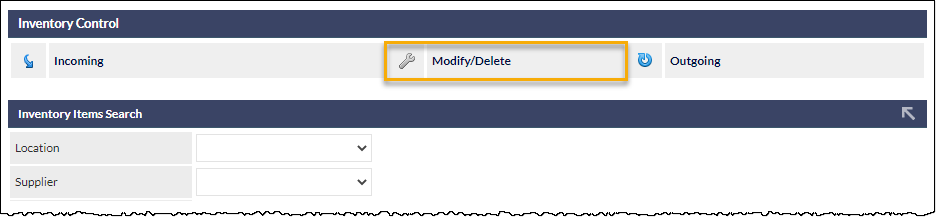
To access this Inventory screen, select Inventory in the main CommTrak menu, and click the Modify/Delete option at the top of the Inventory screen.
The other two main options are documented in separate Support Centre articles:
Inventory Items Search
This section presents a number of criteria that can be specified for searching the Inventory database (with the results being listed in the Inventory Items section, at the bottom of the screen):
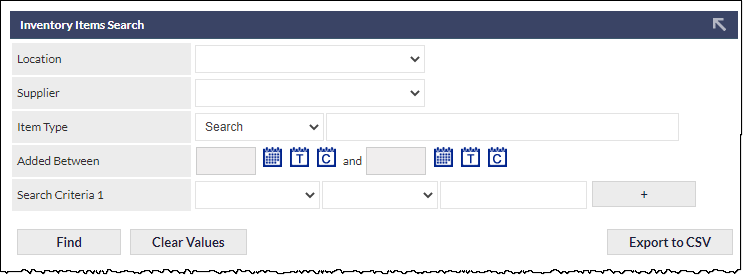
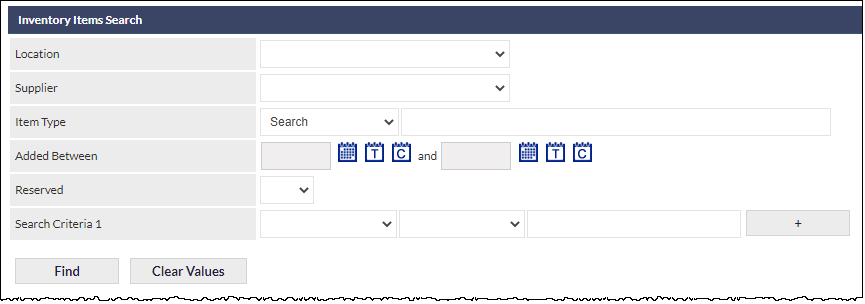
The available search criteria are:
Location
The current location of the inventory item.
Supplier
The supplier of the inventory item.
Item Type
The inventory item type.
To select an Item Type, choose the selection method from the drop-down list:
- Select (default) - click the drop-down list adjacent to the Select option, and choose an Inventory item from the list. Inventory items are categorised by Supplier.
- Search - start typing the name of an inventory item (or Supplier name) in the text box adjacent to the Search option; a drop-down list will appear, listing items that match the typed text. Click an item to select it. This is a standard CommTrak search field (minimum of three consecutive characters required).
Added Between
Specify a start and end range for the date the item was added to the Inventory.
Reserved (Yes/No)
Specify if search results should be filtered on the reserved status of Inventory items.
Search Criteria 1-5
Up to five additional criteria can be specified for the Inventory search. Initially, only one additional criterion is visible, but additional criteria may be added by clicking the button, or removed by clicking the button.
Each criterion is specified by selecting the search field, the type of match required, and the text against which the search criterion is to be matched.
Available field types are:
- Category Code
- Category Name
- Description
- Item Code
- Item ID
- Manufacturer
- Model Number
- Purchase Order ID
- Serial
- Subcategory Code
- Subcategory Name
- Supplier SKU
Available match types are:
- Contains
- Equals
- Starts with
- Is not empty
- Doesn't contain
- Doesn't equal
- Doesn't start with
- Is empty
Search Buttons
- executes the search, and updates the Inventory Items list at the bottom of the screen.
- resets all the search fields. Prior to the fields being reset, you will be prompted to confirm your action. If confirmed, all of the search criteria will be reset, and the Inventory Items list will refresh to display all Inventory items.
Item Reassignment
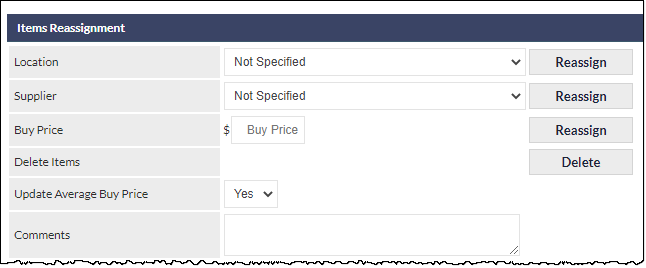
Items can be reassigned singly or in bulk; for example, to a different stock Location or Supplier.
Reassignment is irreversible! Please refer to the article Bulk Selection of Records prior to using the reassignment features, to ensure that you have a full understanding of the bulk-selection options prior to clicking a reassignment button.
Reassign Location, Supplier or Buy Price
- Select the Inventory Items to reassign, by ticking the box(es) adjacent to the Inventory Item(s)
- Add a comment into the Comments field, if required
- Select one criterion for reassignment (i.e. select either the Location, Supplier or enter the new Buy Price)
- Click the button adjacent to the criterion specified in step 3, above
Delete Inventory Items
- Select the Inventory Items to delete, by ticking the box(es) adjacent to the Inventory Item(s)
- Click the Delete button adjacent to the Delete Items field in the Items Reassignment section
Inventory Items
The Inventory Items section displays a list of inventory items based on the search criteria specified in the Inventory Items Search section (at the top of the screen).
The Inventory Items section-header displays the number of inventory items shown in the list, compared to the total number of inventory items in your CommTrak. If items have been selected, by ticking the boxes adjacent to the items, the section-header also displays the number of selected items in orange text.
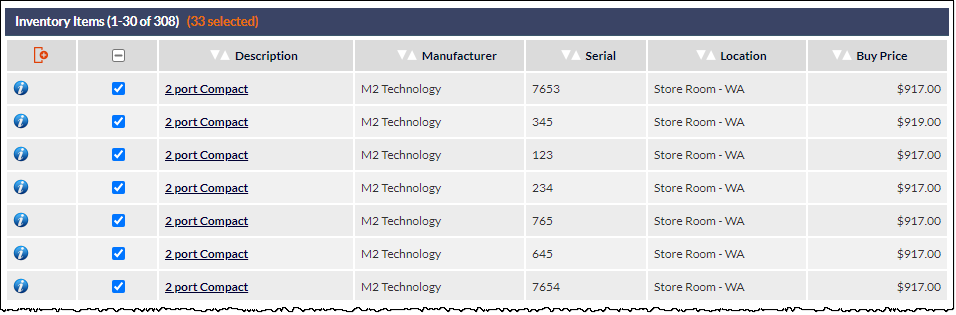
The image above shows a limited selection of columns; the columns labels in your CommTrak may differ, as they can be customised per user. See Support Centre article Column Sorting & Customisation for further information about this feature.
Clicking on the Description field link opens the Detailed history report pop-up window:

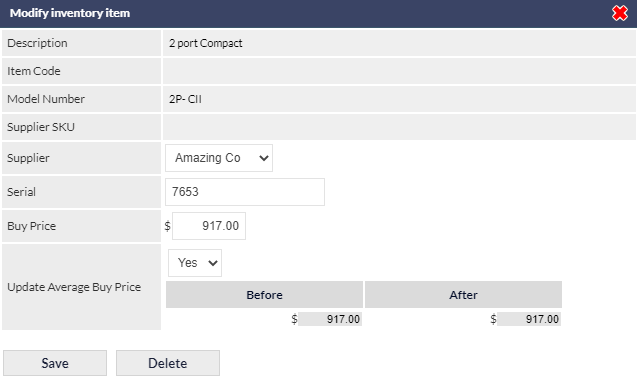
Clicking on an inventory item row, in the Inventory Items list, opens the Modify inventory item pop-up window for the selected inventory item, which provides features to either update or delete the inventory item: