
Inventory (Outgoing)
Outgoing
To access this Inventory screen, select Inventory in the main CommTrak menu, and click the Outgoing option at the top of the Inventory screen.
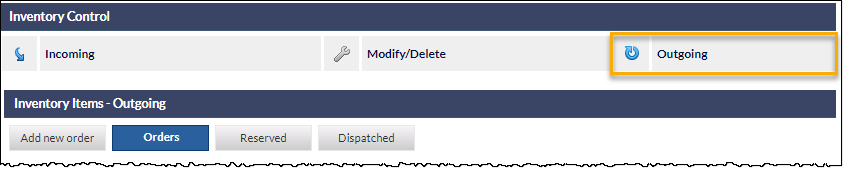
When viewing any Inventory screen, the main Inventory options can be selected in this section. The other main Inventory options displayed in this section are documented in separate Support Centre articles:
Inventory Items - Outgoing
This feature is used to create customer orders and to dispatch items to a customer, thus removing stock from the inventory.
Note: Items that have been dispatched to customers are summarised on the customer's main information screen (Inventory Summary panel), with detailed inventory information being accessible in the customer's Inventory tab.
Selecting the Outgoing inventory feature presents the following tabs:
- Add new order
- Orders
- Reserved
- Dispatched
Orders are listed by default, unless no orders exist, in which case the Add new order view will be displayed.
Add new order
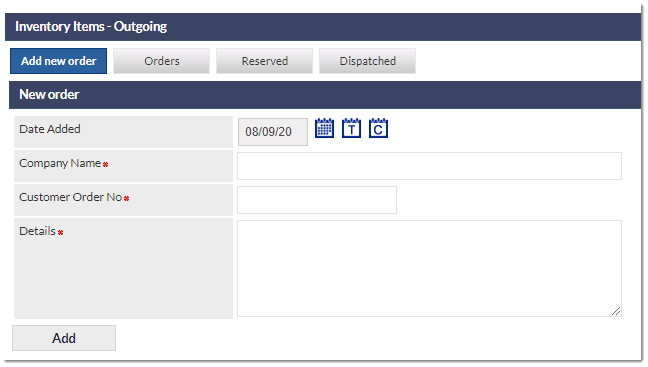
A new customer order (CO) can be created in this section. The available fields are:
- Date Added (mandatory) - The date upon which the order will be recorded as having been created; defaults to today's date
- Company Name (mandatory) - The name of the customer for which the order is being created. This is the standard CommTrak company search feature.
- Customer Order No (mandatory) - The customer's order number (e.g. Purchase Order Number).
- Details (mandatory) - Enter details pertinent to this order.
- creates the order.
After the order has been added, the Orders list view is displayed, and the required order can be selected by clicking on the item in the list. If there is only one active order, that order will be displayed automatically.
Orders (List)
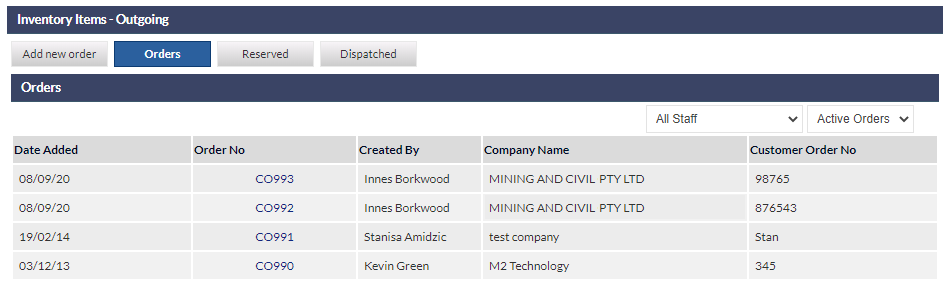
By default, this screen presents a list of active orders; i.e. orders that have not been completed. To display all orders (including completed orders), change the drop-down list, at the top-right of the Orders list, from Active Orders to All Orders.
Orders are created as described in the above section, Add New Order.
The orders list can be filtered by selecting a CommTrak staff name from the drop-down list located at the top-right of the Orders list; the list will automatically refresh to display only orders created by the selected CommTrak user. The default filter selection is All Staff.
The Orders list contains the following columns:
- Date Added - The date of the order creation
- Order Number - The CommTrak order number; this sequential number is allocated automatically. The default prefix for customer order numbers is CO.
- Created By - The CommTrak user who created the order
- Company Name - The name of the customer for which this order was created
- Customer Order No - The customer's order or reference number; for example, this may be the customer's PO (Purchase Order) number.
Clicking an active order item in the list displays the Order Details screen, in which the order can be viewed or edited:
Order Details
The Order Details screen is accessed by clicking an order row in the Orders list.
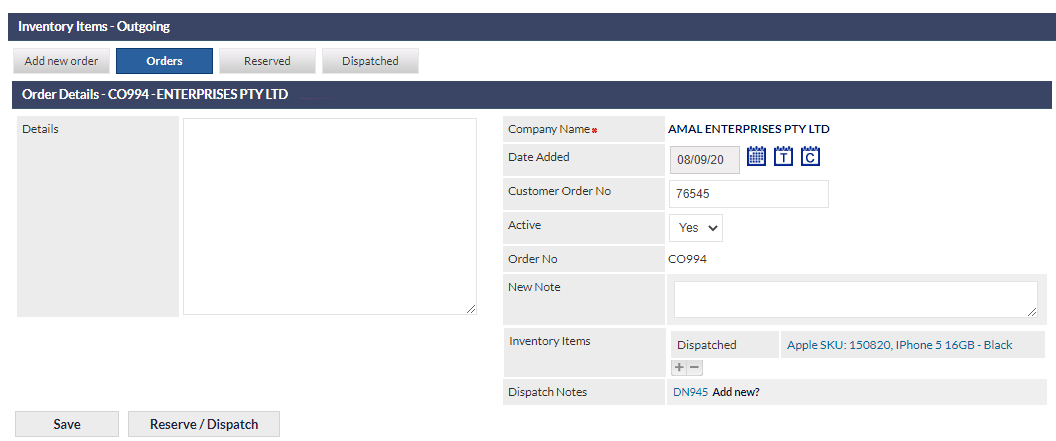
The features available in this screen are:
- Edit the order details fields
- Reserve / Dispatch items for this order
- Delete the order
Edit Order Details Fields
Edit the fields as required, and click Save.
The following fields are available:
- Details - a free-form text field, into which the details of the order can be entered
- Company Name (read-only) - the company name is a link that can be clicked to view the company's Main Info screen (in a new tab)
- Date Added - the date the order was added
- Customer Order No - the customer's order number (typically the customer's internal purchase order number)
- Active (Yes/No) - Whether or not the order is active
- Order No (read-only) - the automatically generated CommTrak Customer Order (CO) number
- New Note - Chronological notes can be added to the order by entering the note into this free-form text field. Manually added notes (if any), are displayed at the bottom of the screen together with automatically-added notes (e.g. item reservation notes).
- Inventory Items - A list of reserved and dispatched inventory items (if any) for this order; see the section Inventory Items, below, for additional information about this field
- Dispatch Notes - A list of dispatch notes for this order (if any); see the section Dispatch Notes, below, for additional information about this field
- saves changes to the order
- reserve items for, or dispatch items in this order. See Support Centre article, Dispatch / Reserve Inventory Items for more information about this feature.
- deletes the order
Inventory Items Field
Reserved and dispatched inventory items (if any) are listed in this field. Each item is a link which, when clicked, displays the history of the reserved or dispatched item in a pop-up window.
The fields displayed in the pop-up window are:
- Date - the date of the inventory note
- Moved From - the inventory location from which the item was moved
- Moved To - the inventory location to which the item was moved
- Special Comments - any comments added when the inventory note was created
Dispatch Notes Field
The Dispatch Notes field lists dispatch notes (if any) for this order and, if items have been dispatched, a new dispatch note can be created, by clicking the Add new? link, at which time the New dispatch note pop-up window will be displayed with the following fields:
- Dispatch Date (mandatory) - the date on which the dispatch was made
- Company Name (mandatory) - the name of the company to which the items are being dispatched
- Delivery Address (mandatory) - by default, this is the Customer's main address; the Customer's postal address (if available) can be selected automatically, by clicking the Use postal address? link. Alternatively, the address can be edited manually.
- Contact - select a Customer Contact from the drop-down list
- Courier (mandatory) - select a courier from the drop-down list. The courier list can be modified in Settings Inventory Settings Courier Companies
- Consignment Note (mandatory) - enter the consignment note number
- Comments - enter additional comments in this field, if required
- Item selection - tick the box next to each of the items to be dispatched
- closes the New dispatch note pop-up window without saving any changes
- updates the order with the dispatched items
- completes the order
Once the order has been partially or completely dispatched the Add new dispatch note pop-up window will close, and a link to the dispatch note will be added to the Dispatch Notes field.
Clicking a dispatch note link displays a PDF of the note in a pop-out browser window, with the print options displayed automatically. If the dispatch does not need to be printed, the print options dialog box can be closed by clicking the Cancel button.
Reserve / Dispatch Inventory Items
To reserve or dispatch inventory items for the order, click
The Dispatch / reserve inventory items pop-up window will be displayed, and the required items can be reserved or dispatched.
Please see Support Centre article, Dispatch / reserve inventory items for further information on the features available in this pop-up window.
Reserved
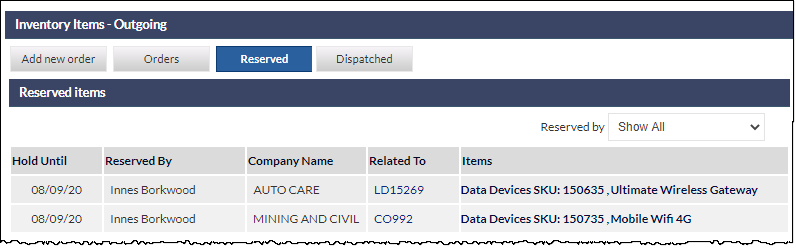
This screen presents a list of inventory items that have been reserved in Customer Orders or Leads (if any).
The columns displayed in the list are:
- Hold Until - the date up to which the items will be reserved
- Reserved By - the name of the staff member who reserved the items
- Company Name - the name of the company to which the reservation is allocated
- Related To - the item to which the reservation is related
- Items - a description of the reserved items. Clicking the description displays a pop-up window of the item history
Clicking a row in the Reserved items list displays the screen for the Lead or Customer Order in which the items were reserved. This enables the user to extend or release the reservation, or dispatch the reserved items as required.
Dispatched
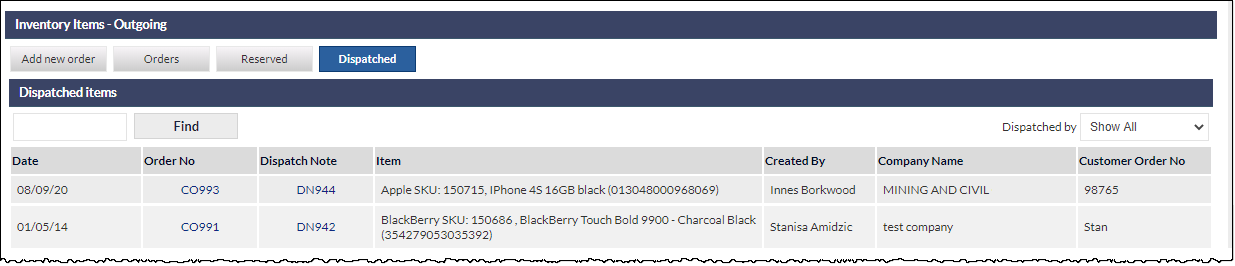
All inventory items that have been dispatched can be viewed on the Dispatched screen.
The Dispatched items list can be filtered using the Find option (top-left of the list), or the Dispatched by drop-down (top-right of the list).
- Find - enter an order number into the search field, and click the Find button.
- Dispatched by (default Show All) - select the name of a staff member; the list will automatically update to show only orders dispatched by the selected staff member.
The columns displayed in the list are:
- Date - the date the items were dispatched
- Order No - the customer's order number (CO number)
- Dispatch Note - the dispatch note number (DN number)
- Item - a description of the items
- Created By - the staff member who dispatched the items
- Company Name - the name of the company to which the items have been dispatched
- Customer Order No - the customer's order number (typically, the customer's PO number)
Clicking on a dispatched item in the list will display the Order Details screen. See the Order Details section, above, for information about features available on the Order Details screen.