
Supplier Catalogue Item to Inventory Item Type
In addition to creating Inventory Item types in the Inventory Settings (Inventory Items (Settings)), Inventory Item types can be added in the Inventory module, when Catalogue Supplier items have been quoted.
For more information about Supplier Catalogues, refer to the following articles:
Quoted Supplier Catalogue items
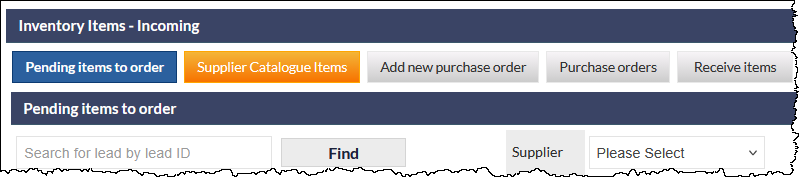
When a successful Quote has line items based on supplier catalogue items, the Supplier Catalogue Items button in the Incoming Inventory Items screen is highlighted orange, as shown in the following image:
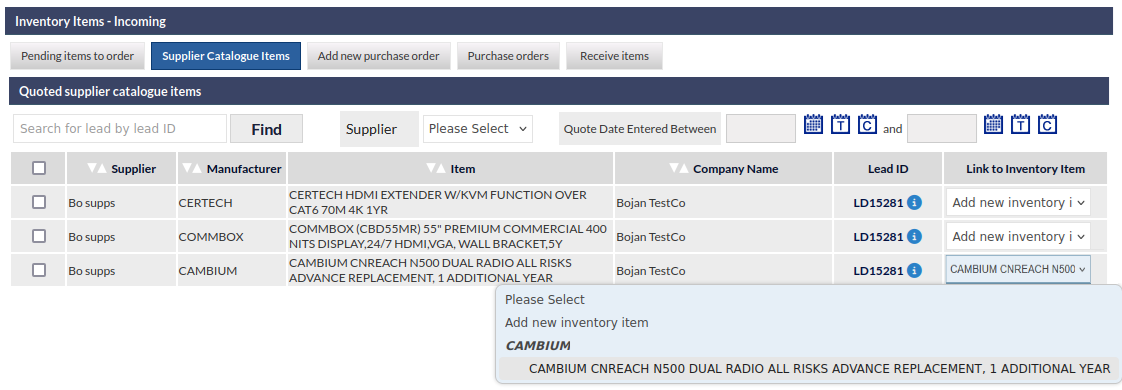
CommTrak will attempt to match the quoted supplier catalogue items to existing Inventory Items:
Match Found (Link to Existing Inventory Item Type)
Where a close match is found for an existing Inventory Item Type, the item is automatically selected in the Link to Inventory Item column (as shown for the third item in the previous image).
If the matched item is incorrect, the selection can be changed to Add new inventory item if required.
When the selection is confirmed, the Inventory Item Type is created, and the quote is updated to link to the existing Inventory Item Type rather than the supplier catalogue item.
No Match Found (Add New Inventory Item Type)
If no match is found, when the item, the Add New Inventory Item Type option is selected automatically, and when confirmed, a new Inventory Item Type will be added to the Inventory settings, based on the selected supplier catalogue item.
If the Manufacturer does not exist in CommTrak Inventory Settings, the manufacturer will be created automatically.
Confirming the Selection
To confirm the matching of an existing item, or the creation of a new item, tick the box in the lefmost column and press Save:
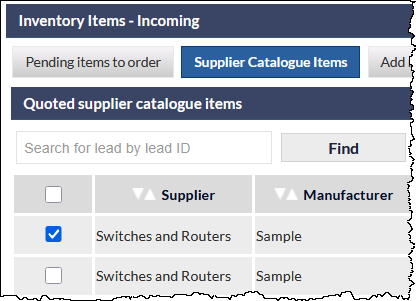
When Save is pressed, all selected items will be created or updated accordingly.
All items can be selected by ticking the box in the table header (visible in the previous image).