
Accounts Software Customer Matching
This article pertains to the Account Software Integration, and explains how to matching CommTrak Customers to the records in your accounting software.
Throughout this article, the accounts products, (e.g. MYOB, Xero) are referred to, generically, as accounts software.
Please refer to the Support Centre category Accounts, and ensure that you are familiar with the principles of Accounts Integration before attempting to match records.
Contacts in the accounts software can be matched to CommTrak Customer records. This can be achieved using the following options:
Manual Matching
When viewing the Customer's Accounts screen, if the record has not been matched with a MYOB contact, the MYOB Contact Matching section will be displayed:

- Ensure the correct Company File is selected in the dropdown list (the CommTrak Demo, Company File has already been selected n the previous image)
- Enter a full or partial name (from your accounts software) into the Match Customer field
- Click
Matching accounts software records will be listed:
 Click adjacent to the required MYOB record.
The Accounts screen will update to display the accounts details for the selected record:
 If the incorrect record was selected, the match can be removed by clicking (visible in the previous image). When an accounts software match is removed, the Match Customer section is displayed, so a correct match can be made.
Customer Matching Utility
The Accounting Software Customer Matching utility provides for bulk-matching of CommTrak Customer records, to your accounting software records.
The utility attempts to match records based on various criteria, but manual confirmation is required to ensure that suggested matches are correct, or to skip records, or to create new CommTrak records.
To access the Customer Matching Utility:
Utilities > Accounting Software Customer Matching

The following options are displayed:

Export Unconfirmed
The Exporting Unconfirmed feature generates a CSV file containing a list of CommTrak Customers that cannot be matched with CommTrak Customers.
An unconfirmed match occurs when a account number has been entered into the Xero/MYOB Account No field (in the More Info section of the Customer screen, visible in the following image), and CommTrak has been unable to match that account number to a record in the accounts software.

The Xero/MYOB Account No field (Xero Account No in the previous example image) is only displayed when the Accounts Software Integration has been enabled in CommTrak.
The separate Account No field is unrelated to the Accounts Software Integration and is intended as an accounts cross-reference for users who do have the integration enabled.
The CSV file can be opened in Excel (or similar application), and the information can be used as a reference to manually update either contacts in the accounting software, or Customer records in CommTrak, as required.
When a Xero/MYOB Account No is entered (and the Customer record saved), a match is not attempted immediately. CommTrak runs a periodic background service that bulk-matches any updated Customer records. The background service typically runs no less frequently than every 15 minutes.
After saving the Customer record, an immediate match attempt can be forced by pressing the Customer's Accounts tab. If a match has not previously been made, there will be a delay of up to several seconds whilst CommTrak contacts the Xero/MYOB service and attempts a match. Upon successful match, the available accounts information will be displayed in the Accounts screen.
If the match fails, no accounts information will be displayed. In this case, remove the incorrect Xero/MYOB Account No from the customer's More Info section and save the Customer record. The match can then be reattempted by either entering the correct account number and saving the customer record again, or by selecting the Accounts tab and manually matching via the MYOB / Xero button.
Produce Report
The report displays a list of accounts software contacts and, using various criteria, will attempt to suggest matches with CommTrak Customer records.
For each accounts software contact in the report, there is an opportunity to Skip (ignore) the contact, Create a new CommTrak Customer record based on the accounts software contact, or Match the accounts software contact with an existing CommTrak Customer record.
If the utility incorrectly displays a match between the accounts software contact and a CommTrak Customer record, there is an opportunity to correct the match, skip the contact or create a new CommTrak Customer.
The report options are:
Company File
Select the required Company File
The terminology for this field may differ, depending on the accounts software.
Contact last modified between
Only accounts software contacts created or modified during the specified date range will be included in the matching report
Records Per Page (default 10)
The number of records to be displayed per page, in the report. We recommend using the default of 10 records per page, as this provides for matching in smaller, more manageable, batches.
Include matched contacts (default No)
When this option is set to No, if a accounts software contact has previously been matched, it will not be displayed in the matching report.
Select Yes to include previously matched records in the report.
include skipped contacts (default No)
When this option is set to No, if a MYOB contact has previously been skipped, it will not be displayed in the matching report.
Select Yes, to include previously skipped records in the report.
Using the Customer Matching Utility Report
The following image is an example of the matching report:

Clicking immediately updates the displayed CommTrak company records according to the selected options (Skip, Create, Match), and displays the next page of the report. If the last page of the report is currently displayed, the button will be Save only, and clicking it will update the displayed records and display the Customer Matching Utility screen.
For each MYOB contact displayed in the report, one of three options can be applied:
Skip
Ignore the MYOB contact (do not match the MYOB record with a CommTrak company).
Create
Create a new CommTrak company record, using the MYOB contact's details.
Match
Match the MYOB contact with the selected CommTrak company.
Interactive Report Examples
This section explains each matching option.
Suggested Matches
Potential CommTrak company matches have been identified for the MYOB contact.

Suggested matches are based on various criteria, such as address, postcode, ABN, etc, but please be aware that suggested matching is not an 'exact science', due to the wide variety of matching criteria.
It's important to check all suggested matches prior to saving the current selection, as suggested matching is not guaranteed to be correct.
If multiple potential matches have been identified, clicking the dropdown list in the CommTrak Company column (visible in the previous image), allows for the selection of the correct CommTrak company:
Manual Match
If incorrect matches have been suggested, click the pencil icon, to clear the suggested matches:

If a match has not been suggested, or if an incorrect match has been cleared, a CommTrak Company search field will be displayed:

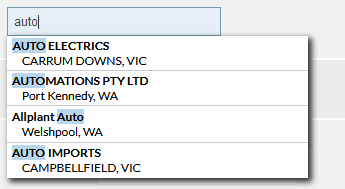
The selection is presented as a non-editable field:
Previously matched MYOB contact
Previously-matched records are only displayed if the Include matched records option was set to Yes on the previous screen:

The relationship between the MYOB contact and the CommTrak company record can be unmatched, by selecting the Skip option. Alternatively, a manual match can be made, by clicking the pencil icon.
Create a new CommTrak company
When the Create option is selected, a new CommTrak company record will be created using the MYOB contact's details

The field in the CommTrak Company column is cleared when the Create option is selected.
The Create option is never selected automatically.
Skip the MYOB contact
If the Matching Utility is unable to suggest matches with CommTrak companies, the Skip option is selected automatically:

The MYOB contact will not be matched with a CommTrak company.
The Skip option can also be selected manually.
Skipping a MYOB Contact name, that is currently matched to a CommTrak company, will unmatch the relationship.