
Delaying a Workflow Case Task
This article refers to active Workflow Cases, as viewed on the Workflow Case Screen.
To delay a Workflow Task, the user must have the permission Allow users to modify individual workflow task due dates, enabled for the staff role to which the user has been assigned. If you can't see the calendar icons (as highlighted in the first image below), please contact your organisation's CommTrak Administrator to discuss your requirements. For information relating to the modification of staff roles and permissions, please see Support Centre article: FAQ - Change User Permissions.
Consequences of Delaying a Workflow Task
Before delaying a Workflow Task, please ensure that you understand the consequences; we recommend reading this article in its entirety prior to using this feature.
Delaying a Workflow Task
An uncompleted Workflow Task can be delayed by clicking the calendar icon in a Task row, as highlighted in the following image:

When a task's calendar icon is clicked, the Delay due date pop-out window is displayed:
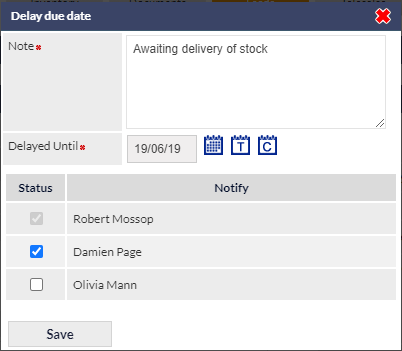
In the above image, the user has completed the following steps:
- added a note advising the reason for the delay
- specified a new expected completion date for the Task
- unticked the notification box adjacent to the CommTrak user Olivia Mann
The fields displayed in the Delay due date pop-out window are as follows:
Note (mandatory)
A text field into which the reason for the delay should be entered.
Delayed Until (mandatory)
The expected completion date for this task.
The Delayed Until date must be later than the current estimated completion date, and must not fall on a weekend (advisory notifications will be displayed accordingly).
Notification recipients list
This field lists all staff who have an interest in the current Workflow. i.e.:
- Workflow Case instigator
- Workflow Sales Rep
- Staff members to whom a Task is allocated
- Staff members who have an interest in related Workflows
If a staff member's name is shown in the recipient's list, and their name does not appear anywhere on the Workflow Case screen, their interest is via a related Workflow.
The first name in the list is always the Case Instigator, and cannot be unticked.
The staff member who is updating the due date will not receive an email notification.
If you do not wish to notify specific staff members (for example, you may have advised them verbally), untick the box adjacent to their name.
Action Buttons
To cancel the Delay due date changes, click the red X in the top-right corner pop-out window, prior to saving.
Click to confirm the updated due date.
Upon saving the changes, the Workflow Case Tasks are updated immediately:
Before

After

- The status box changes colour to slate grey (see Support Centre article Workflow Task Colour Codes for a complete colour-code key).
- All estimated completion dates for subsequent Tasks in the Workflow case are recalculated.
- A Task note is added; the following image shows the expanded Task note from the above example:

- All staff members with an interest in the Workflow will receive a notification email advising them of the delay (unless explicitly excluded from the notification list).