
Custom Reports
Custom Reports enable the extraction of data from the CommTrak database, based on criteria that are more complex than can be achieved with the CommTrak Standard Reports.
Access to specific Custom Reports can be restricted to specific CommTrak roles or CommTrak users.
Access to Custom Reports has the potential to provide complete access to the CommTrak database. It is important to understand the effect of CommTrak roles and permissions when working with Custom Reports. Please contact CommTrak Support if you are unfamiliar with any of the Custom Report features.
Using Custom Reports
In the main navigation pane, select Reports, then select Custom Reports.
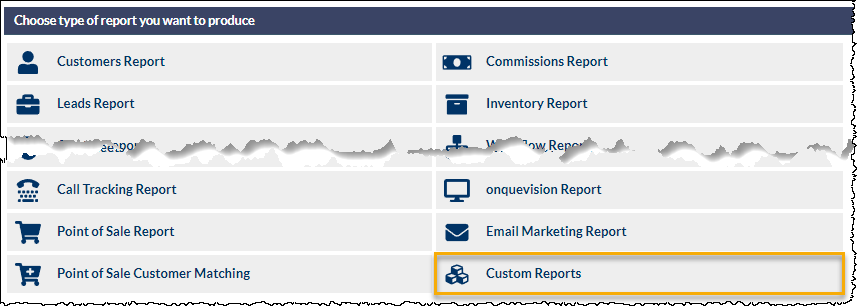
The Custom Reports screen will be displayed with the following two sections:
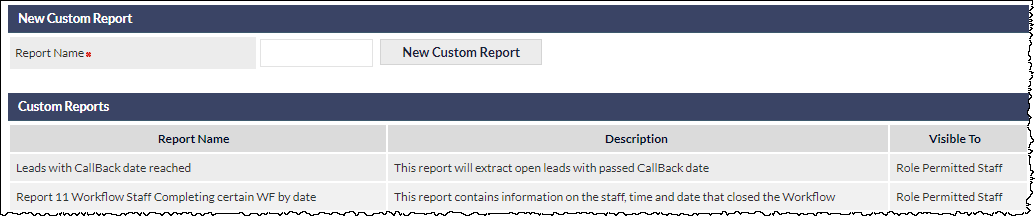
New Custom Report
Enter a name for the report and click .
The Modify Custom Report screen will be displayed.
Custom Reports
To execute a custom report, click the name of the required report to display the Modify Custom Report screen.
Modify Custom Report
This screen enables the user to create, edit, modify, export, verify and delete customer reports.
The following fields are presented:
Report Name (mandatory)
Modify the name of the report.
Description
A text area into a which a description of the report can be entered.
It is strongly recommended that a detailed description of the report is provided, so other authorised CommTrak users can understand the purpose of the report.
Visible To
Specify which CommTrak users can access this report. The available options are:
- Role Permitted Staff - CommTrak users with Supervisor role assigned to them (or a custom role with required Reports permissions)
- All Staff - All CommTrak users
- Selected Staff - A list of all CommTrak users is presented; select the users authorised to access this report.
When Selected Staff is selected, an additional field, Email, is presented (default Never). If this option is changed to Every, additional fields will be displayed; please see the Support Centre article, Automatic Emailing Reports for information relating to the use of this feature.
Custom Reports can only be created and modified by CommTrak users with Supervisor role, and staff with a custom staff role that has the Reports > Allow users to manage custom reports permission.
Email (scheduling reports)
This field is only displayed when Selected Staff has been chosen in the Visible To field (see above), and contains two options:
- Never - The report will never be emailed
- Every - When selected, the report will be emailed at the stated frequency, starting on the specified date:

Once saved, the report will continue to be emailed to the designated users, until the above options are modified and saved.
Scheduled custom reports are processed after midnight, and this should be taken into consideration when defining the parameters for your report. For example, if a report is designed to query data based on "today's" date, and the report is scheduled for sending via email, the report would not contain any information, unless data had been entered between midnight and the time that the report was sent)!
SQL Query
This text area holds the text for the report's Structured Query Language (SQL) code.
It is vital that the code in this area is not modified, unless you have a full understanding of the consequences of the changes that you have made. Once saved, changes to this field cannot be recovered.
Database Tables/Fields
This drop-down list is a reference for all the available tables and fields that can be used in a CommTrak Custom Report.
The drop-down list is for reference only; selecting an item has no effect on the query.
Action Buttons
The available action buttons are:
the Custom Report
that the SQL code is valid
, executes the Custom Report, and exports the results as a CSV file (to be downloaded using your web browser's standard download features)
any changes since the last save, and return to the main Custom Reports screen
the report after confirmation has been provided by the user
Once deleted, a Custom Report cannot be retrieved
Additional Documentation
For CommTrak users with knowledge of SQL, additional documentation and training in the use of the Custom Reports module can be provided; please contact CommTrak Support for further information.
Custom Report-Writing Service
M2 Technology offers a custom report writing service.
Reports created by the CommTrak development team can be used as-is, or may be customised as required.
Please contact CommTrak Support for further information.
CommTrak BI (optional feature)
CommTrak offers optional Business Intelligence (BI) Integration.