
Mobile View (Jobs)
Accessed by clicking Mobile View on the CommTrak Main Menu, this feature is primarily designed for users with Technician role to easily access Job information whilst using a mobile device (i.e. Internet-connected tablet or smartphone).
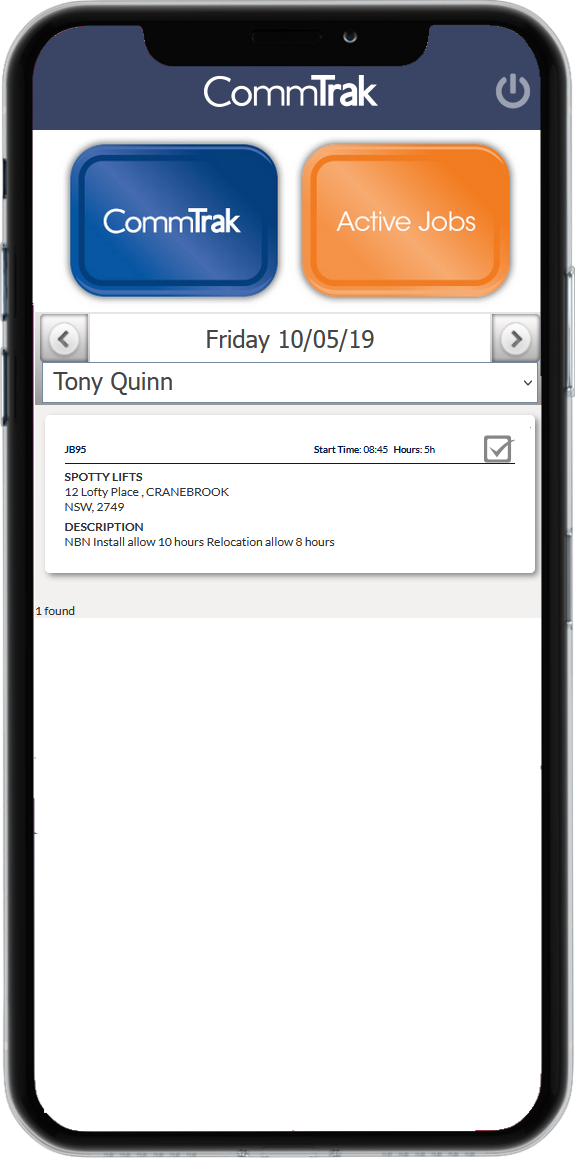
When the Mobile View option is selected, a new browser tab or window will be displayed with the following features:
Note: The text in the previous image may appear blurred due to scaling; text in a real mobile view is sharp and legible.
CommTrak button
Pressing the CommTrak button reverts to the standard CommTrak home screen.
Active Jobs button
Pressing the Active Jobs button displays a list of all active jobs in a standard CommTrak screen.
Active Jobs section
By default, the Active Jobs section displays all today's jobs for the currently-signed-in technician.
Date
The date can be changed by pressing < or > (visible either side of the date in the previous image).
Technician
The currently-signed-in user is selected by default.
Clicking / touching the drop-down control, lists other Technicians (if any); selecting a name from the list will display the jobs for the selected technician, for the specified date.
Job Details
A Job Card is displayed for each Job assigned to the currently selected technician, for the specified date.
The user can swipe up the screen to display additional Jobs Cards (if any).
To view the detail for a Job, click / touch the Job Card.