CallTrak Call Notes
The CallTrak Call Notes feature is available in the the following modules within CommTrak:
- Customer (Main Info tab)
- Leads
- Projects
- Tickets
- Jobs
- Workflow
In each of the above modules, a Calls field is displayed:
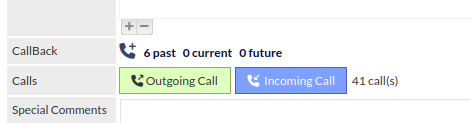
The Calls field has the following features:
- Outgoing Call - initiate and add a note for an outgoing call
- Incoming Call - add a note for an outgoing call
- Call counter - running total of all calls
Pressing the Outgoing Call or Incoming Call buttons displays a pop-up Call Note window:
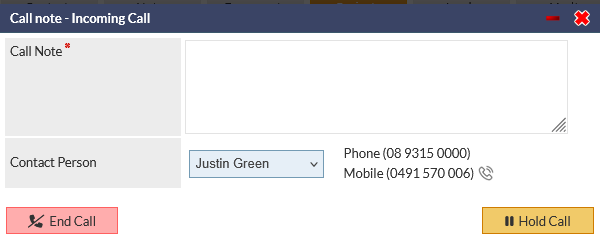
Selecting a Contact Person from the list of contacts displays the telephone numbers for the contact.
If call dialling is enabled in your CommTrak, a telephone icon is displayed next to the telephone number (visible adjacent to the mobile number in the previous image). Clicking the phone icon will initiate your call dialler.
Cancel the call
Press the red X icon (top-right in the previous image) to close the pop-up window without saving the call details.
End Call
Press the End Call button to save the call as a note - Call Note field is mandatory.
Hold Call
Press the Hold Call button to close the Call note pop-up window, but continue the call.
Pressing the red bar (minus) icon in the Call note pop-up window title (visible in the previous image) has the same effect as pressing the Hold Call button.
Holding a call enables you to navigate elsewhere in CommTrak, whilst being able to return to the Call note pop-up window. When a call is on hold, the telephone handset icon is displayed in the CommTrak Information Bar to indicate that a call is in progress:

Hovering over the handset icon displays a tooltip with the call details (not visible in the previous image).
Pressing the handset icon opens a new browser tab to display the component in which the call was initiated (e.g. Ticket, Job, Lead, etc), and the Call note pop-up window is displayed automatically.
When a call is on hold, the Calls field to show a Call in Progress button:

Pressing the Call in Progress button displays the Call note pop-up window.
Call Notes
All call notes are added as a note as appropriate for the module in which the call was made. For example, when adding call note from a Lead, a Lead note is added, when adding a call note from a Ticket, a Ticket note is added, etc.
Productivity Activity Timer in CallTrak Calls
When adding a call note with in a Ticket or a Job, there is an option to Start Timer:
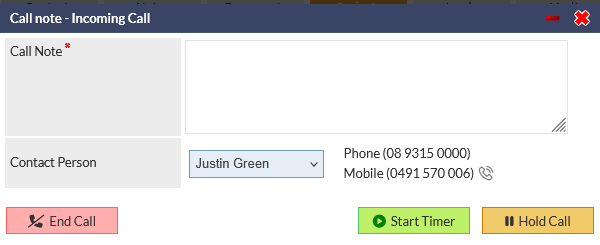
Pressing the Start Timer button initiates the Job /Ticket productivity timer. Please refer to Support Centre article Productivity Timers for more information about this feature.
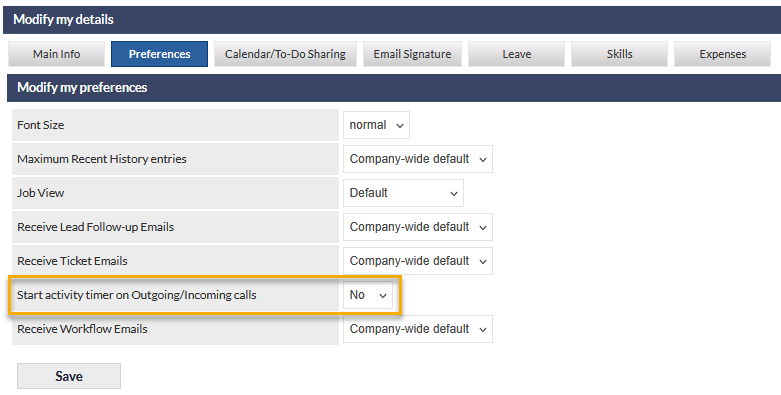
By default the timer must be started by pressing the Start Timer button. If a user prefers to have the timer start automatically when a call is initiated, there is a user preference in My Details, which can be set to Yes, if desired: