
Customer Projects Screen
The Projects module is not enabled by default. If you require access to the Project Module, please contact CommTrak Support.
This article pertains to the Customer Projects screen, accessed by clicking the Projects tab at the top of a Customer's screen. For information pertaining to the Active Projects screen; a list of all active Projects for all customers (which can be filtered according to various criteria), see Support Centre article, Active Projects Screen.
 The Projects screen consists of the following sections:
New Project
Press to create a new project.
The fields displayed are:
Project Name (mandatory)
The name of this Project. This name does not need to be unique.
Project Template (default Not Specified)
This field is optional. If there are any Project Templates available, one can be selected from this list if required.
Action Buttons
- Add - the Project will be created, and the customer's Projects tab is displayed
- Cancel - the Project creation is cancelled, and the New Project fields are hidden
Active Projects
The Active Project section lists all Active Projects for this customer (if any).
Progress Column
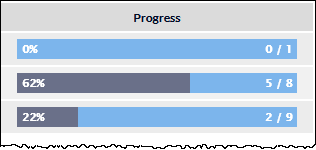
The Progress column displays a visual indication of the progress of the Project, based on the number of completed Project Tasks.
Previous Projects
The Previous Project section lists all completed Projects for this customer (if any).
A Project is considered completed when all Project Tasks have been completed and there are no Unallocated Related Components.
A Project is not considered complete if there are any Unallocated Related Components. Such components must either be removed from the Project, or assigned to a Project Task and completed.
Cancelled Projects
The Cancelled Projects section lists all cancelled Projects for this customer (if any).
A Project can be cancelled by viewing the Project and pressing (pinned to the bottom of the Project screen).
A cancelled Project can be reactivated by viewing the Project and pressing (pinned to the bottom of the Project screen).
Viewing a Project
To view a Project, press anywhere on the Project row in any of the Project lists.
The Project will displayed in the Projects tab of the customer record.