What's New November 2019
In this article:
Customer and Lead Access Hierarchy Updates
Project Cancellation and Reactivation NEW
Data Sheet Additional Placeholders Updates
Related Documents Improvements Updates
Ticket Dashboard Subtypes Added NEW
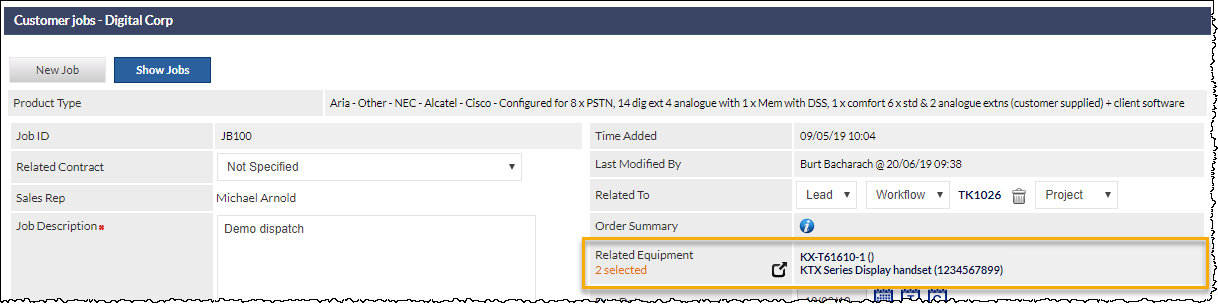
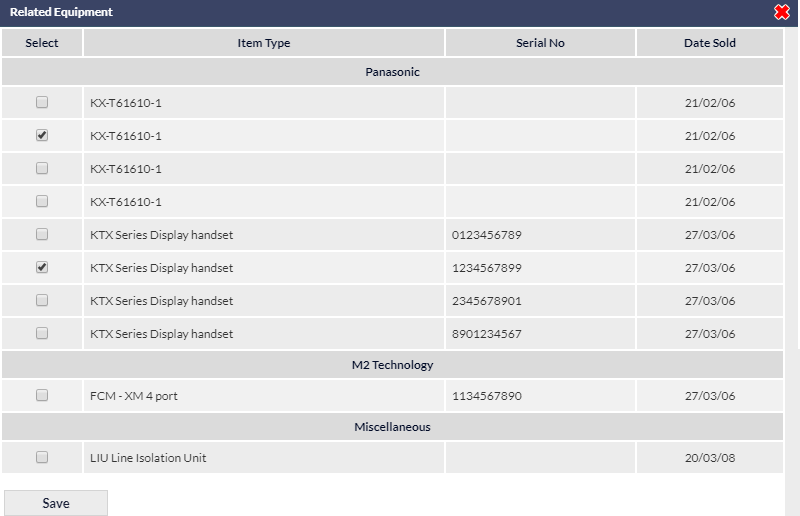
Inventory Items Related to a Job Updates
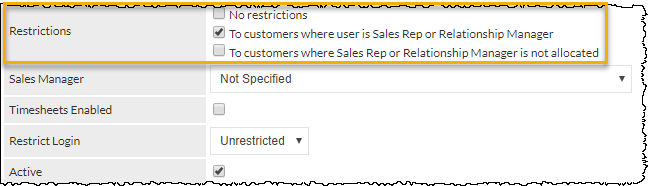
Customer and Lead Access Hierarchy
Project Cancellation and Reactivation
It is now possible to cancel a Project:
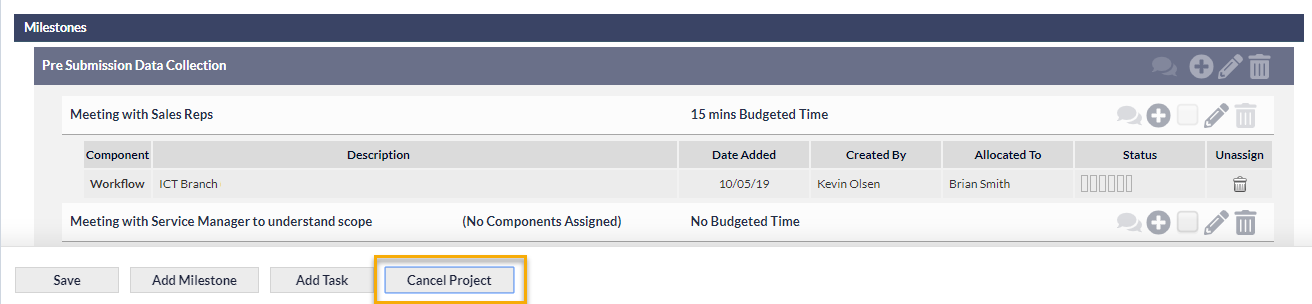
Once cancelled, two options are available when viewing the cancelled Project:
- You can the Project with all the component links intact (e.g. Tickets, Jobs, Workflows)
- You can cancel the Project and permanently
The option is irreversible!
Only a Project Manager can disconnect the components from a cancelled Project.
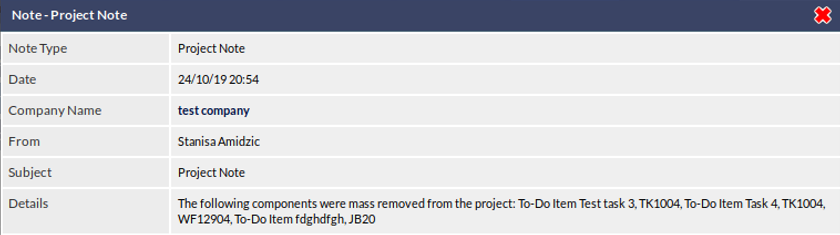
When the components are disconnected, a Project note is added to identify the removed components:
Data Sheet Additional Placeholders
Additional placeholders have been added to the Data Sheet settings for the Jobs module:
- Equipment information
- Booking information (displayed once the Job is booked)
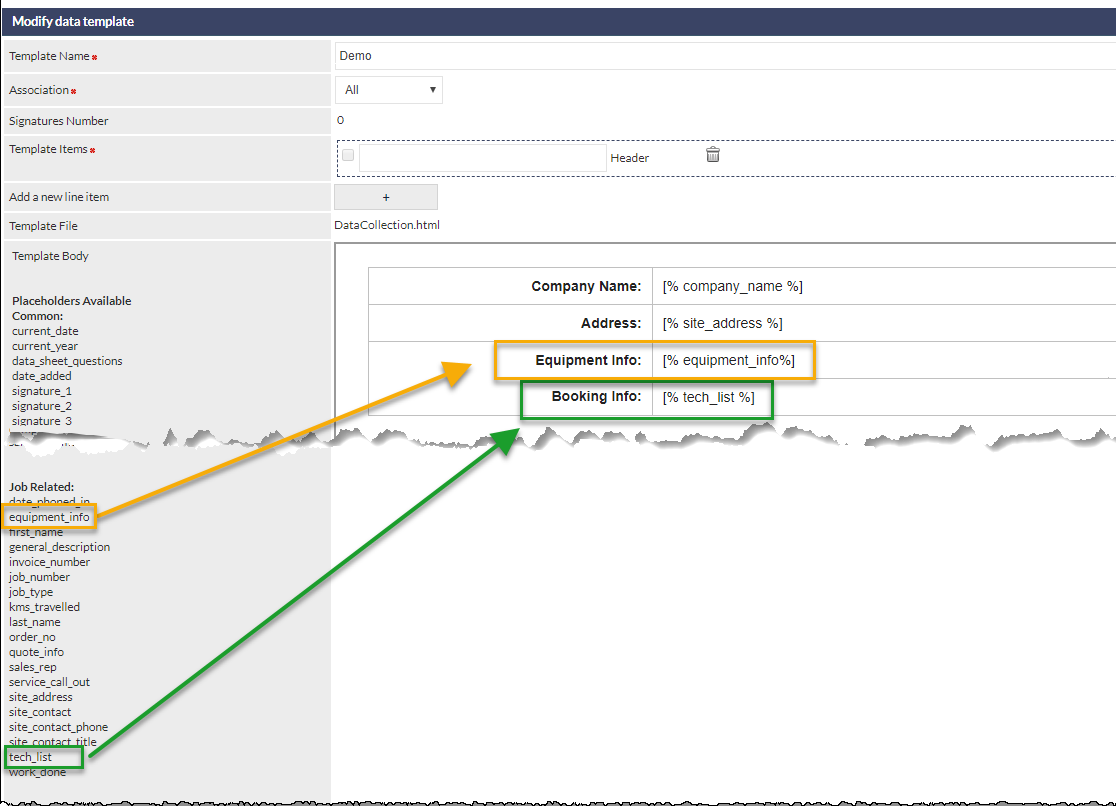

We are often asked about creating templates. Your web designers are usually a great resource, or we can outsource this for you. Please contact CommTrak Support for more details. A number of templates are provided as examples.
Related Documents Improvements
A change has been made to highlight the specific documents related to a module. This impacts all areas with Related Documents:
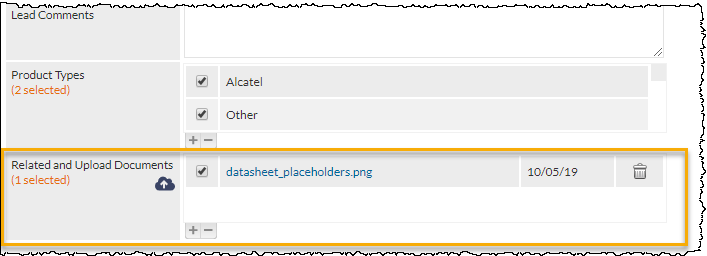
The only documents displayed in the Related and Upload Documents panel, are those documents which have been specified as being related to this item (e.g. Lead, Job, etc).
To add a Related Document, click the cloud icon (shown in the above image); the Related Documents pop-up window is displayed:
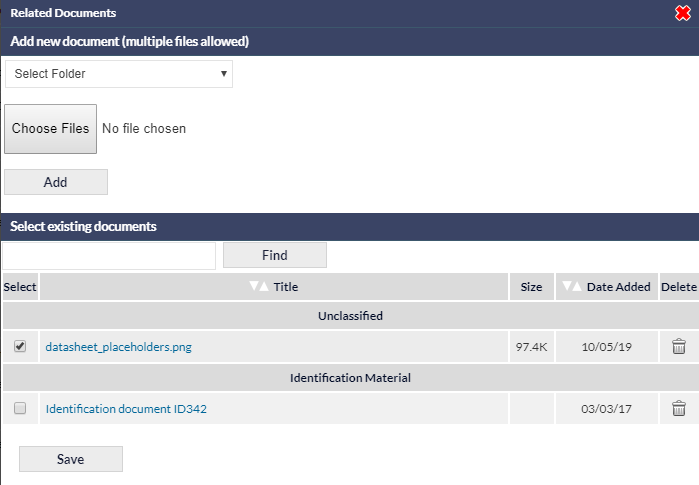
The Related Documents window enables the user to:
- Upload new documents
- Select documents in the current Lead or Customer Documents library, by ticking the required item(s)
Documents are listed in date order, per document folder.
There is also a Find option: enter the name (or partial name) of a document, and click to filter the list of documents.
Tickets Dashboard Subtypes Added
When Ticket Subtypes have been specified for Tickets, as shown in the following image...
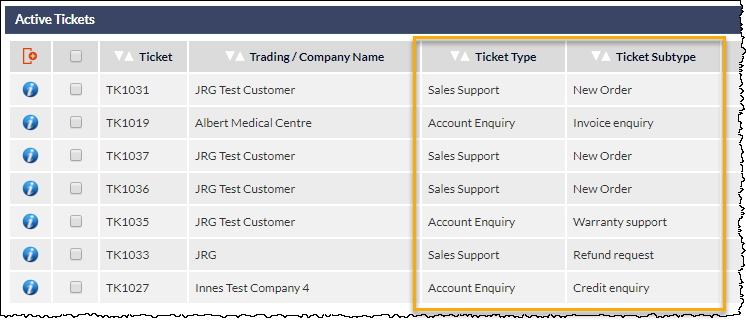
... the Ticket Subtypes will be displayed on the Tickets Dashboard:
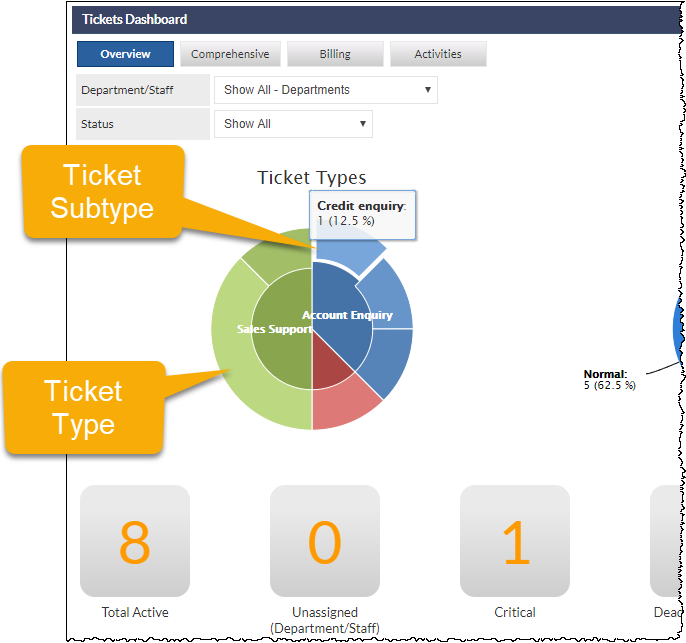
Ticket Types and Subtypes are configured in Ticket Types (Settings).
Inventory Items Related to a Job