
Forgot Your Password?
This article pertains only to CommTrak Local Login. If your CommTrak has been configured to use Single Sign-On (SSO) such as Microsoft 365 login, please follow your organisation's procedures for accessing your SSO account.
Resetting your password does not cancel any account lockout duration that has been applied by your organisation's CommTrak Administrator.
If all attempts to reset your password fail, please refer to the Support Centre article Unable to Sign-in to CommTrak, prior to asking your organisation's CommTrak Administrator to contact CommTrak Support.
If you know your password, and wish to change it, please see the Support Centre article Change Your Password.
It happens to us all...
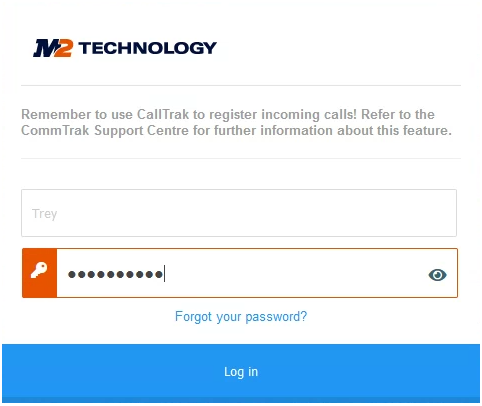
If you have forgotten your password, you can reset it by clicking the Forgot your password? link, which is displayed below the password field on the CommTrak login screen:
Reset your Password
- Click "Forgot Your Password?" on the login page (visible in the previous image).
- You will be prompted to enter your registered email address:
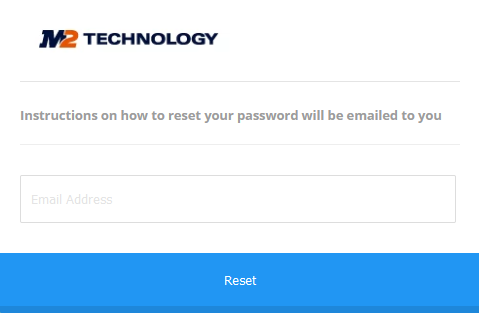
- Enter your registered email address and press the Reset button.
- Within a few seconds you will receive an email with the subject CommTrak Account Notification.
- Press the Reset Password button in the email:
The new password screen will open in your web browser:
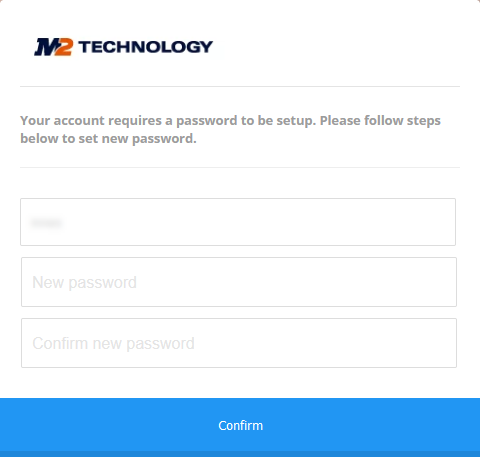
- Enter your username (case sensitive) into the first field.
- Enter and confirm your new password, ensuring that it conforms to your organisation's password complexity requirements.
- Press Confirm.
- You will be prompted to login to CommTrak.
- Log in with your username (case-sensitive).
If, after resetting your password, you are still unable to sign-in to CommTrak, please contact your organisation's CommTrak Administrator and ask them to provide you with a temporary password. When you sign-in with the temporary password, you will be forced to provide a new password to ensure that your active password is known only to you.
Password Reset Notification not Received?
CommTrak sends the notification email immediately, and there are a number of reasons why you may not have received the password reset notification email within two minutes of requesting it:
Entering the wrong email address
It sounds obvious, but when requesting a password reset please ensure that you are entering the email address associated with your CommTrak user account.
If the provided email address is not recognised, the following message will be displayed at the top of the screen:

The email address provided for a password reset must be entered exactly as stored in CommTrak. For example, if upper and lower case characters have been entered into CommTrak user settings, you must enter exactly the same characters when providing the email address for a password reset.
Multiple CommTrak accounts with the same email address
If two or more users have the same email address in their user settings, the Forgot your Password? feature will be unreliable because CommTrak is unable to determine to which email account the notification should be sent. Please ask your organisation's CommTrak Administrator to check other accounts that may be using the same email address.
Notification has been moved to junk mail
Please check your junk mail folder and update your junk mail rules.
General email problem
Please ask your IT support team to investigate (i.e. there is a problem with your email mailbox).