
Workflow Export
The Workflow Export utility provides two features:
- Download a template CSV file that can be used for creating new, and updating existing, Workflows
- Download existing Workflow settings, as a CSV file, for review and modification
In both cases, the resulting CSV file can be used by the CommTrak Support team to import or bulk update Workflow settings
Before updating a Workflow settings or Workflow template CSV, please discuss your requirements with the CommTrak Support team, who will be able to advise you regarding best practices.
The Workflow Export utility is accessed from the Utilities option in the CommTrak main menu:
Utilities > Workflow Export
The Workflow Export to CSV screen will be displayed:
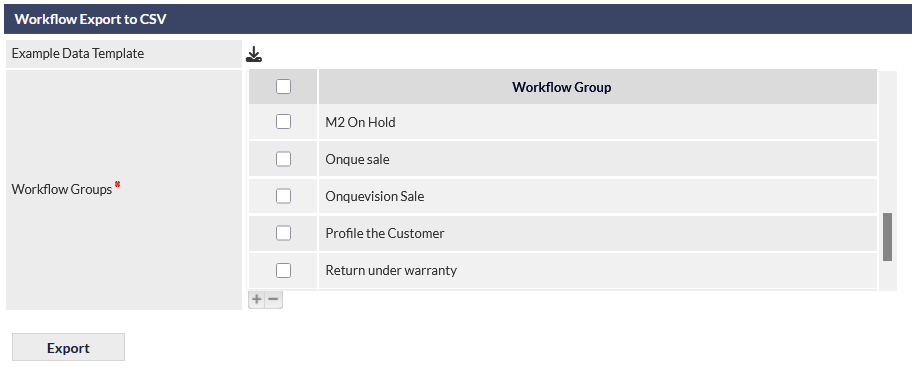
Export Data Template
- Click the download icon (visible in the previous image) adjacent to the Example Data Template label.
- The CSV template will be downloaded to your device.
Download Workflow Settings
You can export all Workflow Groups or select individual or multiple Workflow Groups.
- Select all Workflow Groups by ticking the box in the Workflow Group heading column - all workflow groups will be selected
or
- Select one or more Workflow Groups by ticking the box adjacent to the Workflow Group name
Tasks that are not currently assigned to a Workflow Group can also be selected for export by ticking the Tasks not assigned to any groups option at the top of the list (not visible in the previous image).
- Press Export to confirm the download
- The selected Workflow Groups will be downloaded as a CSV file.
The CSV file can then be opened and modified in Excel or another spreadsheet application.
Workflow Group Columns
The Workflow Group settings are exported as a CSV (comma separated value) file, that can be opened in Excel or other spreadsheet application.
The columns are as follows:
- Workflow Task Name
- Email when Deadline
- Due within
- Responsible Case Instigator
- Responsible Sales Rep
- Responsible Staff
- Responsible Department
- Task Hint
The Responsible Staff column contains the Staff ID or IDs assigned to the task. Where more than one staff member is assigned, the Staff IDs are separated by commas.
Obtaining Staff IDs
Staff IDs are required when entering staff members in the Responsible Staff column of a Workflow CSV file.
The Staff IDs can be obtained by exporting the list of users from CommTrak:
- Open the Users settings in CommTrak: Settings > User Settings > Users
- Use the Export option to export the list of users as a CSV file.
- Open the exported CSV file in Excel or another spreadsheet application.
- Locate the staff member you want to assign to the Workflow task and note their Staff ID.
- Enter the Staff ID in the Responsible Staff column of the Workflow CSV.
If assigning multiple staff members to the same task, enter their Staff IDs separated by commas. For example:
123,456,789
The Staff ID, rather than the staff member's name, must be entered in the Responsible Staff column.
Preparing a Workflow CSV
The exported Workflow CSV can be modified in a spreadsheet application before being provided to the CommTrak Support team for import.
When modifying the CSV:
- Do not change the column headings.
- Use the Staff IDs obtained from the Users export when assigning Responsible Staff.
- Separate multiple Staff IDs with commas.
- Save the completed file in CSV format.
Before submitting a modified Workflow CSV for import, please discuss the proposed changes with the CommTrak Support team. They can advise on the appropriate structure and any requirements for your particular Workflow configuration.