
CommTrak App (Beta) Login
The CommTrak Mobile App is currently in beta phase and access is by invitation only.
If you have been invited to join the beta program, this article contains information about logging into the mobile app.
If you have not received an invitation, you are welcome to email support@commtrak.com.au to express your interest in future access. Please note that beta access is strictly limited, and invitations are not being issued on request.
To login to the CommTrak mobile app, you must have:
- a compatible mobile device - most recent iPhones, iPads and Android devices are likely to be compatible
- the CommTrak mobile app beta installed on your mobile device. If you have been invited to the beta testing programme, you will have been provided with instructions on installing the app
- access to the CommTrak web app during the initial CommTrak mobile app authentication process. You must be logged into CommTrak to complete the authentication process
- your current CommTrak username and password
There is a one-off mobile device authentication process for each mobile device that requires access to CommTrak, and this process must be completed by each CommTrak user.
Mobile App Authentication Process
In the mobile app:
- Press - Add a user
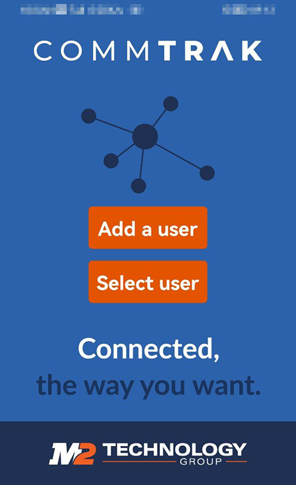
- Press Scan QR Code - allow CommTrak mobile app to use the device's camera
- The camera will activate - leave the app open on your mobile device
In the CommTrak web-browser app:
- Login to CommTrak
- Click My Details (in the CommTrak information bar):

- Click Devices
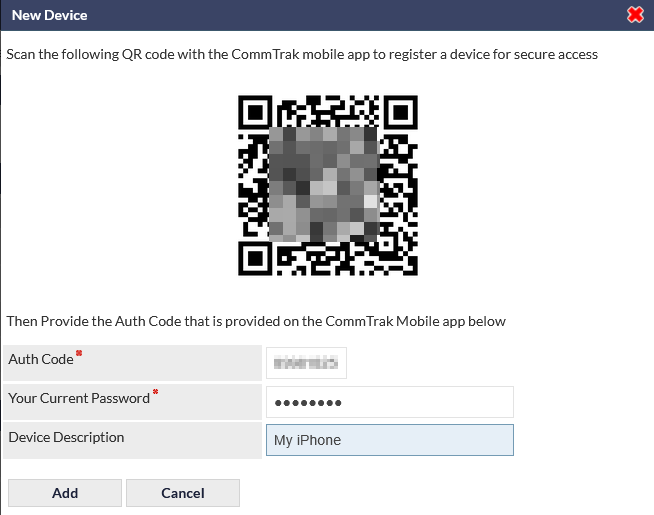
- Click Add New Device - an authentication QR code is displayed:
In the mobile app:
- Point the camera at the QR code on your CommTrak web app - the QR code will be read automatically when your camera has focussed on it
- The message Generating code... will be displayed on the mobile device
- An authentication code will be displayed on the mobile device
In the CommTrak web-browser app:
- Type the authentication code (currently displayed on the mobile app) into the Auth Code field
- Type your CommTrak password into the Your Current Password field
- Optionally (but recommended), enter a device name into the Device Description field - this will help you identify the correct mobile device if you have registered multiple devices (e.g. a phone and a tablet)
- Press Add to confirm
In the mobile app:
- Press Confirm Setup Complete
- You will be prompted to enter and reenter a PIN
- Press Set PIN to confirm
- Your mobile app is now logged-in to CommTrak