
Merge Customers
The Customer record merging features cannot be reversed! Prior to accessing and using these features, please read this article in its entirety, and ensure that you fully understand the merge processes and that you understand the ramifications of merging customer records as explained in the section Implications of Merging Customer Records (below).
There are two utilities available for merging Customer records:
The manual merge utility enables the user to select two Customer records and merge them into a single record.
The multiple customer merge utility searches the CommTrak Customer database for all records with similar company names, and presents options for bulk-merging those records. This feature requires the CommTrak Admin Password, which must be entered before the multiple merge options are displayed.
Accessing the Merge Customers Utility
Utilities > Merge Customers
The permissions required for merging customer records are: Utilities > Allow users to merge duplicate customers
Manually Merge Customer Records
Two customer records must be specified for merging.
Specify the Customer records to be merged:
- Search for the name of the first customer record, using the Find first customer search field.
- Search for the name of the second customer record, using the Find second customer search field.

The image above shows the two Find customer search fields completed with the names of the customer records to be merged.
Before proceeding, ensure that you have selected the correct customer records; a merge cannot be reversed!
Specify the Merge Method
Once two customer records have been specified, select the merge method.
The two options are:
- Merge and delete first
- Merge and delete second (default)

The image above shows the merge options, with the default selection of Merge and delete second, selected.
Before proceeding, ensure that you have understood which customer record will be retained, and which customer record will be deleted.
Merge and delete first
If this option is selected, the second customer record will be retained, and data from the first customer record will be moved to the second customer record. The first customer record will be deleted upon completion of the merge process.
Merge and delete second
If this option is selected, the first customer record will be retained, and data from the second customer record will be moved to the first customer record. The second customer record will be deleted upon completion of the merge process.
Confirm the Merge
No confirmation is requested after has been clicked; the merge occurs immediately, and is irreversible!
Click to confirm.
The two selected customer records will be merged into a single customer record, as specified in the Merge Method options.
Merge Multiple Customers
This feature searches the CommTrak Customer database for all records with similar company names, and presents options for bulk-merging those records. This feature requires the CommTrak Admin Password, which must be entered before the multiple merge options are displayed.
To access the Merge multiple customers feature, enter and submit the Admin Password:
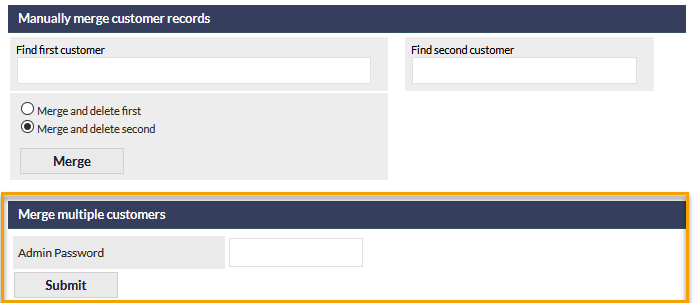
The Merge multiple customers options are displayed:
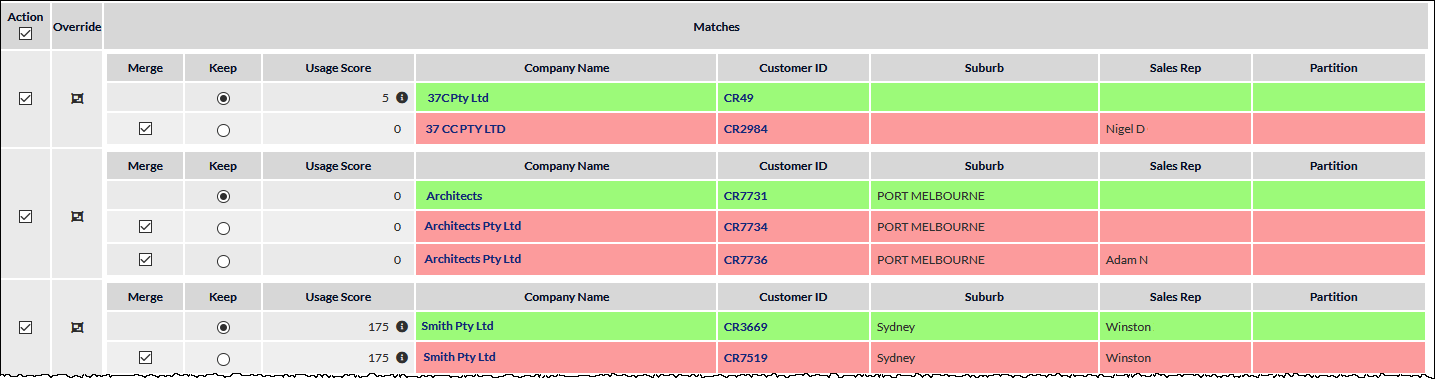
Customer records with similar names are presented as a collection; for example, in the previous screenshot, the Customer records for Architects, and Architects Pty Ltd (x2) are presented as a collection of three records.
Within each collection of matching Customers, one of the records is suggested as the record to keep (highlighted green), and the other matching records are suggested to merge (highlighted red).
The Company Name, Customer ID (CR number), Suburb, Sales Rep and Partition (if enabled on your CommTrak) are displayed for each customer record; clicking on the Company Name or Customer ID opens a new browser tab displaying the Customer Record, so the details can be checked.
Usage Scores
For each record, a Usage Score is displayed; this is intended to provide an indication of the relative use of this record, which may assist in identifying which record to keep, and which to merge. Hovering the mouse over the information (i) icon presents a pop-up containing more details about the score.
A usage score is an arbitrary measure of the activity for a Customer record (e.g. number of Contacts, Leads, Documents, etc.) and should only be used as a guide. Do not assume that the usage score is a guarantee of the accuracy of data within a Customer record; it is recommended that each record should be viewed and assessed prior to merging.
Selecting which records to Merge/Keep
Each record in a collection can be allocated to Merge or Keep; only one record in a collection can be allocated to keep. When a record is allocated to keep, all other records in that collection will automatically be allocated to merge into the kept record. The Merge box adjacent to any Customer record can be unticked, if the record is to be maintained as a separate Customer record.
Override (merging a single collection)
To merge a single collection (e.g. to merge only the Architects collection shown in the previous screenshot) click the Override icon (shown in the following image) for that collection.

Upon clicking OK in the confirmation dialogue box, the records in that collection will be merged immediately and irrevocably according to the Merge/Keep selections for each record in that collection.
Bulk Merge
To prevent the merging of a collection, untick the Action checkbox for that collection (visible in the first column of the previous screenshot).
Clicking prompts for confirmation, then immediately and irrevocably merges all selected records according to the Keep/Merge and Action selections.
Clicking only affects the records visible on the current page; if there are additional collections to merge, they will be displayed automatically, or, they can be displayed by clicking (the number displayed on this button is dependent upon the current selection in the per page drop-down list at the bottom of the screen).
Implications of Merging Customer Records
The information in this section applies to both the manual and multiple merge features.
Although the outcome of merging customer records may initially seem obvious, it is important to fully understand the implications of the merge process, prior to merging:
Only one customer record is retained!
Because two or more customer records are being merged into a single record, the information in the Customer record fields in the deleted record(s) will be permanently lost.
Each customer record can only have one company name, address fields, and other unique fields in the Customer record, therefore those fields cannot be retained from both records.
Explanation: Consider the following example screenshot:
...We have selected two Customer records: Digital Corporation and Digital Corp. Each of those Customer records may have different addresses, and different Sales Rep, Sales Contact, Account Status, Custom Fields, etc. When the records are merged, only one set of those fields can be kept. It is therefore important to ensure that the record to be kept has been updated with the correct information, and that there is no required information in the fields of the Customer record(s) that will be deleted.
When the merge occurs, those unique fields in the deleted record(s) will be permanently expunged.
Merged Items
The following is a list of the items that are merged:
- CallBacks
- Calls Incoming
- Calls Outgoing
- Checklists
- Contacts
- Customer Contracts
- Customer Flags
- Customer Product Types (aka Equipment Types)
- Customers
- Data Sheets
- Documents (See Document Merging section, below)
- F2F Events
- Inventory Dispatch Notes
- Inventory Items
- Inventory Orders
- Jobs
- Leads
- Notes
- Projects
- Tasks
- Telesales
- Telesales Opportunities
- Tickets
- Workflow Case Relationships
- Workflow Cases
Document Merging
When Customer records are merged, the following rules are applied:
Documents have the same name and identical content
Only the document from the retained customer record will be retained. The document from the merged (deleted) record will be deleted.
Documents have the same name and have different content
Both documents will be retained. The document from the merged (deleted) record will have the text .merged appended to the filename.
Example 1:
First company: Digital Corporation has a document named Requirements Specification.pdf.
Second company: Digital Corp has a document named Requirements Specification.pdf, and it has identical content to the document attached to the first company.
If the two Customer records are merged, using the Merge and delete second option, the file attached to Digital Corp will be deleted, because it is an exact duplicate of the document.
Example 2:
First company: Digital Corporation has a document named Requirements Specification.pdf.
Second company: Digital Corp has a document named Requirements Specification.pdf, but it has different content to the document attached to the first company.
If the two Customer records are merged using the Merge and delete second option, the file attached to Digital Corp will be renamed to Requirements Specification.pdf.merged, when it is merged into the first company record.
The following screenshot shows the results from a merge of documents with the same name, but different content:
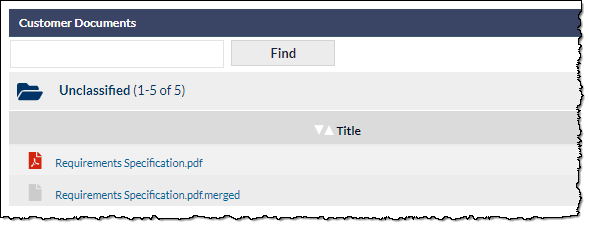
In order to view the .merged document, in the above example, the file will need to be renamed, to reinstate the .pdf file extension.
If a matching filename with the merged extension already exists (and the file content is different), the merge process will fail. If this issue occurs, please rename the existing merged file appropriately and rerun the merge process.