
Sending CommTrak Email via Microsoft 365
CommTrak supports the ability to send email directly through Microsoft 365; when enabled, CommTrak will communicate with Microsoft 365 directly to send email.
Summary of Benefits
- Reduction in sent emails being rejected as spam
- Provides greater email control and reporting for Microsoft 365 administrators
- The SPF record no-longer needs to include CommTrak email servers
Prerequisites
- CommTrak must have Microsoft 365 permissions: Microsoft 365 Integration (Settings)
- We advise against using a distribution group or alias as CommTrak's default email address, as this would require all staff to have MS365 Send As permissions for that group/alias.
- For staff who use Milestone email (template) features in Workflows and Jobs:
- Permissions must be added to allow all CommTrak users to Send As each possible outgoing email address(e.g. if a Workflow milestone email is configured to be sent from info@yourco.com.au, all staff who send such milestone emails must have Send As permissions for the info@ email address).
- Each outgoing email address will need each mailbox within the company to have Send As permissions in Microsoft 365
- Permissions must be added to allow all CommTrak users to Send As each possible outgoing email address(e.g. if a Workflow milestone email is configured to be sent from info@yourco.com.au, all staff who send such milestone emails must have Send As permissions for the info@ email address).
Adding Send As permissions
This section of the article is provided as a courtesy, to assist you in configuring MS365 email accounts and distribution groups to work with CommTrak. Do not make any changes to an MS365 account unless you fully understand the ramifications of any changes that you make.
To configure Send As permissions (see Prerequisites heading above), the process is as follows.
Visit https://admin.exchange.microsoft.com/ (you must be a Microsoft 365 administrator)
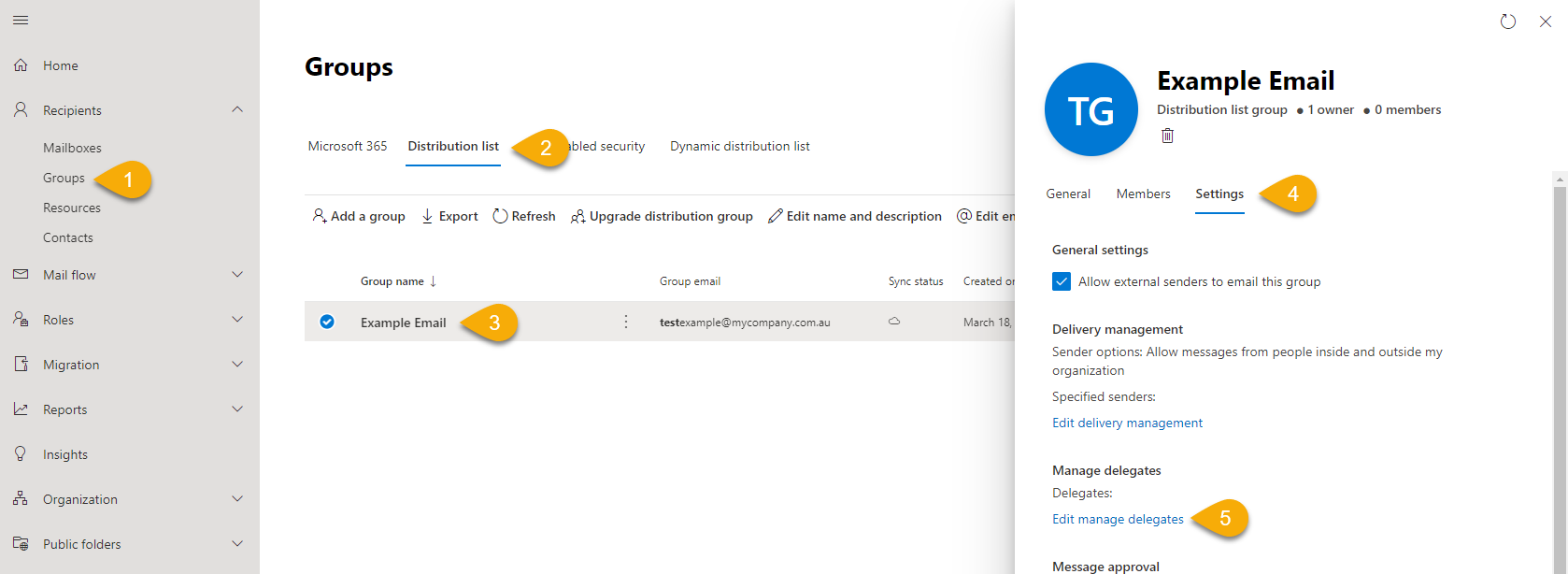
- Under Recipients, click on Groups
- Click on Distribution list
- Search for and open the distribution group
- Click on Settings (on the right side)
- Click Edit manage delegates
- Search for each staff member sending email within CommTrak
- From the dropdown, select Send As for each staff member
- Click Save changes and repeat for each mailbox/distribution group
Enabling Send As Microsoft 365 in CommTrak
To enable the Send As Microsoft 365 feature in CommTrak:
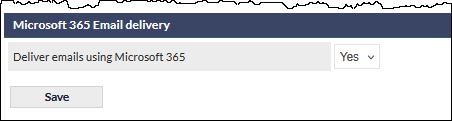
- Settings > General Settings > Microsoft 365 Integration
- Set Deliver emails using Microsoft 365 of SMTP mail server to deliver all outgoing emails to Yes and click Save.
Testing the emails
After enabling Send as Microsoft 365, tests should be performed to ensure mail flows through your system correctly.
This includes:
- Send an email to an email address outside your organisation (e.g. set up a test contact with an email address to which you have access, and send a contact email)
- Sending an email from outside your organisation's domain name, to generate a Ticket
- Sending a Ticket note to an external email address
Send As Configuration
Some modules in CommTrak provide for specifying a Sender Email Address. This allows for the use of a departmental or ticket email address (e.g. provisioning@yourco.com.au) , rather than sending from the current user's email address. This ensures replies to the email are sent to the relevant department, or that a Ticket is automatically created for the department when the recipient replies.
In these cases, users who are sending these emails must have Send As permissions which must be configured by the Microsoft 365 Administrator. Without appropriate Send As permissions, a warning message will be displayed to the user, advising that the email cannot be sent.
The following settings in CommTrak provide an option for specifying the Sender Email Address:
Workflow Email Templates (also known as milestone emails)
Settings > Workflow Settings > Email Templates > [select template] > [update Sender Email Address field]
Job Email Templates
Settings > Job Settings > Email Templates > [select template] > [update Sender Email Address field]
Please refer to the article, Sending CommTrak Email via Microsoft 365 for details pertaining to the configuration of Send As permission in Microsoft 365.