
Email Marketing List Creation
Prior to sending an email campaign from CommTrak, an Email Marketing list must be created. After a list has been created, the campaign can be sent from the Email Marketing module.
This article explains how to create and delete Email Marketing lists.
Please read the Email Marketing Overview article, prior to following the steps in this article.
Creating an Email Marketing List
The steps for creating an Email Marketing list are:
- In the Reports module, select a Report and specify the required criteria for the Email Marketing list
- View the Report on-screen
- Export the Report to an Email Marketing list
The final step is to send the campaign. Due to a recent update to this feature, the documentation for this process is currently under review; please contact CommTrak Support for assistance, if required.
Create the Report
Email Marketing lists can be generated within the following Reports in the CommTrak Reports module:
- Customers Report
- Leads Report
- Point of Sale Report
Email Marketing lists can only be created from the above Reports; this ensures that only active Customers and Leads can be targeted.
For information about creating Reports, see the Standard Reports article.
View the Report On-Screen
Once the Report criteria have been specified, it is highly recommended that the Report should be viewed on-screen, by using the Produce Report feature, prior to exporting the list.
See the Viewing a Report section in the Standard Reports article for information about viewing Reports on-screen.
Export the Report to an Email Marketing List
When the required Report criteria have been specified for the Email Marketing list, click at the bottom of the Report screen.
A window, similar to the one shown in the following image, will be displayed:
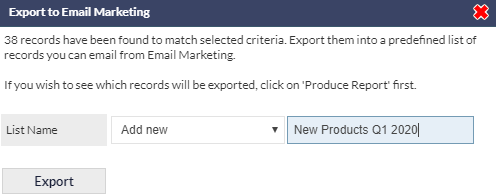
Ensure that the number of records to be exported is as expected; in the above example image, 38 records will be exported.
- Enter a unique name for the list, or select an existing list to overwrite
- Click
When providing a name for the list, it is best practice too include a description, and information including an identifying period, such as month or quarter, and year. This will enable easier identification of the list than an arbitrary label, such as New Products. In the above example image, the list is being clearly identified as the new products list for the first quarter of 2020.
If an existing Email Marketing list is selected in Step 1, above, it will be overwritten, and cannot be recovered.
After clicking , the list will immediately be available for selection in the Email Marketing module.
Delete an Email Marketing List
To delete a list:
- In the Reports module, select any one of the Reports from which an Email Marketing list can be exported
- Select a criterion that would produce some Report results (the selection of a valid criterion is an arbitrary requirement, to enable the next step to be completed)...
- Click
- In the Export to Email Marketing pop-up window, select the list to be deleted
- Click the trash-can icon to delete the list
- Click Okay to confirm or Cancel, as required
Once deleted, Email Marketing lists cannot be recovered; there is no undo function!