
Ticket Ignored Senders (Settings)
Occasionally, spam, or misdirected emails may be sent to an email account that is configured to automatically create CommTrak Tickets.
The Ignored Senders setting displays a list of currently-ignored sender email addresses, and enables the user to delete ignored senders if required.
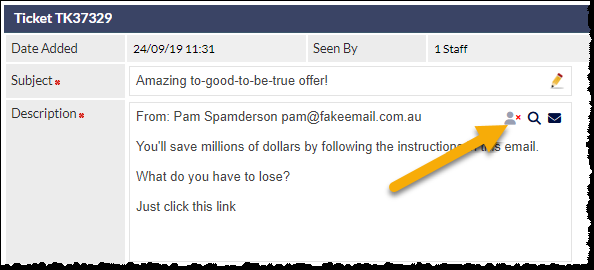
Senders can be ignored by clicking the Ignore Sender icon (highlighted in the image below) located within the Description field of tickets that have been created by Ticket-From-Email. The Ignore Sender icon is only visible to users with appropriate permissions (including Supervisor role, by default).
Enabling the Ignore Senders Feature
The Ignored Senders feature is disabled by default, and can be enabled in Ticket settings: Settings > Ticket Settings > Miscellaneous > Enable ability to ignore ticket email senders to avoid creating new tickets and notes.
Accessing Ignored Senders Settings
Settings > Ticket Settings > Ignored Senders
The settings screen displays a list of currently ignored senders (if any).
Viewing Ignored Sender Details
Clicking an email address in the ignored senders list, will display relevant statistics, as shown in the following image:
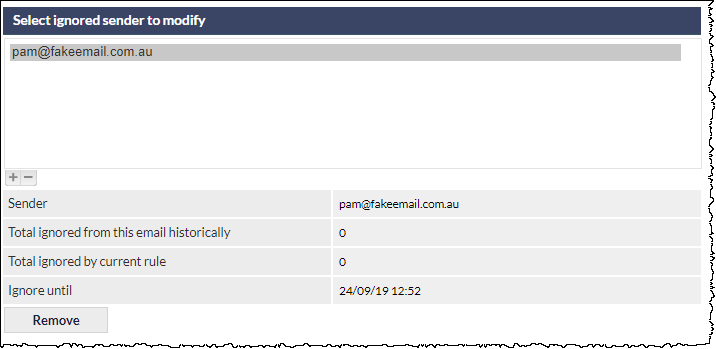
- Sender: the ignored email address
- Total ignored from this email historically: the total number of emails, from this sender, that have been ignored in all time
- Total ignored by current rule: the number of emails that have been ignored since the current rule was created
- Ignore until: the date / time that that his rule will automatically be removed
Removing an Ignored Sender
Click (shown in the above image), immediately removes the ignored sender entry, and future emails from the previously-ignored address will be received and processed by the Ticket-From-Email settings as usual.