
Leads Quote Templates - Built in HTML Editor
This article explains how to create / edit basic Quote Template using CommTrak's built-in HTML editor.
Please read the Lead Quote Templates (Settings) article prior to reading this article, to ensure that you are aware of the options available for Quote Templates.
Accessing Quote Template Settings
Settings > Leads Settings > Quote Templates
Add a Quote Template
In the Add new quote template section:
- Enter a name for the quote template into the Quote Template field
- In the Available To field, specify which staff will be able to access this template (see the heading Available To, below)
To create a Quote Template using the built-in HTML editor:
- Enter a Quote Template name
- Ensure the Quote Template Type field is set to Built in HTML editor.
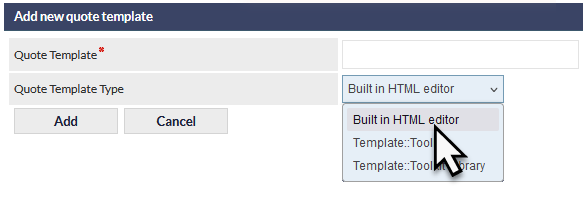
- Press the Add button to create the new template.
- Complete the Available To field...
Available To
By default, templates are available to all staff (Company-wide).
To assign a template to one or more staff members:
- Choose Selected Staff from the Available To dropdown field, then tick the box next to each staff member who should have access to the template.
- Press the Save button to confirm any changes.
Create the Template in the HTML Editor
- Create the HTML quote template in the Quote Body field (not visible in the previous image).
- Press the Save button to save the new Quote template (not visible in the previous image).
Please see the article HTML Template Editor Features, for more detailed information about how to use the built-in CommTrak HTML editor.
Edit a Quote Template
Settings > Leads Settings > Quote Templates
When viewing the list of available Quote Templates (in settings), each template item in the listing is identified as being assigned company-wide or to the specified number of staff, as shown in the following image:
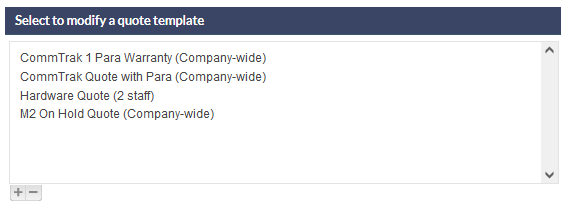
- Select a Quote Template from the list displayed at the top of the settings screen.
- In the Maintain quote template section, edit the Quote Template name, if required.
- The Quote Template Type field is read-only once a template has been created and saved, and will display Standard to indicate that this is a standard HTML quote template.
- Edit the HTML quote template in the Quote Body field.
- Press the Save button to confirm any changes.
Delete a Quote Template
Settings > Leads Settings > Quote Templates
- Select a Quote Template from the list displayed at the top of the settings screen.
- Press the Delete button.
Deleting a Quote Template cannot be reversed.
Placeholders
Various placeholders can be used within the body of the quote. When the quote is created, the template placeholders will be replaced by the relevant information from the CommTrak database.
For example, the placeholder %SALESREP% will be replaced, in the quote, with the name of the Sales Rep who is assigned to the Lead.
The available placeholders are displayed under the Legend heading of the Quote Body field of each template. Below is an extract from a screenshot of a quote template:
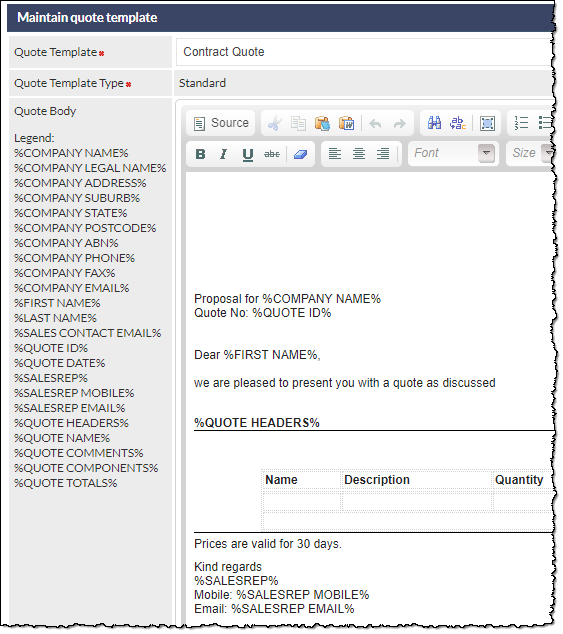
The above image shows a number of quote placeholders in the body of the quote template, including %COMPANY NAME% and %SALESREP%.
Click the required placeholder in the Legend, to copy it to your device's clipboard. The placeholder can then be pasted directly into the editor, in the required location.