
Email Marketing Email Templates (Settings)
This setting is used to configure email templates that can be used for sending Email Marketing campaigns from CommTrak's Email Marketing module.
Email Templates are a common feature throughout CommTrak; this article provides information pertaining to additional settings, and differences between Email Marketing Email Templates and standard Email Templates available within other CommTrak modules. Please see Support Centre article Email Templates (Settings) for information pertaining to common Email Template features.
Accessing Email Marketing Email Templates
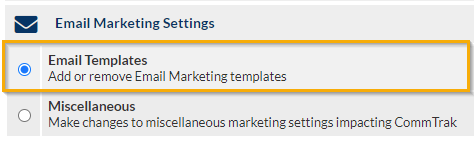
Settings > Email Marketing Settings > Email Templates
Add an Email Marketing Email Template
Enter a name for the Email Template into the Add a new email template field, and click .
The following fields will be presented:
Email Template (mandatory)
The name of the Email Template.
This name will be available for selection when sending a campaign from the Email Marketing module.
Email Subject
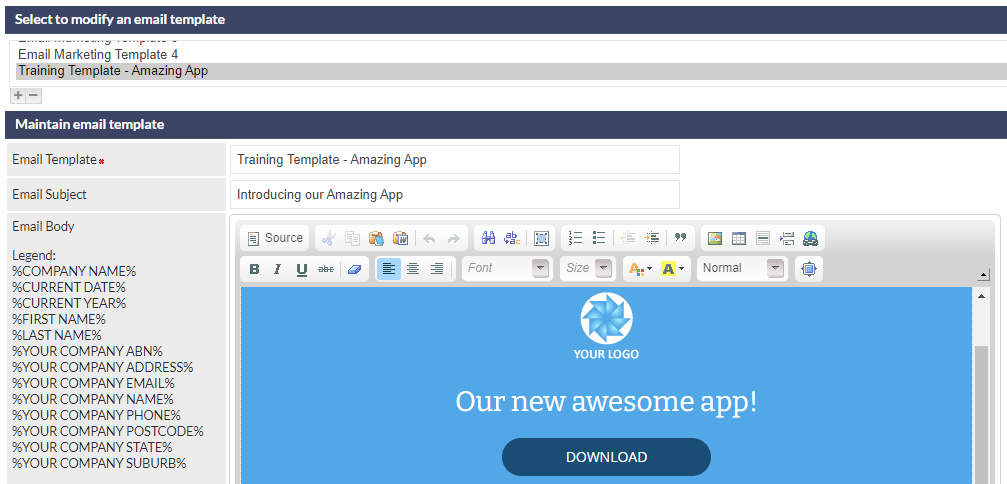
If required, an email subject can be specified in this field. When the email template is selected in the Email Marketing campaign, the Subject field will be populated with text in this field.
If this field is left blank, the Subject field will need to be completed by the user once they have selected the Email Template when sending a campaign in the Email Marketing module.
Email Body
This field is the template for the body of the email message.
Available placeholders are displayed under the Legend heading, in the Email Body field label.
See Support Centre article Email Template (Settings), for further information about editing the Email Body field, including the use of Placeholders, and the ability to preview the template prior to saving changes.
Modify an existing Email Marketing Email Template
- Select an Email Marketing Email Template from the list displayed at the top of the settings screen
- Edit the fields as required (refer to the available fields in the above article section, Add an Email Marketing Email Template)
- Click
See Support Centre article Email Template (Settings), for further information about editing the Email Body field, including the use of Placeholders, and the ability to preview the template prior to saving changes.
Previewing an Email Marketing Email Template
Click to send a preview of the email to the currently-signed-in CommTrak user.
The email will be received in the same format that campaign recipients will view the email, with the exception that any placeholders used in the template will not be populated in the preview.
Delete an Existing Email Marketing Email Template
- Select an Email Marketing Email Template from the list displayed at the top of the settings screen
- Click the button that is displayed below the Maintain email template section heading.
Deleting an Email Marketing Email Template cannot be reversed.