
Leads Fields (Settings)
The Leads Fields settings provide for making specified fields, within a Lead, mandatory at specific statuses.
For example, the settings can be configured such that a Lead's Forecast date field, must be completed when the status is set to 30% (and thus also mandatory for all later statuses).
The fields that can be marked as mandatory are:
- Sales Rep
- Contact Person
- Lead Source
- Lead Source Details
- Follow-Up
- Forecast
- Product Types
- Progress
- GP Value
- Lead Closing Comments (Successful and Unsuccessful statuses only)
- Workflow Case (Successful status only)
- Order No (Successful status only)
- Data Sheet (Successful status only)
- Reason (Unsuccessful status only)
Accessing Leads Field Settings
Settings > Leads Settings > Leads Fields
Making a Leads Field Mandatory
When in the Leads Fields settings screen, a Lead Status drop-down list is displayed:
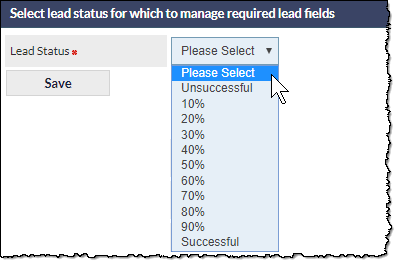
Select the status for which mandatory fields are to be specified.
A list of fields which can be made mandatory, for the selected status, will be displayed:
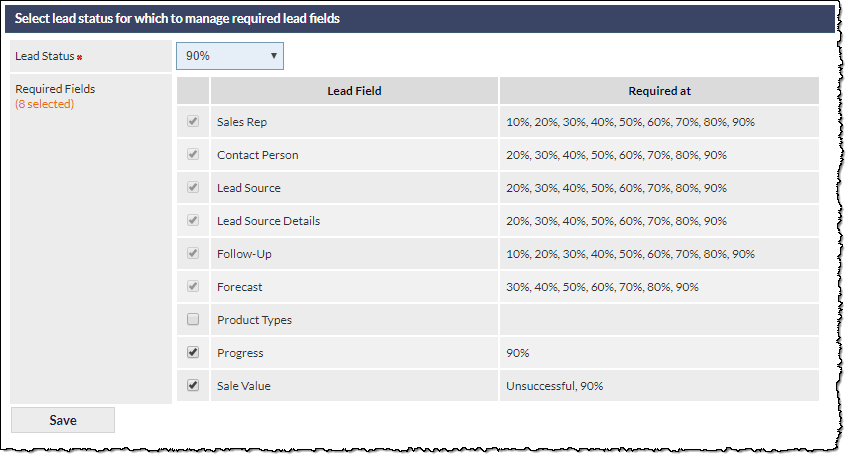
In the above example screenshot, the 90% Lead Status has been selected. The Leads fields that can be made mandatory for a 90% Lead status have been displayed in the Required Fields table, and the fields that are required to be mandatory at 90% status have been ticked, so they will be mandatory fields whenever a Lead status is changed to 90%.
In the above image, note that several of the Lead Fields have entries in the Required at column, and their tick-boxes are disabled (greyed, and unselectable). These entries indicate the Lead status at which each of those fields are mandatory. For example, the Sales Rep field was marked mandatory at 10%, so it must also be mandatory for all later statuses. The Forecast field was made mandatory at 30%, etc.
- Tick the fields that are mandatory for the selected Lead Status (Successful in the above image).
- Click to confirm any changes.
A fields only needs to be specified as mandatory for the earliest status at which that field must be completed; the field will automatically be mandatory for all later statuses.
Leads Fields Settings Outcome
The following image shows an example of a Lead with a status of 90%. The fields with a red asterisk denote that those fields are mandatory and, thus, the Lead record cannot be saved until those fields have been populated:
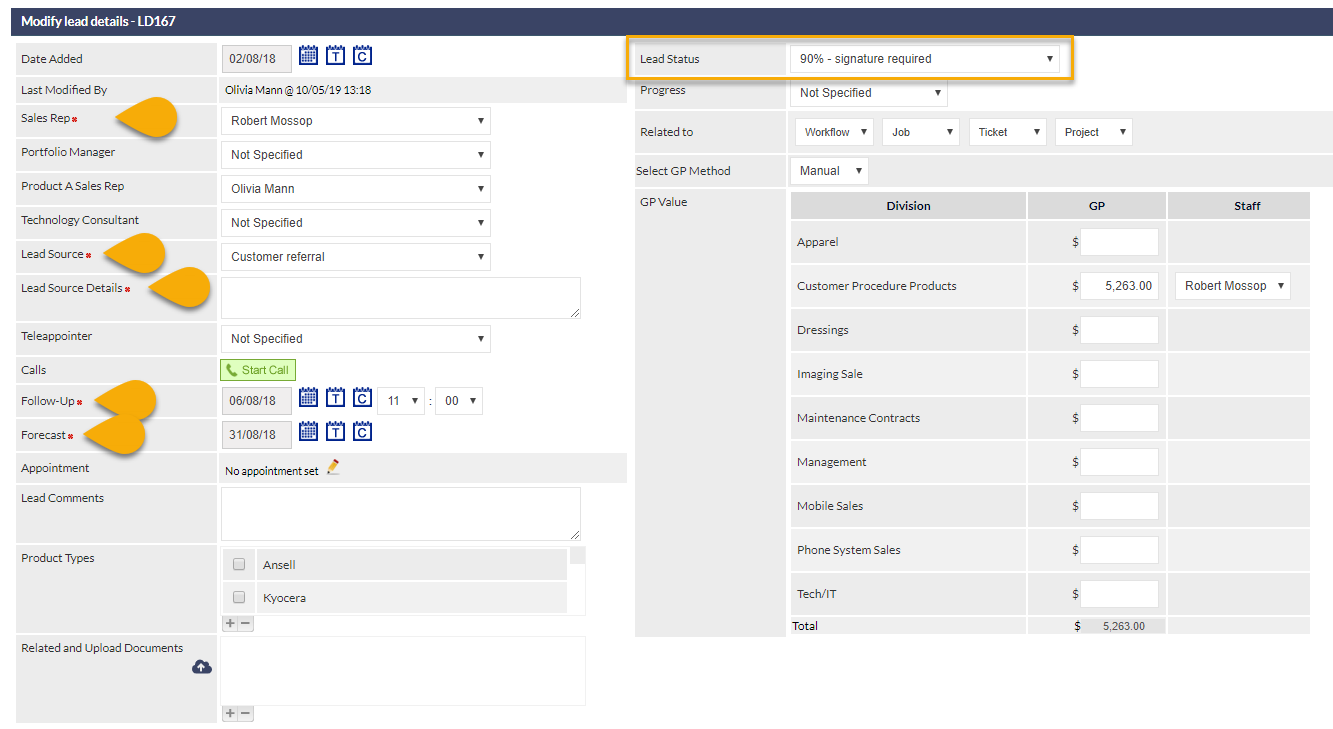
If the user attempts to save the Lead without completing the mandatory fields, a warning banner will be displayed at the top of the screen, and the incomplete mandatory fields will be highlighted with a red border, as shown in the following image:

The user must complete the mandatory fields prior to saving the Lead.