
Ticket Escalations (Settings)
Up to ten escalation rules can be specified per ticket-type, providing for automatic escalation email notifications to staff, and reallocation of tickets based on ticket inactivity.
CommTrak users do not see any indication of escalation rules in the Tickets module; all escalation rule activity occurs silently.
Escalation Triggers
The available triggers for escalation rules are:
- No additional work has been done after a specified number of days
- After a customer has replied to a CommTrak ticket, and no work has been done after a specified number of days
'No work has been done', means an additional note has not been added to the ticket within the specified period.
Escalations Actions
The available actions for escalation rules are:
- Email notification to the specified CommTrak user
- Email notification and reallocate the ticket to the specified CommTrak user
Accessing Ticket Escalation Settings
Settings > Ticket Settings > Ticket Escalations
Adding, Modifying or Removing a Ticket Escalation Rule
In the Ticket Escalations settings, select the type of ticket to which the escalation rule is to be applied
Select the required Number of Escalation Rules from the drop-down list:
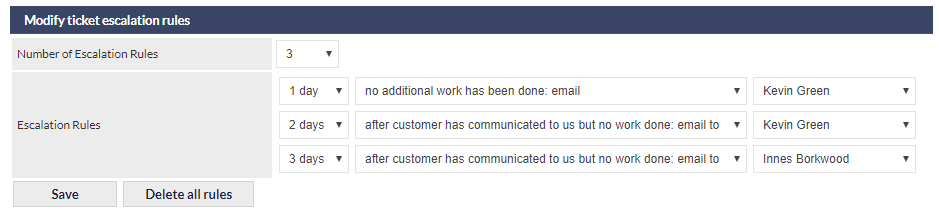
Reducing the number of escalation rules will hide the excess rules in the Escalation Rules list. For example, in the image above, changing the number of escalation rules to 2, will hide the third rule, which will subsequently be deleted upon saving the rule.
Increasing the number of escalation rules will add rows to the Escalation Rules list.
The default rule is:
- 1 day: after customer has communicated to us but no work done: email to [currently-logged-in user]
Change the following parameters for each rule, as required:
- Number of days (excluding weekend days) after which the escalation will occur (1-9 days)
- The trigger and action for the rule; one of:

- The CommTrak user to whom the notification will be sent / ticket will be reallocated.
Saving the Settings
To save any changes to the ticket escalation rules, click .
Deleting All Rules
All the rules, for the selected ticket type, can be deleted immediately by clicking .
Once deleted, escalation rules cannot be restored.